https://github.com/tchapi/own-private-cloud
🐳 ⛅ Your own private cloud services with Docker
https://github.com/tchapi/own-private-cloud
cloud containers docker open-source
Last synced: 10 months ago
JSON representation
🐳 ⛅ Your own private cloud services with Docker
- Host: GitHub
- URL: https://github.com/tchapi/own-private-cloud
- Owner: tchapi
- Created: 2019-10-02T12:33:41.000Z (over 6 years ago)
- Default Branch: master
- Last Pushed: 2024-11-16T15:51:55.000Z (over 1 year ago)
- Last Synced: 2024-12-10T04:10:27.122Z (over 1 year ago)
- Topics: cloud, containers, docker, open-source
- Language: HTML
- Homepage: https://www.foobarflies.io/your-own-public-cloud-why-not/
- Size: 396 KB
- Stars: 37
- Watchers: 6
- Forks: 10
- Open Issues: 0
-
Metadata Files:
- Readme: README.md
Awesome Lists containing this project
README
# Personal Infrastructure As A Service
✅ See [this blogpost](https://www.foobarflies.io/your-own-public-cloud-why-not/) and [this follow-up](https://www.foobarflies.io/a-year-with-my-own-public-cloud/) for a complete (and technical) explanation.
Services :
- Authelia — an Apache 2.0 OIDC provider
- Filebrowser — An Apache 2.0 simple web files browser / uploader and sharing interface
- Passbolt — A free, open-source, extensible, OpenPGP-based password manager
- Linkding — A MIT simple bookmarking service
- Davis — A MIT WebDAV, CalDAV and CardDAV server, based on sabre/dav
- kvtiles — An open-source map tiles server in Go, Apache 2.0 License
- Docker Mailserver — a MIT fullstack mail server
- Snappymail — an AGPLv3 simple and lightweight webmail forked from RainLoop
- Gitea — a MIT self-hosted git service with a web UI
- Outline — a BSL 1.1 knowledge base app with a web UI, _akin to Notion_
> All services are served through the Træfik reverse-proxy, certificates are provided by Let's Encrypt, and renewed automatically via Træfik.
# Installation
## Source the env vars needed for OpenStack
source openrc.sh
## Create the machine
docker-machine create -d openstack \
--openstack-flavor-name="b2-7" \
--openstack-region="GRA5" \
--openstack-image-name="Debian 9" \
--openstack-net-name="Ext-Net" \
--openstack-ssh-user="debian" \
--openstack-keypair-name="MY_KEY_NAME_IN_OPENSTACK" \
--openstack-private-key-file="/path/to/.ssh/id_rsa" \
default
## Install necessary packages on the host
docker-machine ssh default 'sudo apt update && sudo apt install -y -f software-properties-common fail2ban haveged'
- `software-properties-common` is a common package providing standard libs
- `fail2ban` is to prevent unwanted access
- `haveged` is for Passbolt - to generate entropy
> Note: if you don't use `docker-machine`, you can just SSH to the host normally too
## Mount external attached block storage volume
> The volumes must be attached beforehand in the OpenStack console
#### The databases volume :
docker-machine ssh default 'sudo fdisk /dev/sdb # n, p, w'
docker-machine ssh default 'sudo mkfs.ext4 /dev/sdb1'
docker-machine ssh default 'sudo mkdir /mnt/databases && sudo mount /dev/sdb1 /mnt/databases'
docker-machine ssh default 'sudo mkdir /mnt/databases/mysql /mnt/databases/pgsql /mnt/databases/filebrowser'
#### The files volume :
docker-machine ssh default 'sudo fdisk /dev/sdc # n, p, w'
docker-machine ssh default 'sudo mkfs.ext4 /dev/sdc1'
docker-machine ssh default 'sudo mkdir /mnt/files && sudo mount /dev/sdc1 /mnt/files'
docker-machine ssh default 'sudo mkdir /mnt/files/filebrowser /mnt/files/mails/data /mnt/files/mails/state /mnt/files/gitea /mnt/files/passbolt /mnt/files/webdav /mnt/files/linkding /mnt/files/outline'
## Get environment variables to target the remote docker instance
eval $(docker-machine env default)
### Alternatively, you can create a context via SSH:
Use the host user and name to create a new context (you can name it how you like, I used `cloud` here):
docker context create cloud --docker "host=ssh://ubuntu@my-cloud.me"
Then, you just have to `docker context use cloud` before being able to run commands as usual.
> You will find all your contexts with `docker context ls` :
>
> $ docker context ls
> NAME DESCRIPTION DOCKER ENDPOINT KUBERNETES ENDPOINT ORCHESTRATOR
> cloud * ssh://ubuntu@my-cloud.me
> default Current DOCKER_HOST based configuration unix:///var/run/docker.sock swarm
> Pay attention! `docker-compose` does not know of contexts ...
## Init all submodules to retrieve up to date code
git submodule update --init
> When rebuilding, don't forget to update submodules with `git submodule update --recursive --remote`
## Build all custom images
Build configuration files first (_so that environment variables are replaced correctly_):
./scripts/build-configuration-files.sh
And then build the images :
docker compose build
> If you want to extend the Docker Compose services definitions, you can create an addendum `docker-compose.supplementary.yaml` file for instance, and run `docker compose` using both files to merge the configurations:
>
> docker compose -f docker-compose.yaml -f docker-compose.supplementary.yaml ps
>
> You can check that your configuration is merged correctly with:
>
> docker compose -f docker-compose.yaml -f docker-compose.supplementary.yaml config
>
> See [this Medium post](https://pscheit.medium.com/docker-compose-advanced-configuration-541356d121de) for more details
## Provision the whole thing in daemon mode
docker compose up -d
🎉
## Create the Passbolt admin user
./scripts/passbolt/init-admin-user.sh
## Create the Gitea admin user
./scripts/gitea/init-admin-user.sh
## Create the Linkding single user
./scripts/linkding/init-user.sh
## Copy the custom template files for Gitea
These files resides in `configurations/gitea`; copy the `public` and `templates` folders to `/mnt/files/gitea/gitea/.` before provisionning the container, or restart it after doing it.
> **How to enable SSH passthrough for Gitea**
>
> If you want to be able to use the standard port 22 for git, you need to create a passthrough between your Docker host and the gitea container. In order to do so, you have many options as outlined in https://docs.gitea.io/en-us/install-with-docker/#ssh-container-passthrough.
>
> The container is setup for the first option (the shim), and you need to run `./scripts/gitea/init-ssh-passthrough.sh` **on your host** if you want to set it up in full. Be wary that the UID and GID used are `2022` and if you want to change it, you need to do it both in the `docker-compose.yml` file and in this script.
>
> If all succeeds, you will be able to test the SSH connection with `ssh -T git@${GIT_DOMAIN}` and you will be granted a message like so:
>
> _Hi there, {your_username}! You've successfully authenticated with the key named {your_ssh_key_name}, but Gitea does not provide shell access._
## Init the davis instance if needed (_if the tables do not already exist_)
./scripts/davis/init-mysql-tables.sh
## And finally, create a rule so that all the traffic of mail containers (SMTPD mainly) goes out by the `MAIL_HOST_IP` defined in your `.env` file
./scripts/mail/create-iptables-rule.sh
> ⚠️ WARNING ⚠️ : On Debian Buster (10), `iptables` now uses `nft` under the hood, and it just **doesn't work** in this case. You need to select the legacy iptables via `update-alternatives --config iptables` first, restart the Docker engine, and recreate the networks (_so that the rules are re-applied_) before playing the script above. See for instance https://github.com/docker-mailserver/docker-mailserver/issues/1356.
# Automatic backups
In the event of a burning datacenter, you might want to backup all your data to some other provider / server so that you can recover (most of) your data.
We're going to _incrementally_ backup `/mnt/database` and `/mnt/files` — that should be sufficient to help us recover from a disaster.
We use [**duplicity**](http://duplicity.nongnu.org/index.html) for this, and a S3-compatible backend to store the backups remotely (but with duplicity, you can use pretty much whatever service you want).
> See https://www.scaleway.com/en/docs/store-object-with-duplicity/#-Installing-Software-Requirements for more info on their Object Storage solutions and the way it works with duplicity
## Install Python 3.9.2 and the latest duplicity version
On the Docker host:
#### Install Python 3.9.2 (if needed)
sudo apt install --no-install-recommends wget build-essential libreadline-gplv2-dev libncursesw5-dev \
libssl-dev libsqlite3-dev tk-dev libgdbm-dev libc6-dev libbz2-dev libffi-dev zlib1g-dev
wget https://www.python.org/ftp/python/3.9.2/Python-3.9.2.tgz
tar xzf Python-3.9.2.tgz
cd Python-3.9.2
./configure --enable-optimizations
sudo make install # with 'sudo', we replace the original Python provided with the distro
#### Install Duplicity requirements
sudo apt update && sudo apt install -y -f gettext librsync-dev
#### Compile and install Duplicity with latest Python3.9 (_that we previously installed_)
wget https://launchpad.net/duplicity/0.8-series/0.8.21/+download/duplicity-0.8.21.tar.gz
tar xaf duplicity-0.8.21.tar.gz
cd duplicity-0.8.21
pip3 install -r requirements.txt
pip3 install boto # for S3 remote target
sudo python3 setup.py install
> You must create a `/root/.aws/credentials` file with your S3 credentials:
>
> [default]
> aws_access_key_id=EXAMPLE_KEY
> aws_secret_access_key=EXAMPLE_SECRET
>
> The user in which "home" you set these credentials will need to be the one running the cron task obviously. A simple solution would be to use `root`, since duplicity must be able to read all the files that you want to backup
## Add a crontab for the backup
Create `/etc/cron.d/backup_daily` with :
PATH=/usr/local/sbin:/usr/local/bin:/usr/sbin:/usr/bin:/sbin:/bin
42 01 * * * root duplicity incr --full-if-older-than 365D --volsize 1024 --asynchronous-upload --no-encryption --include /mnt/databases --include /mnt/files --file-prefix "cloud_" --exclude '**' /mnt/ s3:/// >> /var/log/duplicity.log 2>&1
> This will run every day, at 01:42 AM, as the `root` user.
Options (see http://duplicity.nongnu.org/vers8/duplicity.1.html):
- `--volsize 1024` : Use chunks of 1Go
- `--asynchronous-upload` : Try to speed up uploads using CPU and bandwidth more efficiently
- `--no-encryption` : Do not encrypt remote backups
- `--include /mnt/databases --include /mnt/files --exclude '**'` : Only backup `/mnt/files` and `/mnt/databases`
## Bonus: additional cli commands to work on backups
### Make a full backup (in case you need to start fresh)
duplicity full --volsize 1024 --asynchronous-upload --file-prefix "cloud_" --no-encryption --include /mnt/databases --include /mnt/files --exclude '**' --progress /mnt/ s3:///
#### List all backed-up files
duplicity list-current-files --file-prefix "cloud_" s3:///
#### Verify data (_in depth_) and its recoverability
duplicity verify \
--no-encryption \
--include /mnt/databases \
--include /mnt/files \
--file-prefix "cloud_" \
--exclude '**' \
--compare-data \
s3:/// /mnt/
#### Move another backup file to S3
With s3cmd:
s3cmd put file.zip s3://{bucket}/{path}/file.zip --storage-class=GLACIER --multipart-chunk-size-mb=100
> It's important to set a multipart chunk size so that the original file size divided by the chunk size doesn't exceed 1000 (chunks) since an upload can have at most 1000 chunks.
With aws cli:
aws --profile scw_profile s3 cp file.zip s3://{bucket}/{path}/file.zip
> You need to install `pip3 install awscli-plugin-endpoint` and create a profile in `~/.aws/config` beforehand:
>
> ```
> [plugins]
> endpoint = awscli_plugin_endpoint
>
> [profile scw_profile]
> region = fr-par
> s3 =
> endpoint_url = https://s3.fr-par.scw.cloud
> multipart_chunksize = 100MB
> s3api =
> endpoint_url = https://s3.fr-par.scw.cloud
> ```
#### Move a file on a S3-compatible storage to a Glacier class
With s3cmd:
s3cmd cp s3://{bucket}/{path} s3://{bucket}/{path} --storage-class=GLACIER --add-header=x-amz-metadata-directive:REPLACE
With aws cli:
aws s3 cp s3://{bucket}/{path} s3://{bucket}/{path} --storage-class GLACIER
# Updating
Update Dockerfiles or the `docker-compose.yml` file, then rebuild the images with `docker compose build`. You can then recreate each container with the newly built images with `docker compose up -d {container}`.
For some containers using a shared volume such as Davis (`/var/www/davis`) or Snappymail, you need to scrap the underlying volume before updating so that the code is _really_ updated on rebuild.
For instance:
docker rm -f davis davis-proxy && docker volume rm davis_www
docker container prune && docker image prune
docker compose up -d --force-recreate --build davis-proxy davis
or
docker rm -f snappymail snappymail-proxy && docker volume rm snappymail_www
docker container prune && docker image prune
docker compose up -d --force-recreate --build webmail-proxy webmail
> [!TIP]
>
> For the MySQL container to be updated correctly, you absolutely need to do a complete normal shutdown before bringing the new container up:
>
> 1. Update the MySQL version in the `Dockerfile-mysql`` Dockerfile
> 2. Build the image: `docker compose build mysql`
> 3. In the actual, running MySQL container, `mysql -uroot -p`
> 4. Issue a graceful shutdown with `shutdown;`
> 5. The container will then stop by itself
> 6. Bring the new container up: `docker compose up -d`
# SSL
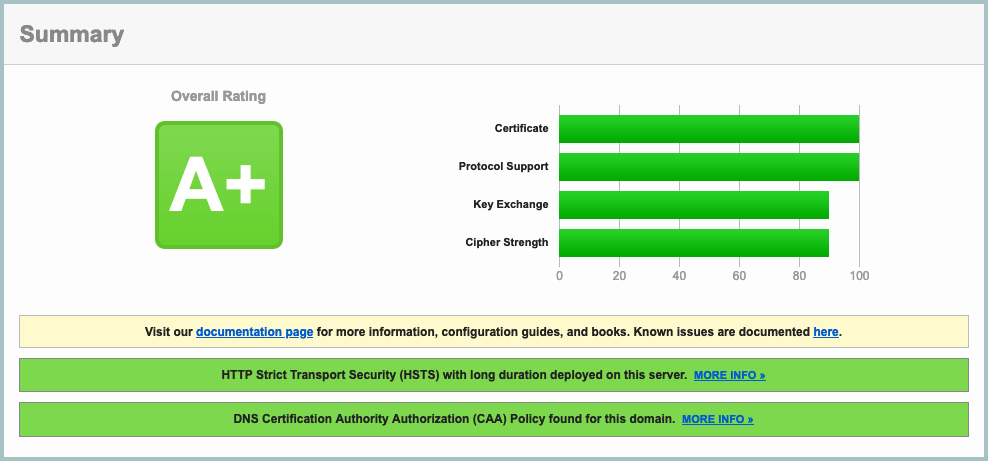
The given Traefik V2.0 configuration (_SSL params, etc_), along with a proper DNS configuration (including a correct CAA entry — see [here](https://blog.qualys.com/ssllabs/2017/03/13/caa-mandated-by-cabrowser-forum)), will result in a **A+** rating in [SSLLabs](https://www.ssllabs.com) :
# DNS entries for mail
You have to add some DNS entries to make your setup work. Run the following scripts to have them listed according to your environment values:
./scripts/mail/show-dns-entries.sh
## Test your email server
Test that your SMTP endpoint works as expected:
openssl s_client -starttls smtp -connect mail.mydomain.com:587
and:
openssl s_client -connect mail.mydomain.com:465
Both should yield a prompt, and say that the certificate is ok (`Verify return code: 0 (ok)`)
Test your IMAP endpoint (Dovecot) with:
openssl s_client -connect mail.mydomain.com:993
You can try to login with `A LOGIN {user} {password}` by replacing `{user}` and `{password}` with the real strings, which should yield something along those lines:
A OK [CAPABILITY IMAP4rev1 SASL-IR LOGIN-REFERRALS ID ENABLE IDLE SORT SORT=DISPLAY THREAD=REFERENCES THREAD=REFS THREAD=ORDEREDSUBJECT MULTIAPPEND URL-PARTIAL CATENATE UNSELECT CHILDREN NAMESPACE UIDPLUS LIST-EXTENDED I18NLEVEL=1 CONDSTORE QRESYNC ESEARCH ESORT SEARCHRES WITHIN CONTEXT=SEARCH LIST-STATUS BINARY MOVE SNIPPET=FUZZY PREVIEW=FUZZY STATUS=SIZE LITERAL+ NOTIFY] Logged in
## Specific mail IP address
When using a separate IP for the mail server, we need to add a rule to the `POSTROUTING` chain in the `nat` table to allow traffic originating from the mail network to go through the correct IP; On the Docker host, run:
sudo iptables -t nat -I POSTROUTING -s 172.100.0.0/16 -j SNAT --to $MAIL_HOST_IP
> Don't forget to set `MAIL_HOST_IP` beforehand if not done already. "172.100.0.0/16" is the subnet indicated in the docker-compose.yml file for the mail network.
To list all the rules in the `nat` table:
sudo iptables -t nat -L --line-numbers
# Run & Maintenance
To see the disk usage :
docker-machine ssh default "df -h | grep '^/dev'"
When making a block storage bigger :
1. First **stop** the container using it (filebrowser for instance, or many more if it's the databases)
2. Unmount the `/dev/sd*1` volume
3. Change the size in the Public Cloud interface
4. WARNING The volume name will likely change
4. `sudo fdisk /dev/sd*` (_no number here_): Delete (`d`,`w`) / recreate the partition (`n`,`p`,`w`) / `sudo e2fsck -f /dev/sd*1` / `sudo resize2fs /dev/sd*1`
5. Remount it
6. Restart the container
7. :tada:
See https://www.cloudberrylab.com/resources/blog/linux-resize-partition/ for more info
# Tips
> If you change databases.sh, you need to clear the content of `/mnt/databases/mysql` (and `couch` too if needed) on the host for the entrypoint script to be replayed entirely
### Redirect a domain to another one with Traefik
It's easy as to add rules to the `traefik` container. Example if you want to redirect `calendar.mydomain.com` to `dav.mydomain.com`:
```yaml
- "traefik.http.routers.legacy_calendar_to_dav.rule=Host(`calendar.mydomain.com`)"
- "traefik.http.routers.legacy_calendar_to_dav.service=noop@internal"
- "traefik.http.routers.legacy_calendar_to_dav.middlewares=to_dav"
- "traefik.http.routers.legacy_calendar_to_dav.tls=true"
- "traefik.http.middlewares.to_dav.redirectregex.regex=^https://calendar.mydomain.com/(.*)"
- "traefik.http.middlewares.to_dav.redirectregex.replacement=https://dav.mydomain.com/$${1}"
- "traefik.http.middlewares.to_dav.redirectregex.permanent=true"
```
### Username and password for the status page
In order to create a password for the status page (Traefik's default status page that will reside at https://status.mydomain.com), you need to create a username/password combo with:
```
htpasswd -nB username
> New password: ...
```
### Add a failover IP on Debian 9
Supposing an alias of `1`, and an interface of `ens3` :
Disable auto configuration on boot by adding :
network: {config: disabled}
in `/etc/cloud/cloud.cfg.d/99-disable-network-config.cfg`
Edit `/etc/network/interfaces.d/50-cloud-init.cfg` and add :
auto ens3:1
iface ens3:1 inet static
address YOUR.FAILOVER.IP
netmask 255.255.255.255
### The map tiles server
You can change the region, just grab a tag at https://hub.docker.com/r/akhenakh/kvtiles/tags, such as `france-13-latest` for instance.
The tiles server is available directly at https://{MAPS_DOMAIN}/. You can see a handy map at https://{MAPS_DOMAIN}/static/?key={MAPS_API_KEY}.
### How-to rename a docker volume
echo "Creating destination volume ..."
docker volume create --name new_volume_name
echo "Copying data from source volume to destination volume ..."
docker run --rm \
-i \
-t \
-v old_volume_name:/from \
-v new_volume_name:/to \
alpine ash -c "cd /from ; cp -av . /to"
### How to disable ipv6 on Debian
You might need this if Traefik does not manage to get certificates with a tls challenge (and if you don't have any ipv6 dns created)
sysctl -w net.ipv6.conf.all.disable_ipv6=1
sysctl -w net.ipv6.conf.default.disable_ipv6=1
sysctl -w net.ipv6.conf.lo.disable_ipv6=1
# Literature
- Docker best practices : https://blog.docker.com/2019/07/intro-guide-to-dockerfile-best-practices/
- Nginx Reverse proxy : https://www.thepolyglotdeveloper.com/2017/03/nginx-reverse-proxy-containerized-docker-applications/
- nginx TLS / SSL configuration options : https://gist.github.com/konklone/6532544
- Lets Encrypt with Docker : https://devsidestory.com/lets-encrypt-with-docker/
- Lets Encrypt with Docker (alt) : https://medium.com/@pentacent/nginx-and-lets-encrypt-with-docker-in-less-than-5-minutes-b4b8a60d3a71
- Create and configure a block volume in OVH Public Cloud : https://docs.ovh.com/fr/public-cloud/creer-et-configurer-un-disque-supplementaire-sur-une-instance/
- Shell command / Entrypoint in Docker : https://stackoverflow.com/questions/41512237/how-to-execute-a-shell-command-before-the-entrypoint-via-the-dockerfile
- Ignore files for Cozy drive : https://github.com/cozy-labs/cozy-desktop/blob/master/doc/usage/ignore_files.md
- Deploy your own SAAS : https://github.com/Atarity/deploy-your-own-saas/blob/master/README.md
- A set of Ansible playbooks to build and maintain your own private cloud : https://github.com/sovereign/sovereign/blob/master/README.md
## Mails
- How to run your own mail server : https://www.c0ffee.net/blog/mail-server-guide/
- Mail servers are not hard : https://poolp.org/posts/2019-08-30/you-should-not-run-your-mail-server-because-mail-is-hard/
- NSA-proof your e-mail in 2 hours : https://sealedabstract.com/code/nsa-proof-your-e-mail-in-2-hours/
- Mail-in-a-Box : https://mailinabox.email/
- Setting up a mailserver with OpenSMTPD and Dovecot : https://poolp.org/posts/2019-09-14/setting-up-a-mail-server-with-opensmtpd-dovecot-and-rspamd/
- OpenSMTPD: Setting up a mailserver : http://z5t1.com:8080/cucumber_releases/cucumber-1.1/source/net-extra/opensmtpd/doc/example1.html
- Test a SMTP server : https://www.stevenrombauts.be/2018/12/test-smtp-with-telnet-or-openssl/
- A simple mailserver with Docker : https://tvi.al/simple-mail-server-with-docker/
- A set of Ansible playbooks to build and maintain your own private cloud : https://github.com/sovereign/sovereign/blob/master/README.md
- Setting up an email server in 2020 with OpenSMTPD and Dovecot https://prefetch.eu/blog/2020/email-server/
- How to self-host your email server : https://www.garron.blog/posts/host-your-email-server.html
- About changing the outgoing address for a network of containers : https://medium.com/@havloujian.joachim/advanced-docker-networking-outgoing-ip-921fc3090b09
- An OpenBSD E-Mail Server Using OpenSMTPD, Dovecot, Rspamd, and RainLoop https://www.vultr.com/docs/an-openbsd-e-mail-server-using-opensmtpd-dovecot-rspamd-and-rainloop
## Dockerfiles :
- Cozy : https://github.com/cozy/cozy-stack/blob/master/docs/INSTALL.md
- Passbolt : https://hub.docker.com/r/passbolt/passbolt/
- Standard Notes : https://github.com/arugifa/standardnotes-server-docker/blob/master/Dockerfile
- MariaDB : https://github.com/docker-library/mariadb/blob/master/10.4/docker-entrypoint.sh
- x-browser-sync : https://github.com/xbrowsersync/api-docker
## Other alternatives
See https://github.com/Kickball/awesome-selfhosted for more awesome self-hosted alternatives.
### Other CalDav / CardDav projects worth noting
- SoGo : https://sogo.nu/support/faq/how-to-install-sogo-on-debian.html
- Radicale : https://radicale.org/
- Calendar Server: https://www.calendarserver.org/ (Apple)
- An android client app for CalDav / CardDav : https://gitlab.com/bitfireAT/davx5-ose - https://f-droid.org/packages/at.bitfire.davdroid/
### About the tiles server
- The blog post : https://blog.nobugware.com/post/2020/free-maps-for-all/
- The repository : https://github.com/akhenakh/kvtiles