https://github.com/testdotai/java-appium-sdk-demo
🎁 A demo/tutorial for java-appium-sdk
https://github.com/testdotai/java-appium-sdk-demo
ai appium appium-android appium-ios java selenium test-ai
Last synced: 4 months ago
JSON representation
🎁 A demo/tutorial for java-appium-sdk
- Host: GitHub
- URL: https://github.com/testdotai/java-appium-sdk-demo
- Owner: testdotai
- License: apache-2.0
- Created: 2022-01-25T23:13:04.000Z (over 4 years ago)
- Default Branch: main
- Last Pushed: 2022-03-11T07:03:06.000Z (over 4 years ago)
- Last Synced: 2025-06-05T20:05:08.171Z (about 1 year ago)
- Topics: ai, appium, appium-android, appium-ios, java, selenium, test-ai
- Language: Java
- Homepage: https://sdk.test.ai/
- Size: 6.42 MB
- Stars: 6
- Watchers: 4
- Forks: 4
- Open Issues: 0
-
Metadata Files:
- Readme: README.md
- License: LICENSE.md
Awesome Lists containing this project
README
# test-ai-appium-demo
[](https://adoptium.net)
[](https://www.apache.org/licenses/LICENSE-2.0)
[](https://sdk.test.ai/discord)
Welcome to the test.ai Appium Java demo!
This repository contains a pre-configured project and basic tutorial, so you can hit the ground running with [test.ai enhanced Appium](https://github.com/testdotai/java-appium-sdk)!
👉 This tutorial uses Android, but you will be able to use `test-ai-appium` with iOS as well.
## Pre-requisites
Before we get started, please ensure that you have installed the following software on your computer:
* [Java](https://adoptium.net) - version `11` or newer
* [Node.js](https://nodejs.org/en/) - version `16.13.2` or newer
* [Android Studio](https://developer.android.com/studio) - `2020.3.1` or newer
You will also need a test.ai account, please visit https://sdk.test.ai (it's free!) to register.
## An Introduction to the test.ai SDK
In the following tutorial, you will learn how to set up and run AI-enhanced Appium with test.ai.
Now that you have the pre-requisites installed, let's get started.
Please begin by cloning this repository to your computer.
```bash
git clone https://github.com/testdotai/java-appium-sdk-demo.git
```
### Configure Java
Now we'll install Java dependencies. `cd` into the root directory of this repository and run
```bash
./gradlew build
```
If you're using Windows, please run the following command instead:
```powershell
gradlew.bat build
```
### Configure the Android emulator
Next, we'll set up an Android emulator.
1. Open Android Studio and create a new project.
⚠️ if the [Setup Wizard](https://developer.android.com/studio/install) appears, please complete the wizard and install all the additional dependencies it suggests.
2. In the menu bar, go to `Tools` -> `AVD Manager` (`Device Manager` on newer versions of Android Studio). Click `+ Create Virtual Device...` (`Create Device` on newer versions of Android Studio), and select the option for `Pixel 4`.
3. Click `Next` and choose the option for `Pie`.
👉 If there is a `download` button next to `Pie`, please click it, wait for the download to complete, and then click `Finish`.
4. Click `Next`, and under `AVD Name`, call your new emulator `Pixel 4 Test.ai`. Click `Finish`.
5. Now click the green ▶ icon in the same row as your newly created Android emulator to start it (may take a few seconds to launch).
6. (Optional) If you are using a newer version of Android Studio, you can undock the emulator by clicking the ⚙️ icon in the upper right corner of the `Emulator` sub-window, and click `View Mode` -> `Window`
### Configure Appium
Next, we'll set up Appium. `cd` into the root directory of this repository and run
```bash
npm install
```
to install Appium. To start Appium, run
```bash
npx appium
```
👉 It is advisable to launch Appium in its own terminal window since it does not return terminal control back to you after starting.
### Run the demo
We're almost there! Please visit https://sdk.test.ai, and log into your account. Please copy your `API key` (in the upper right corner of your screen), you will need this for the next step.

It's now finally time to run the demo! `cd` into the root directory of this repository, and run the following command, replacing the text `YOUR_API_KEY` with your test.ai API key.
```bash
./gradlew run --args=YOUR_API_KEY
```
If using Windows, please run
```powershell
gradlew.bat run --args=YOUR_API_KEY
```
If everything worked, the [Wikipedia app](https://play.google.com/store/apps/details?id=org.wikipedia&hl=en_US&gl=US) will be installed in the emulator and launched. Then, the sample code in this demo will tap the button to skip the app setup, tap on the search button, type in a search term, and click the button to view an article.
🎥 Click [here](https://testdotai.github.io/static-assets/appium-demo/no_ai_example_flow.mp4) to see a video of the expected behavior.
Thus far, this sample code is using the standard Appium selectors without any AI, which is how apps today are commonly tested. However, these selectors are fragile and break easily, as even minor changes to an App may cause them to *immediately* stop working. Fortunately, the test.ai SDK is equipped to help you avoid this unecessary hassle.
### Using test.ai with Appium
Please visit https://sdk.test.ai (and log in to your test.ai account if you've been logged out).
You should see the following new entries on this page:
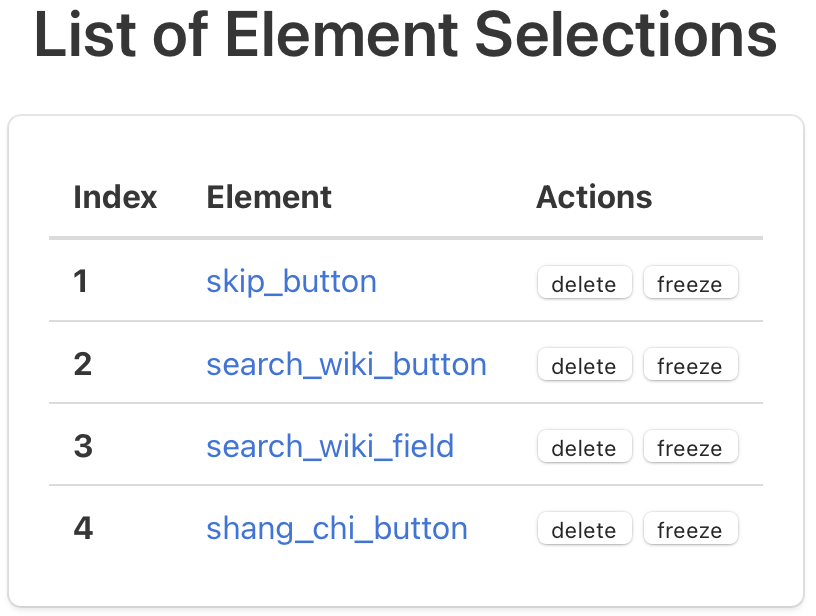
namely,
* `skip_button`
* `search_wiki_button`
* `search_wiki_field`
* `shang_chi_button`
Start by clicking on the link in the `Element` column for `skip_button`.
On this new page, scroll down until you see the `skip_button`. Now, using your mouse, click and drag a box around the button that reads `SKIP`. A green box will appear around your selection. Release your mouse button to save the selection.
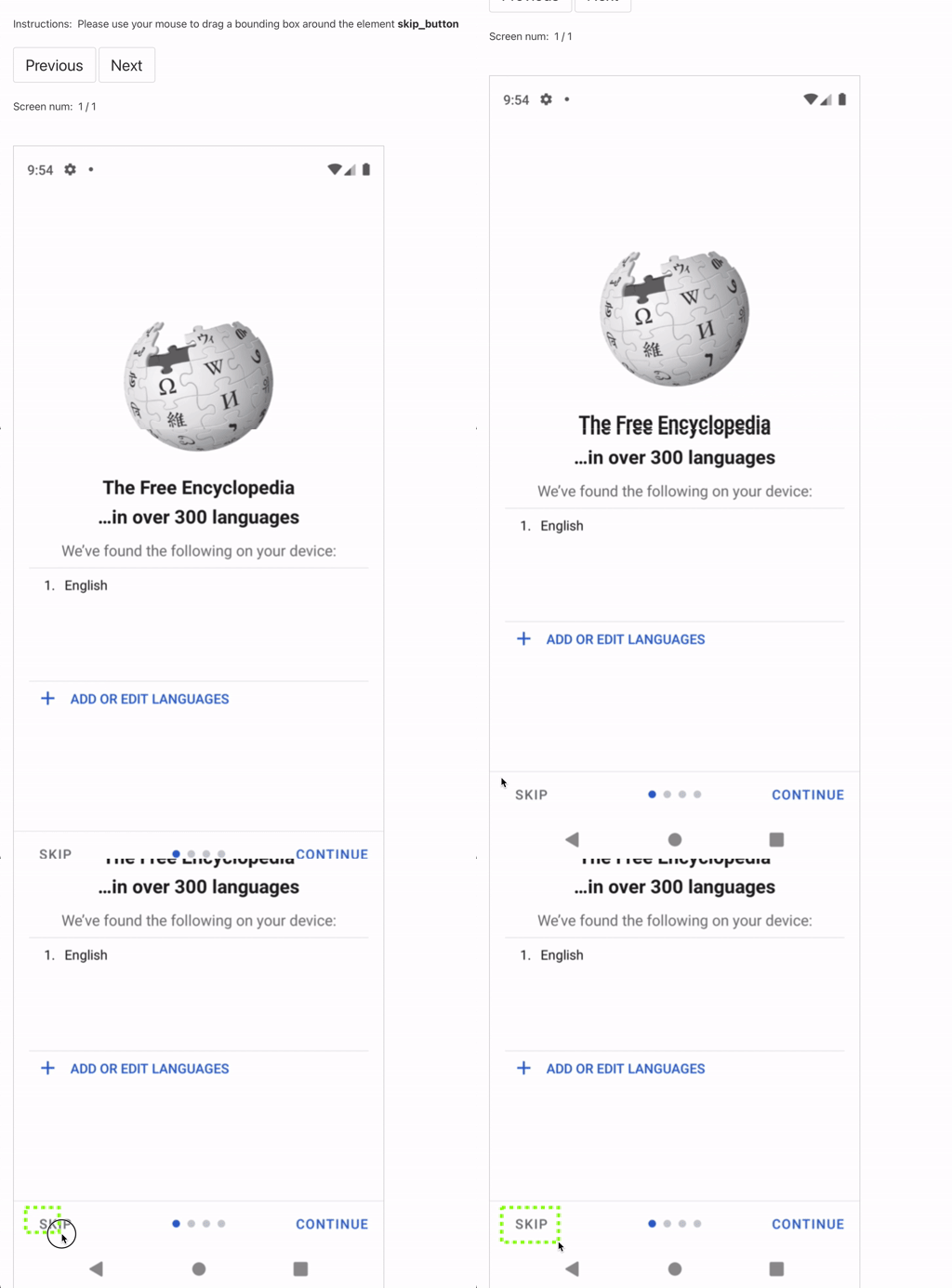
Believe it or not, you just used AI! test.ai is visual-based, so there's no need to mess around with Appium selectors. The test.ai classifier will train itself using the element inside the box you just drew with your mouse, and now, when it encounters this element in the future, it will be able to recognize it!
Let's do the same thing for the other elements.
#### `search_wiki_button`
(click to expand)

#### `search_wiki_field`
(click to expand)

#### `shang_chi_button`
(click to expand)
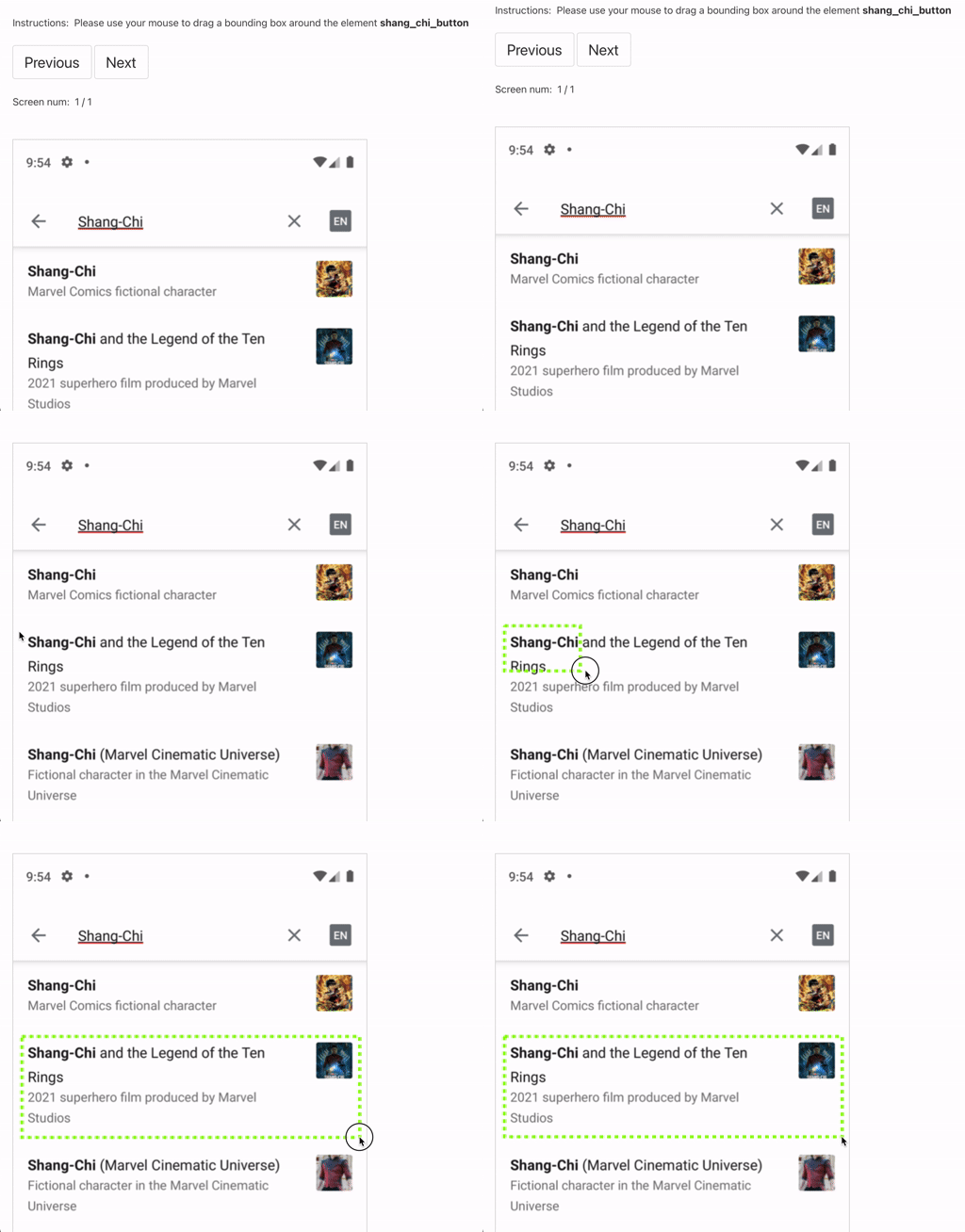
👉 Training takes a few minutes, you can check training status by visiting https://sdk.test.ai/training_status

Next, let's simulate what happens when a developer changes an App's code.
In the IDE of your choice, please open [src/main/java/ai/test/sdk/demo/Example.java](src/main/java/ai/test/sdk/demo/Example.java). This Java file contains an abridged form of what you might find in typical Appium-based test suite.
A few noteworthy items:
* The `AndroidDriver` gets passed as a parameter to a `TestAiDriver`, along with your API key.
* Each call to `findElementByXPath` contains a second parameter, which is used to give the element a human-readable name for use at https://sdk.test.ai
As you can see, it is very easy to integrate test.ai into your existing Appium-based test cases.
Now, let's change a couple of the XPath selectors:
```java
// Change this line:
MobileElement searchField = driver.findElementByXPath("//android.widget.TextView[@text='Search Wikipedia']", "search_wiki_button");
//to:
MobileElement searchField = driver.findElementByXPath("//android.widget.Button[@text='Search Wikipedia']", "search_wiki_button");
```
```java
// Change this line:
searchField = driver.findElementByXPath("//android.widget.TextView[@text='Shang-Chi and the Legend of the Ten Rings']", "shang_chi_button");
// to:
searchField = driver.findElementByXPath("//android.widget.ShangChiButton", "shang_chi_button");
```
As you may have already guessed, a standard Appium test would certainly fail, but test.ai won't!
### Re-run using AI selectors
⚠️ If you closed Appium and/or the Android emulator, please restart them with the instructions in the section at the beginning of this tutorial.
Using your terminal, `cd` into the root directory of this project, and run the following command, replacing the text `YOUR_API_KEY` with your test.ai API key.
```bash
./gradlew run --args=YOUR_API_KEY
```
If using Windows, please run
```powershell
gradlew.bat run --args=YOUR_API_KEY
```
The demo will repeat the same steps that it did previously, only this time, it's using test.ai! The "developer's breaking changes" we introduced in the code have no effect on the test's ability to run, all thanks to test.ai AI.
And that wraps up this tutorial! As far as next steps go, feel free to experiment more with this code and try out some of the other selectors. Good luck and have fun! 🎉
## Additional Resources
* [API docs](https://www.javadoc.io/doc/ai.test.sdk/test-ai-appium)
* [Another Basic Tutorial](https://sdk.test.ai/tutorial)
## Contact
Questions? Comments? We'd love to hear from you!
* ✉️ Email us: `sdk {at} test.ai`
* 💬 Chat with us on Discord: https://sdk.test.ai/discord