https://github.com/tidbitsjs/css-grid
https://github.com/tidbitsjs/css-grid
Last synced: 5 months ago
JSON representation
- Host: GitHub
- URL: https://github.com/tidbitsjs/css-grid
- Owner: TidbitsJS
- Created: 2020-07-27T10:56:08.000Z (almost 6 years ago)
- Default Branch: master
- Last Pushed: 2020-07-28T13:12:31.000Z (almost 6 years ago)
- Last Synced: 2025-06-01T16:31:15.964Z (about 1 year ago)
- Language: HTML
- Size: 1.13 MB
- Stars: 1
- Watchers: 1
- Forks: 0
- Open Issues: 0
-
Metadata Files:
- Readme: readme.md
Awesome Lists containing this project
README
# CSS Grid : Let's GriddYup

A CSS tool to create two-dimensional layouts on the web
## Introduction
A 26 video pack of WESBOS covers all the fundamental & advanced properties of CSS Grid that you need to learn. While learning Grid, I have decided to create a tutorial in my own language for self betterment & for others if it helps them in any way. Below are my wordings ready to take you on an adventure!
To get started, firstly create some starter files in your system to get along on the journey. You need to create a style page which will be used throughout the course. A `style.css` file has been created in the root folder.
`Image` folder contains the needed images that are required in this course for explanation & other things.
### 1.1 Grid Fundamental
Create a html file & don't forget to link `style.css` file.
As you can see my html file in `Grid Fundamentals`, it contains a `div` element with class `container` like below.
```html
Item
```
Note: You can add as much of `item` you want in your `container`.
If you haven't observed `style.css` properly then you all will be wondering about why children of container contain the same class name i.e `item`.
Let's study it in bit. You can see the style definition for `item` in the file. Ahh there it is, that you are looking, `display: grid` thing. That's what we all are here to learn about, GriddYup !
To use the CSS Grid tool, you have to first declare the display as grid like all other, know what I mean by 'all other'? These include our flexbox, block, inline, inline-block, or none. If you have ever used `flexbox`, then you might be aware of `justify-content` & `align-items`, right? If you are not, then these are the properties we can use to align or structure items respectively of their value. Here, it's the center.
```css
.item {
display: grid;
justify-content: center;
align-items: center;
border: 5px solid rgba(0, 0, 0, 0.03);
border-radius: 3px;
font-size: 35px;
background-color: var(--yellow);
}
```
Now you are comfortable with container & it's children, We can head forward to get our hands on our first tutorial i.e. Gird Fundamentals. Here we are displaying the container as Grid. Wait, what do you mean by displaying a grid? Before knowing about the grid, first let's clear this field of display. Display is kinda behaviour to render the box, that is how you want to see it as in your page. What as? Yeah the element to whom you are using this display properly. Cool!
What do you think of Grid? Yeah you got this. Its a structure of rows & columns. You Genius! Let's not delay further. Jump right on the properties of grid.
You see grid as a structure of rows & columns. But how you define these stuffs. If you want five columns for your beautiful photo gallery, how do you do that using grid? Great question! This is where `grid-template-columns` comes handy. You want columns, use that property with your choice of column size. There is no rule that all columns should have the same size. Not at all. Do anything you want bud.
```css
.container {
display: grid;
grid-template-columns: 100px 200px auto;
grid-template-rows: 100px 150px;
grid-gap: 20px;
}
```
Auto? What's that little word doing in `grid-template-columns`? Here for you, an explanation. Suppose, You want two to three columns of your choice of size and for the next column you don't want a fixed size. You instead want that to take the remaining place on your page. So far with me? Yeah it means it will adjust accordingly the size of the web page. Super flexible!
Happy with columns, now what about rows? So smart han? Yeah you are right, use `grid-template-rows` for declaration of how many rows of different size you want in your post. You can use `auto` here too. Same as `grid-template-columns`, it helps you for row structure.
I used columns & some rows in my page. But honestly, they are looking like a matrix or table with no space & padding. Seems not so good to me. Okay don't give you up as you have `grid-gap` with you! Yess, it adds padding or space in your rows & columns. Now it's decent no?
> Remember container is to whom you have used `display:grid` property, then by all means it's nothing but `Grid Container` & children of container are `Grid-items`
### 1.2 Implicit Vs Explicit Grid
Now the basic fundamentals are clear, we can dive in further stuff. One of the important thing to know about grid is it's type i.e. Implicit & Explicit. Look below the simple grid creation of a container.
```css
.container {
display: grid;
grid-gap: 20px;
grid-template-columns: 200px 400px;
grid-template-rows: 50px 100px;
}
```
Yeah as you see, we have created two columns of size 200px & 400px using `grid-template-columns` and two rows of size 50px & 100px with help of `grid-template-rows` declaration.
Now that's where the game begins, you declare rows and columns with their size but yet there is another row with different row size. How?
When you declare a grid with specific columns and rows then that's `Explicit Grid` and when you don't, off course it's `Implicit Grid`. In this scenario, after two rows, the automatically generated rows have default size. You can clearly distinguish between implicit and explicit grid with help of Dev Tools. You can do so in firefox in the layouts section. Explicit grid starts & ends with `bold` line while implicit with faint `dash` line.

Well in case if you don't want the default size for the implicit grid, then you can use the following properties to obtain desired results.
```css
.container {
display: grid;
grid-gap: 20px;
grid-template-columns: 200px 400px;
grid-template-rows: 50px 100px;
grid-auto-rows: 80px;
grid-auto-columns: 100px;
}
```
Property named `grid-auto-rows: 80px` adjusts the size of every implicit grid row. One thing to point out, we used `grid-auto-columns` but yet there is no extra specified column out there. Strange, isn't it?
### 1.3 Grid AutoFlow
Wondering why `grid-auto-columns` isn't working at all? Then you are at right place. Let's crack this down. Here we go.
When grid is implicit, then whatsoever elements that are out of explicit are automatically generated & placed as row rather a column. Know why? This is all because of `grid-auto-flow` which is by default set to `row`. And hence you didn't see any change in earlier example.
If you change 'grid-auto-flow' to 'column', then you can clearly catch those changes as all of your elements will be arranged column wise. Here is the snippet to get such result
```css
.container {
display: grid;
grid-gap: 20px;
grid-template-columns: 100px;
grid-template-rows: 100px;
grid-auto-flow: column;
}
```
> The `grid-auto-flow` does the same functionality as the `flex-direction` in flexbox. It's completely one's choice to use any of them.
Ever used instagram? I know it's not even a question worth asking. But why I mentioned gram here is notable. Seen Stroies? Yes, you have. Well you can create a gram story bar using a grid in a few steps without dealing with position and all. How? Pay a look down here.
```css
.container {
display: grid;
grid-gap: 20px;
grid-template-columns: 100px;
grid-template-rows: 100px;
grid-auto-flow: column;
}
.item {
border-radius: 50%;
}
```
Not to forget, you can use flexbox too. Remember, there are many ways to create the same thing. You got this.
### 1.4 Sizing Tracks
Well we know that grid is made of horizontal & vertical lines, yeah rows & columns in other definitions. There is a convention called Grid layout where how the grid is made up of is stated. If you use firefox browser, then you can see the layout section in dev tools. There are few concepts in grid that we use unknowningly. These include grid lines, grid tracks, grid item, grid cell & grid area. I have found this beautiful image description of Grid layout on webo. Kudos to Creator!
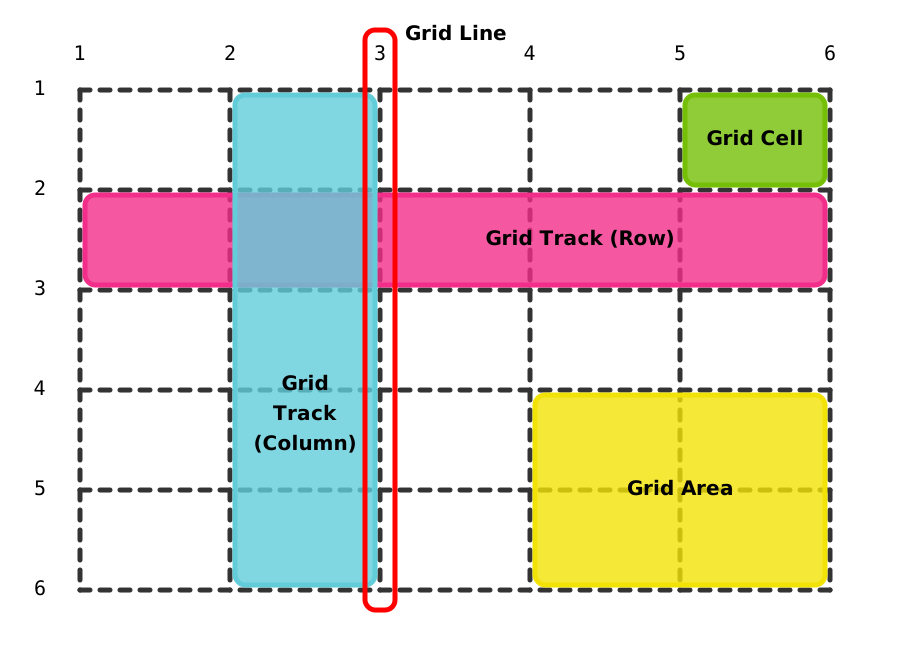
`Grid item`, we know. It's the items of the container to which we have applied grid display. Remember `Grid lines` ? In implicit vs explicit section. Yeah those dash & dotted lines are nothing but grid lines. When we think of `Grid track`, we think of space between those grid lines. The blue & pink colored portions in the above picture are grid tracks. That's what we are going to deal with. `Grid cell` is something where we put our grid item. And `Grid area` ? It's made up of more than one grid cell.
So far so good, we have used values in `px` format. But we can see beyond that. We certainly can use `%` format. Wondering how? Take a look down here.
```css
.container {
display: grid;
padding: 10px;
border: 10px solid white;
grid-gap: 20px;
grid-template-columns: 25% 50% 20%;
}
```
Some extra things to state down. Not big ones off course. We have defined the border to our container and some padding for a nice display. You might guess that the width of our container is equal to our viewport. So it will take the size of the screen. We haven't hard-coded any specific height here. Worth to note that the percentage you will be giving to your columns will add up including the grid-gap. If not given properly, then grid-items will flow out of the container. You must take care of that.
Except for the `px` and `%` formats, there is one special format that we can use for good scalability. It's a flexible unit, named as a `fractional unit` and noted as `fr`. Let's see how it works.
```css
.container {
display:grid;
padding: 10px;
height: 600px;
border: 10px solid white;
grid-gap: 20px;
grid-template-columns: 1fr 1fr;
grid-template-rows: 2fr 1fr;
}
```
We have a fixed height here of 600px. Anything beyond that will overflow. Examine `grid-template-columns` whose value is set to `1fr 1fr`. What does that mean? It means that whatever is the width of your container, the designated columns will divide that size equally. We explicitly declared two columns of fractional unit 1fr, stating that they will occupy equal space, filling the complete container horizontally. Same technique goes for `grid-template-rows`. In the above example, the first two rows will take 2fr 1fr fractional units of the container.
```css
.container {
grid-template-columns: auto 1fr auto 1fr;
}
```
What will happen if we use `auto` and `fractional unit` together? Kudos to your thinking. Go & try it on your own !
> In a declaration without `fr` units, `auto` will operate identically to 1fr. But when `fr` and `auto` are used together, `fr` wins the fight for remaining space while `auto` loses its width value, shriking down to min-width of internal content.
### 1.5 Grid Repeat Function
Until now, we explicitly declared how many columns with their sizes we need. But what if you want a certain size of column for a certain amount of time? Say you want 5 columns of size 300px each? What to do?
```css
.container {
grid-template-columns: 300px 300px 300px 300px 300px;
}
```
Okay, that's 1,2,3,4 and 5 columns exactly. But heyy, it feels repetitive. Don't we have any solution to avoid such repetitive tasks? Yess my friend, we do have such property to help us down.
`repeat(arg1, arg2)` is the function we are looking for. It takes two arguments, `Number of times you want to repeat` and `size that you want to repeat`. Ahh such verbal abuse. Let's jump right in code.
```css
.container {
grid-template-columns: repeat(5, 300px);
}
```
Wow it's too handy to use. Indeed bud! It states the same as the previous one i.e 5 columns of size 300px each. Can we use other formats too?? Like `%` `fr` or even `auto`? Yess, off course, you can!
```css
.container {
display: grid;
grid-gap: 20px;
grid-template-columns: 100px repeat(1, 1fr auto) 200px repeat(2, 5fr);
}
```
Code snippet states that, we want 1 column of size 100px, 1 column of size 1fr & auto each ( That means two columns in all), then again a column of size 200px and yet another 2 columns of size 5fr. Adding all up to a total of 6 columns. We can do the same in case of `grid-template-rows`.