https://github.com/tilln/jmeter-sshmon
SSH Monitoring Plugin for JMeter
https://github.com/tilln/jmeter-sshmon
agentless jmeter jmeter-plugin monitoring ssh ssh-client
Last synced: 5 months ago
JSON representation
SSH Monitoring Plugin for JMeter
- Host: GitHub
- URL: https://github.com/tilln/jmeter-sshmon
- Owner: tilln
- License: mit
- Created: 2017-06-08T00:04:00.000Z (about 9 years ago)
- Default Branch: master
- Last Pushed: 2024-04-05T23:37:02.000Z (about 2 years ago)
- Last Synced: 2024-05-07T18:13:55.874Z (about 2 years ago)
- Topics: agentless, jmeter, jmeter-plugin, monitoring, ssh, ssh-client
- Language: Java
- Homepage:
- Size: 128 KB
- Stars: 17
- Watchers: 4
- Forks: 5
- Open Issues: 0
-
Metadata Files:
- Readme: README.md
- License: LICENSE.txt
Awesome Lists containing this project
README
# SSHMon Samples Collector [](https://github.com/tilln/jmeter-sshmon/actions/workflows/release.yml)
Overview
--------
Apache JMeter monitoring plugin for [agentless collection](https://en.wikipedia.org/wiki/Agentless_data_collection) and plotting of remote server metrics via [SSH connections](https://en.wikipedia.org/wiki/Secure_shell).
The output of remotely executed commands can be plotted over time and/or written to JTL file (CSV or XML format).
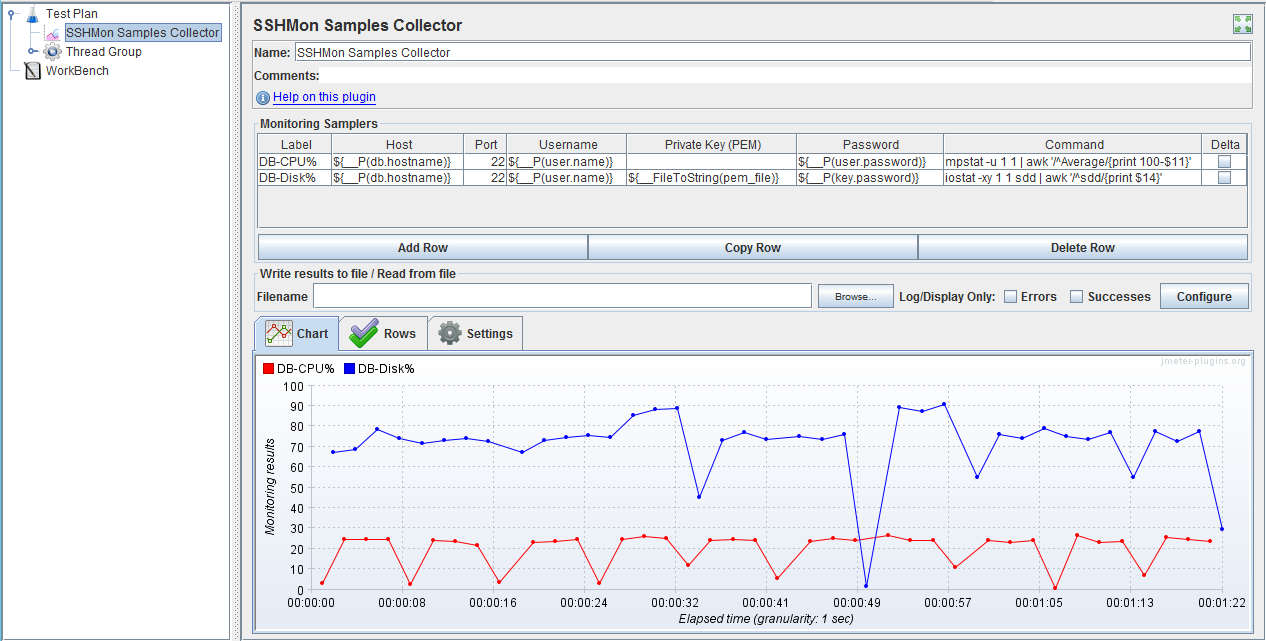
In contrast to other plugins (such as [PerfMon](https://jmeter-plugins.org/wiki/PerfMon/)), the installation of a custom server agent is not required, just an SSH server and logon credentials.
The impact on the remote server is minimized by establishing a connection only once and reusing it.
This plugin is powered by [JMeter-Plugins](https://jmeter-plugins.org/) components.
Installation
------------
### Via [PluginsManager](https://jmeter-plugins.org/wiki/PluginsManager/)
Under tab "Available Plugins", select "SSHMon Samples Collector", then click "Apply Changes and Restart JMeter".
### Via Package from [JMeter-Plugins.org](https://jmeter-plugins.org/)
Extract the [zip package](https://jmeter-plugins.org/files/packages/tilln-sshmon-1.4.zip) into JMeter's lib directory, then restart JMeter.
### Via Manual Download
1. Copy the [jmeter-sshmon jar file](https://github.com/tilln/jmeter-sshmon/releases/download/1.4/jmeter-sshmon-1.4.jar) into JMeter's lib/ext directory.
2. Copy the following dependencies into JMeter's lib directory:
* [kg.apc / jmeter-plugins-cmn-jmeter](https://search.maven.org/remotecontent?filepath=kg/apc/jmeter-plugins-cmn-jmeter/0.7/jmeter-plugins-cmn-jmeter-0.7.jar)
* [org.apache.sshd / sshd-core](https://search.maven.org/remotecontent?filepath=org/apache/sshd/sshd-core/2.12.1/sshd-core-2.12.1.jar)
* [org.apache.sshd / sshd-common](https://search.maven.org/remotecontent?filepath=org/apache/sshd/sshd-common/2.12.1/sshd-common-2.12.1.jar)
3. Restart JMeter.
**Important: Make sure to remove any older jar file version than `jmeter-plugins-cmn-jmeter-0.6.jar` from JMeter's lib directory!**
Usage
-----
From the context menu, select "Add" / "Listeners" / "SSHMon Samples Collector".
Add one row for each metric to be collected from a remote command, such as `sar`, `iostat`, `vmstat`, `mpstat` etc.
**Important:** The command *must* return a single decimal number (integer or floating point) or it will fail!
That means commands that return multiple rows and/or columns of console output will have to be filtered accordingly (e.g. via `grep`, `awk`, `sed` etc).
### Example
|Label|Host|Port|Username|Private Key (PEM)|Password|Command|Delta|
|-----|----|----|--------|-----------------|--------|-------|-----|
|CPU%|127.0.0.1|22|jmeter||secret|sar -u 1 1 | awk '/^Average:/{print 100-$8}'|◻|
* Connect to localhost on TCP port 22 with username *jmeter* and password *secret*
* Get CPU utilisation from [`sar`](http://linuxcommand.org/man_pages/sar1.html) (1 sample, 1 second)
* Filter that output for the row starting with *Average*
* Take the 8th column (this may vary depending on the OS) as idle percentage and calculate the difference to 100%
* Record and/or plot the value with label *CPU%*
*Note that the password is not masked so it may be useful to define a variable or property (e.g. on the command line -Juser.password=secret).*
### Public Key Authentication
1. Enter the username in the username field.
2. Make the private key available in PEM format and supply the *content* in the private key field. In most cases when this comes from a file use the JMeter function [`${__FileToString(pem_file)}`](http://jmeter.apache.org/usermanual/functions.html#__FileToString).
3. Enter the password for the private key in the password field.
4. Make sure the public key is on the server.
### Cumulative Values
In some cases the difference between sample values may be more interesting than the absolute value.
The *Delta* check box can be ticked to record/plot the difference from the previous sample.
### Chart Generation
Charts can be generated in the following ways:
- In GUI mode, a live chart will be plotted that can be saved to an image file or copied to clipboard via right-click on the chart area.
- In GUI mode, an output file from a previous test can be loaded via the Filename text field.
- Without the GUI, the ["Command-Line Graph Plotting Tool"](https://jmeter-plugins.org/wiki/JMeterPluginsCMD/) may be used to generate charts by specifying the `--plugin-type` option like so:
```
JMeterPluginsCMD.bat --plugin-type nz.co.breakpoint.jmeter.vizualizers.sshmon.SSHMonGui --input-jtl sshmon-results-filename.csv --generate-png output.png --width 800 --height 600
```
For a full list of options refer to the [plugin documentation](https://jmeter-plugins.org/wiki/JMeterPluginsCMD/#Usage-and-Parameters).
### Jump Hosts (since v1.3)
Sometimes the hosts to be monitored are not directly accessible from where the JMeter script runs but only through a jump host.
For this purpose, this plugin supports the SSH [ProxyJump directive](http://man.openbsd.org/ssh_config.5#ProxyJump)
in an SSH config file.
The JMeter property `jmeter.sshmon.sshConfig` must be set to the location of such a config file.
Jump hosts cannot be configured in the plugin's user interface.
Example:
The below SSH config file shows how the host `target` can be accessed via `jumphost`,
in both cases authenticating as `user_name` with their `privatekeyfile`.
The credentials can be omitted from the UI config.
|Label|Host |Port|Username|Private Key (PEM)|Password|Command|Delta|
|-----|-----|----|--------|-----------------|--------|-------|-----|
|CPU%|target|22| | | |(some command)|
```
Host target
User user_name
PreferredAuthentications publickey
IdentityFile ./privatekeyfile
ProxyJump jumphost
Host jumphost
User user_name
PreferredAuthentications publickey
IdentityFile ./privatekeyfile
```
If the private key file is password protected, the JMeter property `jmeter.sshmon.identityPassword`
can be used to define this password.
(Different passwords for different files are not currently supported.)
Configuration
-------------
### Chart Settings
The tabs *Charts*, *Rows*, and *Settings* are only relevant in GUI mode.
For details refer to the [JMeter-Plugins wiki](https://jmeter-plugins.org/wiki/SettingsPanel/).
### JMeter Properties
The following properties control the plugin behaviour:
* `jmeter.sshmon.knownHosts`: Filename of a known_hosts file containing public keys of trusted remote servers (in OpenSSH format).
If defined, connections to unknown hosts will be rejected (via `StrictHostKeyChecking=yes`).
If undefined, connections to unknown hosts will be established (via `StrictHostKeyChecking=no`).
Default: undefined.
* `jmeter.sshmon.interval`: Metrics collection interval in milliseconds.
This is inclusive of the execution time of the remote commands.
Default: 1 second.
* `jmeter.sshmon.forceOutputFile` (true/false): Makes sure JMeter writes metrics to CSV file in the current directory if no filename is specified.
Default: false.
* `jmeter.sshmon.locale` (since v1.2; in ISO format, e.g. `en_NZ`): Allows to override the locale for parsing numbers returned from the monitored host,
in case its locale is different from the JVM running the plugin.
* `jmeter.sshmon.sshConfig` (since v1.3): Location of an optional SSH Config file to use.
If undefined, an existing file (e.g. in `~/.ssh/config`) will be ignored.
* `jmeter.sshmon.identityPassword` (since v1.3): Password for identity files (encrypted private key).
Limitations
-----------
* Samples are collected by a single thread, so if a command takes more than an insignificant amount of time to run, the frequency of sample collection will be limited.
Even more so if more than one command is sampled. In this case, use a separate monitor for each sample command.
* When a JMeter test ends, this plugin will not interrupt the collector thread but let the current sample finish before stopping.
This may take longer than the JMeter engine [waits](https://jmeter.apache.org/usermanual/get-started.html#shutdown) in headless (non-GUI) mode.
In this case, increase the JMeter property `jmeter.exit.check.pause`.
* Cryptographic algorithms used by SSH for key exchange, signature and encryption are negotiated between client and server
when a session is established. The algorithms supported by the client are determined by the Java platform's Security Provider(s).
The default implementation Java Cryptography Extension (JCE) does not support all modern algorithms (e.g. Ed25519)
and not all key strengths without the [JCE Unlimited Strength Policy](https://www.oracle.com/java/technologies/javase-jce-all-downloads.html).
Alternative providers can be used to overcome this limitation, such as [BouncyCastle](https://www.bouncycastle.org/)
or [EdDSA](https://github.com/str4d/ed25519-java), by simply placing their jar file in JMeter's lib directory.
* Only a single password can be provided for encrypted private key files (`jmeter.sshmon.identityPassword`),
so multiple files are not supported unless they use the same password.