https://github.com/tksh164/aumid-stopgap-tools
The AppUserModelID Stopgap Tools allow you to pin the same application with different parameters and control their grouping on the taskbar.
https://github.com/tksh164/aumid-stopgap-tools
Last synced: 12 months ago
JSON representation
The AppUserModelID Stopgap Tools allow you to pin the same application with different parameters and control their grouping on the taskbar.
- Host: GitHub
- URL: https://github.com/tksh164/aumid-stopgap-tools
- Owner: tksh164
- License: mit
- Created: 2024-04-20T07:13:08.000Z (over 2 years ago)
- Default Branch: main
- Last Pushed: 2024-08-14T17:08:47.000Z (almost 2 years ago)
- Last Synced: 2025-08-04T14:59:44.136Z (about 1 year ago)
- Language: C++
- Homepage:
- Size: 159 KB
- Stars: 9
- Watchers: 1
- Forks: 0
- Open Issues: 0
-
Metadata Files:
- Readme: README.md
- License: LICENSE
Awesome Lists containing this project
README
# AppUserModelID Stopgap Tools
The AppUserModelID Stopgap Tools allow you to pin the same application with different parameters and control their grouping on the taskbar.
Windows is grouping windows on the taskbar based on [Application User Model IDs (AppUserModelIDs)](https://learn.microsoft.com/en-us/windows/win32/shell/appids). The AppUserModelID Stopgap Tools provides utility commands for tweak that grouping behavior.
The following demo shows pinned two [Obsidian](https://obsidian.md) icons on the taskbar with different vaults:
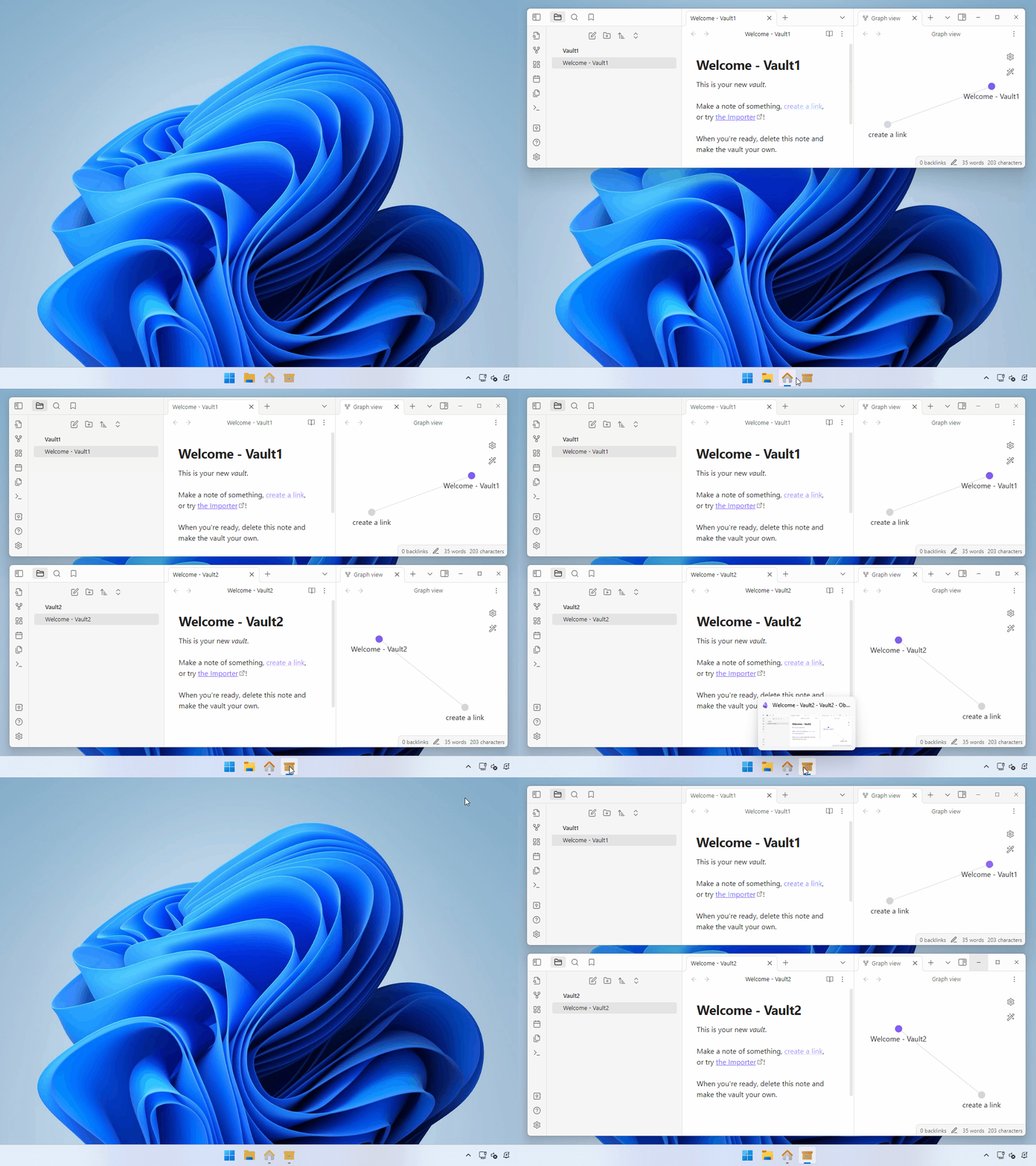
> [!NOTE]
> Essentially, the window grouping is managed by the app itself (AppUserModelIDs managed by the app itself). The AppUserModelID Stopgap Tools change it from externally, that is unorthodox way.
## Prerequisites
- The tools were tested on the latest version of Windows 11 with the latest updates.
- Also, it may work on the other Windows versions.
- The tools were tested with [Obsidian](https://obsidian.md) and [Visual Studio Code](https://code.visualstudio.com/).
- As a mechanism, it can work with other apps too.
## Installation
1. Download the [latest release zip file](https://github.com/tksh164/aumid-stopgap-tools/releases/latest).
2. Unblock the downloaded zip file by check **Unblock** from the zip file's property or using the [Unblock-File](https://learn.microsoft.com/en-us/powershell/module/microsoft.powershell.utility/unblock-file) cmdlet.
```powershell
Unblock-File aumid-stopgap-tools-x.y.z.zip
```
3. Extract files from the downloaded zip file. You can extract files by the **Extract All...** context menu in the File Explorer or using the [Expand-Archive](https://learn.microsoft.com/en-us/powershell/module/microsoft.powershell.archive/expand-archive) cmdlet.
```powershell
Expand-Archive aumid-stopgap-tools-x.y.z.zip
```
4. Put the extracted files anywhere you like.
If you don't need this tools anymore, you can uninstall it by deleting the tools' folder.
## Using tools
The AppUserModelID Stopgap Tools consist of two tools. You need use both tools together to work as expected.
- **mklnkwaumid** - The tool for creates special shortcut file (`.lnk`). That shortcut file has a specified AppUserModelID.
- **runwaumid** - The tool for launch an application with a specified AppUserModelID.
### mklnkwaumid
The **mklnkwaumid** creates a shortcut file (`.lnk`) that has a specified AppUserModelID. See [Typical use cases](#typical-use-cases) for specific usage.
```powershell
mklnkwaumid []
```
- `ShortcutFilePath`: The file path of the shortcut file to create. The shortcut file has `.lnk` as an extension.
- `AppUserModelID`: The AppUserModelID to set to the shortcut file. See [AppUserModelID form](#appusermodelid-form) for details.
- `Target`: The target of the shortcut file.
- `ParametersForTarget` (optional): The parameters for the target.
### runwaumid
The **runwaumid** executes an application then set a specified AppUserModelID to the main window of the launched application. See [Typical use cases](#typical-use-cases) for specific usage.
The **runwaumid** provides three different window finding modes to set AppUserModelID.
#### Find the target window by the partial window title text
This mode is useful for apps that work with multi-process architecture such as Electron apps. Because the process ID of the process that first launched process and actual app's process ID are not the same.
```powershell
runwaumid -tp []
```
- `-tp`: The window title text partial matching mode. Use the text specified as `WindowTitle` to identify the target window.
- `AppUserModelID`: The AppUserModelID to set to the target window (the found window). The windows that have the same AppUserModelID are grouped on the taskbar. See [AppUserModelID form](#appusermodelid-form) for details.
- `WindowTitle`: The partial window title text to use to find the target window.
- `TargetToOpen`: The target to open by shell such as executable files (`.exe`), document files, addresses, etc.
- `ParametersForTargetToOpen` (optional): The parameters for the target to open by shell.
#### Find the target window by the exact window title text
This mode is useful for apps that work with multi-process architecture such as Electron apps. Because the process ID of the process that first launched process and actual app's process ID are not the same.
```powershell
runwaumid -te []
```
- `-te`: The window title text exact matching mode. Use the text specified as `WindowTitle` to identify the target window.
- `AppUserModelID`: The AppUserModelID to set to the target window (the found window). The windows that have the same AppUserModelID are grouped on the taskbar. See [AppUserModelID form](#appusermodelid-form) for details.
- `WindowTitle`: The exact window title text to use to find the target window.
- `TargetToOpen`: The target to open by shell such as executable files (`.exe`), document files, addresses, etc.
- `ParametersForTargetToOpen` (optional): The parameters for the target to open by shell.
#### Find the target window by the process ID
This mode is useful for apps that work with single-process. This mode does not depend on the app's window title text to find the target window.
```powershell
runwaumid -p []
```
- `-p`: The process ID mode. Use the process ID of the launched process to identify the target window.
- `AppUserModelID`: The AppUserModelID to set to the target window (the found window). The windows that have the same AppUserModelID are grouped on the taskbar. See [AppUserModelID form](#appusermodelid-form) for details.
- `TargetToOpen`: The target to open by shell such as executable files (`.exe`), document files, addresses, etc.
- `ParametersForTargetToOpen` (optional): The parameters for the target to open by shell.
## AppUserModelID form
AppUserModelIDs should have the following form. It can have no more than 128 characters and cannot contain spaces. Each section should be pascal-cased. `CompanyName` and `ProductName` should always be used, while the `SubProduct` and `VersionInformation` portions are optional. See [How to Form an Application-Defined AppUserModelID](https://learn.microsoft.com/en-us/windows/win32/shell/appids#how-to-form-an-application-defined-appusermodelid) to more details.
```
CompanyName.ProductName[.SubProduct[.VersionInformation]]
```
## Typical use cases
Typically, you need just two steps.
1. Create a shortcut file (.lnk) using the **mklnkwaumid** to execute the target application with parameters via the **runwaumid**.
2. Drag and drop the shortcut file that was created on the first step to the taskbar.
### Example 1: Obsidian with different vault
1. Create a shortcut file (.lnk) for each vault using the **mklnkwaumid**. For example, execute the following command in **Windows PowerShell** to create a shortcut file.
```powershell
.\mklnkwaumid.exe 'D:\temp\Obsidian-Vault1.lnk' Tksh164.Obsidian.Vault1 'C:\bin\runwaumid.exe' '-tp Tksh164.Obsidian.Vault1 \"Vault1 - Obsidian\" obsidian://open?vault=Vault1'
```
If you use **PowerShell (non-Windows PowerShell)**, execute the following command instead. There is difference on escape double quote.
```powershell
.\mklnkwaumid.exe 'D:\temp\Obsidian-Vault1.lnk' Tksh164.Obsidian.Vault1 'C:\bin\runwaumid.exe' '-tp Tksh164.Obsidian.Vault1 "Vault1 - Obsidian" obsidian://open?vault=Vault1'
```
- The **mklnkwaumid** creates `D:\temp\Obsidian-Vault1.lnk` file and sets `Tksh164.Obsidian.Vault1` to the shortcut file as an AppUserModelID. You can specify your own AppUserModelID, but it's should be follow the [AppUserModelID form](#appusermodelid-form). Also, it should be unique for each group on the taskbar.
- The `D:\temp\Obsidian-Vault1.lnk` will launches the **runwaumid** with parameters.
- The **runwaumid** executes `obsidian://open?vault=Vault1` then find the window that has `Vault1 - Obsidian` partially in the window's title text. After found the window, the **runwaumid** sets `Tksh164.Obsidian.Vault1` to the window as an AppUserModelID.
- It is important that specify the same AppUserModelID both the shortcut (created by **mklnkwaumid**) and the window (executed via **runwaumid**) for grouping the pinned icon and windows.
You can create multiple shortcut files in the same way. For example:
```powershell
.\mklnkwaumid.exe 'D:\temp\Obsidian-Vault2.lnk' Tksh164.Obsidian.Vault2 'C:\bin\runwaumid.exe' '-tp Tksh164.Obsidian.Vault2 \"Vault2 - Obsidian\" obsidian://open?vault=Vault2'
```
**Note:** `obsidian://open?vault=Vault1` and `obsidian://open?vault=Vault2` in the above examples are the URI to open Obsidian vaults. This is a capability of Obsidian. The URI supports [some formats](https://help.obsidian.md/Extending+Obsidian/Obsidian+URI#Examples). In the above examples, specified the vault name such as `Vault1` and `Vault2` to open a vault. Also, you can specify a vault ID to open an Obsidian vault. Your Obsidian vault's ID can copy from the vaults management window in Obsidian.

If you want to use a vault ID to open your Obsidian vault, execute the **mklnkwaumid** like the following:
**With Windows PowerShell:**
```powershell
.\mklnkwaumid.exe 'D:\temp\Obsidian-Vault1.lnk' Tksh164.Obsidian.Vault1 'C:\bin\runwaumid.exe' '-tp Tksh164.Obsidian.Vault1 \"Vault1 - Obsidian\" obsidian://open?vault=ef6ca3e3b524d22f'
```
**With PowerShell (non-Windows PowerShell):**
```powershell
.\mklnkwaumid.exe 'D:\temp\Obsidian-Vault1.lnk' Tksh164.Obsidian.Vault1 'C:\bin\runwaumid.exe' '-tp Tksh164.Obsidian.Vault1 "Vault1 - Obsidian" obsidian://open?vault=ef6ca3e3b524d22f'
```
2. Customize the created shortcut files (e.g. `D:\temp\Obsidian-Vault1.lnk`) as you like. For instance, Icon, Comment, etc.
3. Drag and drop the shortcut files (e.g. `D:\temp\Obsidian-Vault1.lnk`) on the taskbar. You can delete the shortcut files after the drag and drop those on the taskbar.
### Example 2: Visual Studio Code with different workspace
1. Create a shortcut file (.lnk) for each vault using the **mklnkwaumid**. For example, execute the following command in **Windows PowerShell** to create a shortcut file.
```powershell
.\mklnkwaumid.exe 'D:\temp\VSCode-Workspace1.lnk' Tksh164.VSCode.Workspace1 'C:\bin\runwaumid.exe' '-tp Tksh164.VSCode.Workspace1 \"Workspace1 (Workspace) - Visual Studio Code\" \"C:\Program Files\Microsoft VS Code\Code.exe\" \"D:\VSCode\Workspace1.code-workspace\"'
```
If you use **PowerShell (non-Windows PowerShell)**, execute the following command instead. There is difference on escape double quote.
```powershell
.\mklnkwaumid.exe 'D:\temp\VSCode-Workspace1.lnk' Tksh164.VSCode.Workspace1 'C:\bin\runwaumid.exe' '-tp Tksh164.VSCode.Workspace1 "Workspace1 (Workspace) - Visual Studio Code" "C:\Program Files\Microsoft VS Code\Code.exe" "D:\VSCode\Workspace1.code-workspace"'
```
- The **mklnkwaumid** creates `D:\temp\VSCode-Workspace1.lnk` file and sets `Tksh164.VSCode.Workspace1` to the shortcut file as an AppUserModelID. You can specify your own AppUserModelID, but it's should be follow the [AppUserModelID form](#appusermodelid-form). Also, it should be unique for each group on the taskbar.
- The `D:\temp\VSCode-Workspace1.lnk` will launches the **runwaumid** with parameters.
- The **runwaumid** executes `"C:\Program Files\Microsoft VS Code\Code.exe" "D:\VSCode\Workspace1.code-workspace"` then find the window that has `Workspace1 (Workspace) - Visual Studio Code` partially in the window's title text. After found the window, the **runwaumid** sets `Tksh164.VSCode.Workspace1` to the window as an AppUserModelID.
- It is important that specify the same AppUserModelID both the shortcut (created by **mklnkwaumid**) and the window (executed via **runwaumid**) for grouping the pinned icon and windows.
You can create multiple shortcut files in the same way. For example:
```powershell
.\mklnkwaumid.exe 'D:\temp\VSCode-Workspace2.lnk' Tksh164.VSCode.Workspace2 'C:\bin\runwaumid.exe' '-tp Tksh164.VSCode.Workspace2 \"Workspace2 (Workspace) - Visual Studio Code\" \"C:\Program Files\Microsoft VS Code\Code.exe\" \"D:\VSCode\Workspace2.code-workspace\"'
```
2. Customize the created shortcut file (e.g. `D:\temp\VSCode-Workspace1.lnk`) as you like. For instance, Icon, Comment, etc.
3. Drag and drop the shortcut file (e.g. `D:\temp\VSCode-Workspace1.lnk`) on the taskbar. You can delete the shortcut files after the drag and drop those on the taskbar.
## License
Copyright (c) 2024 Takeshi Katano. All rights reserved. This software is released under the [MIT License](https://github.com/tksh164/aumid-stopgap-tools/blob/main/LICENSE).
Disclaimer: The codes stored herein are my own personal codes and do not related my employer's any way.