https://github.com/tomasweigenast/paged-datatable
A customizable DataTable with horizontal scrolling, cursor and offset pagination, sorting, filtering, editable columns, and expandable rows, perfect for creating rich and dynamic UIs.
https://github.com/tomasweigenast/paged-datatable
dart datatable flutter
Last synced: 6 months ago
JSON representation
A customizable DataTable with horizontal scrolling, cursor and offset pagination, sorting, filtering, editable columns, and expandable rows, perfect for creating rich and dynamic UIs.
- Host: GitHub
- URL: https://github.com/tomasweigenast/paged-datatable
- Owner: tomasweigenast
- License: mit
- Created: 2021-10-14T13:04:14.000Z (almost 5 years ago)
- Default Branch: main
- Last Pushed: 2025-01-02T19:07:41.000Z (over 1 year ago)
- Last Synced: 2025-10-23T05:19:33.144Z (10 months ago)
- Topics: dart, datatable, flutter
- Language: Dart
- Homepage: https://pub.dev/packages/paged_datatable
- Size: 1.37 MB
- Stars: 27
- Watchers: 3
- Forks: 36
- Open Issues: 10
-
Metadata Files:
- Readme: README.md
- Changelog: CHANGELOG.md
- License: LICENSE
Awesome Lists containing this project
README
# PagedDataTable
[](https://pub.dev/packages/paged_datatable)
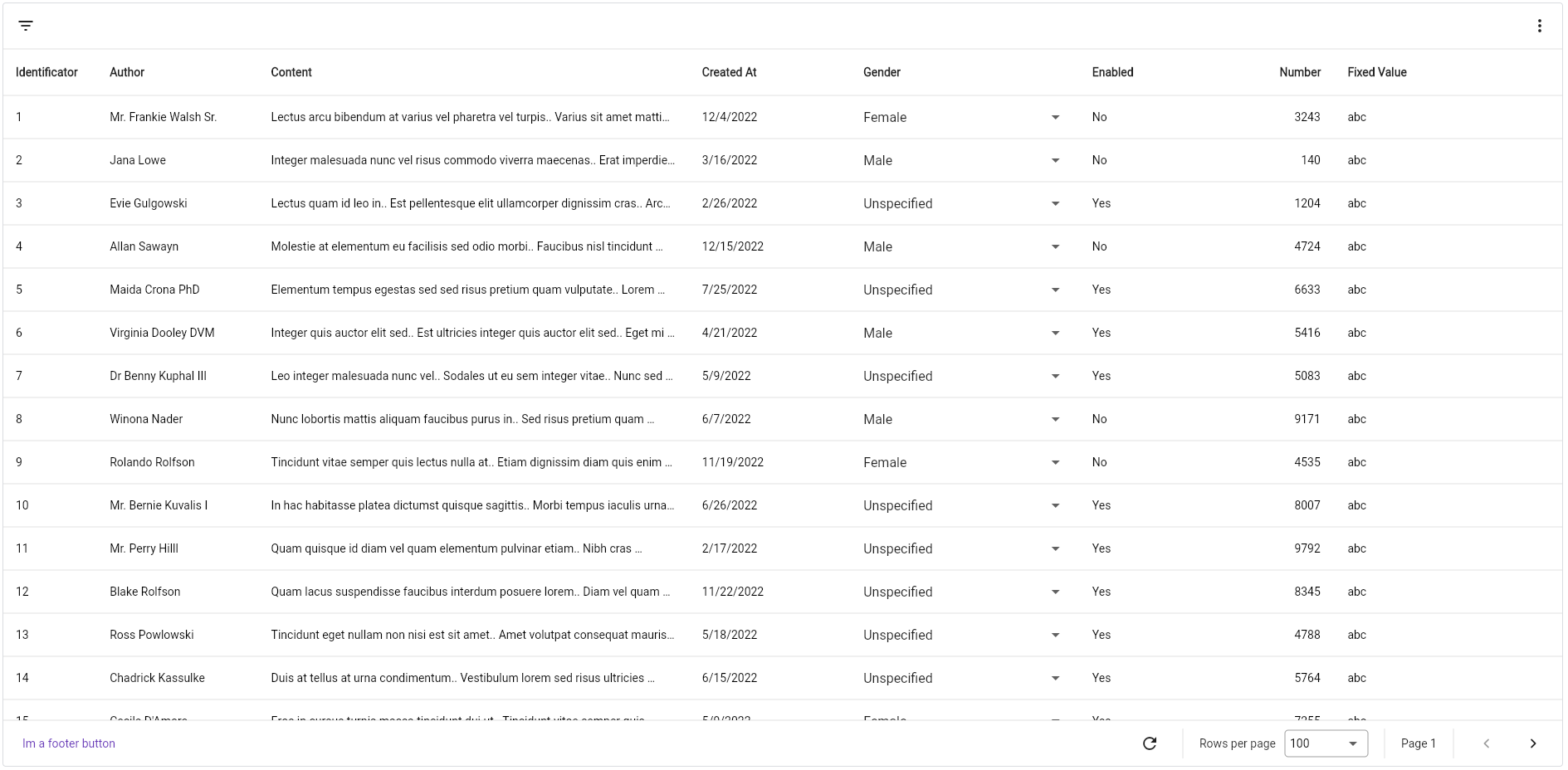
Completely customisable data table which supports cursor and offset pagination, filters and horizontal scrolling out-of-the-box. It's written from scratch, no dependency from Flutter's `DataTable` nor `Table`.
Designed to follow Google's Material You style.
## Online demo
## Features
- **Horizontal scrolling**, allowing you to define columns wider than the viewport width.
- **Fixed columns**, to scroll horizontally only a set of columns.
- **Row updating on demand**, preventing you to create other views for updating fields of a class. Now you can update an object from the table directly.
- **Cursor and offset pagination**, you decide how to paginate your data.
- **Filtering** by date, text, number, whatever you want!
- **Sorting** by predefined columns
- **Page modification** using controller, to add or remove items to the current page without reloading the entire table.
- **Themeable**, allowing you to change colors, fonts, text styles, and more!
## Table Of Contents
- [Setup](#setup)
- [Fetcher](#fetcher)
- [Header](#header)
- [Footer](#footer)
- [Custom footer](#custom-footer)
- [Columns](#columns)
- [TableColumn](#tablecolumnk-t)
- [EditableTableColumn](#editabletablecolumnk-t-v)
- [Custom columns](#custom-columns)
- [Filters](#filters)
- [Custom filters](#custom-filters)
- [Controller](#controller)
- [Internationalization](#internationalization)
- [Screenshots](#screenshots)
- [Contributing](#contribute)
## Setup
Everything you need is a **PagedDataTable** widget, which accepts two generic arguments, **K** and **T**, the type of object you will use as paging key and the type of object you will be showing in the table.
> Keep in mind that `K` must extends `Comparable`.
There are only two required parameters: `columns` and `fetcher`.
```dart
PagedDataTable(
fetcher: (int pageSize, SortModel? sortModel, FilterModel filterModel, String? pageToken) => ...,
columns: [...],
)
```
### Fetcher
The fetcher is a function that gets called every time a page is requested. It gives you the current page size, sort and filter models and the page token that is requested. It must return
a `FutureOr<(List, K?)>`, so you can convert it to a Future and do `async`-like requests or simply return the data.
It expects a tuple, where the first value is the list of items and the second the next page token:
```dart
PagedDataTable(
fetcher: (int pageSize, SortModel? sortModel, FilterModel filterModel, String? pageToken) {
final result = await FetchService.listPosts();
return (result.data, result.nextPageToken);
},
columns: [...],
)
```
By default, `PagedDataTable` does not copy the returned list, so, if it is a shared list, you or the table may modify the items. If you want, `PagedDataTable` can copy the list
if you specify it in the `configuration` property:
> Note that `PagedDataTable` **DOES NOT** cache pages.
```dart
PagedDataTable(
configuration: PagedDataTableConfiguration(
copyItems: true,
),
)
```
### Header
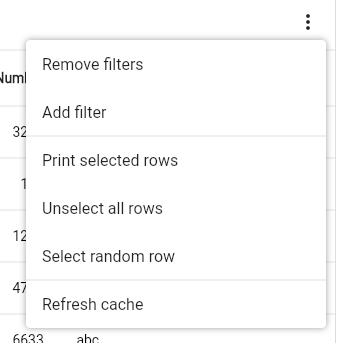
The header renders the column names, but also the FilterBar exists, which is an additional header that renders the filter picker and, optionally, you can display additional widgets aligned at the right of the bar.
Just pass your widget to the `filterBarChild` property. Naturally you would want to display a `PopupMenuButton` that will act as a menu.
### Footer
Using the `footer` property you can render anything. If you don't pass it, it will render the `DefaultFooter` widget,
which again, if not specified, will display, aligned to the right, the following widgets:
- **Refresh button**: A button that can be used to refresh the current dataset.
- **Page size selector**: A dropdown that can be used to select the current page size to use, based on the `pageSizes` property.
- **Current page display**: Displays the current page number.
- **Navigation buttons**: will display the previous and next buttons as `IconButton`s.
#### Custom footer
If you want your own footer widget but reuse some of the already existing widgets, they are named: `RefreshButton`, `PageSizeSelector`, `CurrentPage` and `NavigationButtons`.
### Columns
There are two types of columns in `PagedDataTable`:
- **ReadOnlyTableColumn**: renders a simple widget that does not allow edition.
- **EditableTableColumn**: renders a simple widget too, but this can be modified in place and modify the dataset.
> `K` and `T` are the same parameters defined in the `PagedDataTable` widget.
Every column type has:
- **title**: the column's title. It is a widget but commonly it's a `Text` widget displaying the name.
- **size**: configures the column's size. By default, it is a `FractionalColumnSize(.1)`, which means it will take 10% of the available width. You can use `FixedColumnSize`, `FractionalColumnSize`, `RemainingColumnSize` and `MaxColumnSize`.
- **format**: applies a transformation to the cell's widget. You have `NumericColumnFormat`, which aligns content to the right and `AlignColumnFormat` which aligns cell's content to the `alignment` property and you can implement your own implemeting the `ColumnFormat` interface.
- **sort** and **id**: both properties are used to indicate that a column can be used for sorting. The `id` is what you get in the Fetcher's `SortModel`. To sort, you click the column's header.
- There are other properties that you can use to play around and modify your columns. Check out the `ReadOnlyTableColumn`'s documentation.
> If you want to fix columns at the left, you can specify the amount of columns to fix using the `fixedColumnCount` property.
#### TableColumn
Is the default `ReadOnlyTableColumn` that renders a cell using the `cellBuilder` property.
```dart
PagedDataTable(
columns: [
TableColumn(
title: const Text("Author"),
cellBuilder: (context, item, index) => Text(item.author),
),
],
)
```
#### EditableTableColumn
This abstract class provides two more properties, `getter` and `setter`. The first one is used to provide the value **V** to render and the second one
is the function used to set the new value. It must return a boolean indicating if the operation succeeded or not. If is true, the cell will update its
value, otherwise will keep the old one.
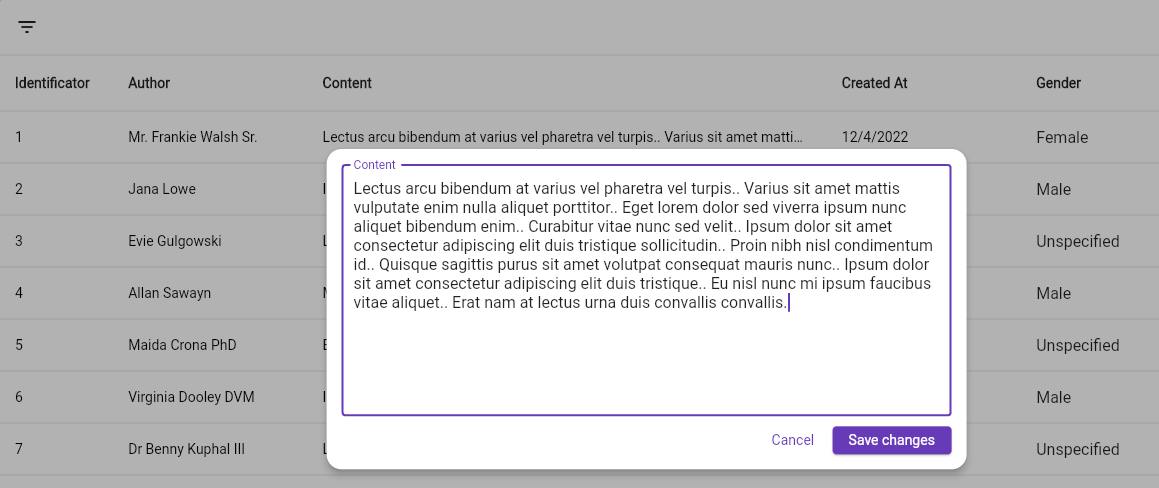
There are three built in editable columns, which are `DropdownTableColumn` which renders a dropdown; `TextTableColumn` which renders a `Text` until double-clicked, then it renders a `TextField` used to edit the cell's content; `LargeTextTableColumn`, which is the same as `TextTableColumn` but when
double-clicked, it opens an overlay, designed to edit large text cells.
You can [create your own column](#custom-columns).
#### Custom columns
To create your own columns, simply extend `ReadOnlyTableColumn` or `EditableTableColumn` depending on your needs.
For example:
```dart
class MyColumnType extends ReadOnlyTableColumn {
@override
Widget build(BuildContext context, T item, int index) {
return MyCellWidget();
}
}
```
> If you want more examples, check out the implementation of the already existing column types.
## Filters
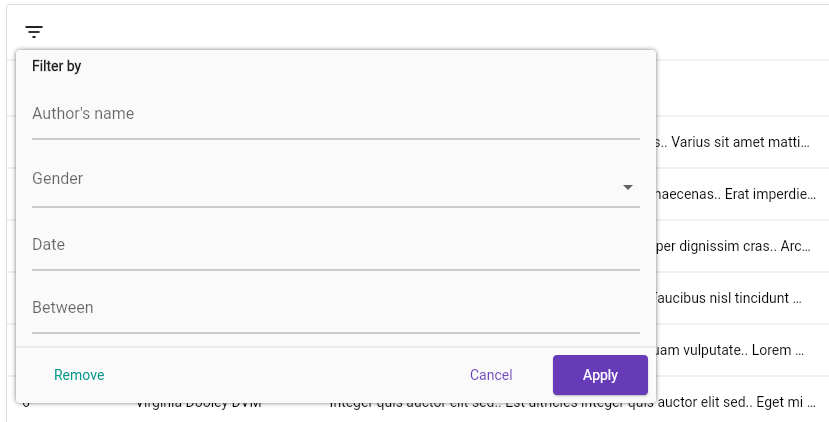
`PagedDataTable` allows you to define a set of filters that you can use to interactively select them using a
popup overlay or a bottom sheet if you are in a small device.
To define filters, use the `filters` property:
```dart
PagedDataTable(
...,
filters: [
TextTableFilter(
id: "content",
chipFormatter: (value) => 'Content has "$value"',
name: "Content",
),
DropdownTableFilter(
items: Gender.values
.map((e) =>
DropdownMenuItem(value: e, child: Text(e.name)))
.toList(growable: false),
chipFormatter: (value) =>
'Author is ${value.name.toLowerCase()}',
id: "authorGender",
name: "Author's Gender",
),
],
)
```
There are five built-in filter types:
- `TextTableFilter`: renders a `TextField` to filter by raw text.
- `DropdownTableFilter`: renders a `DropdownButton` with a set of options.
- `DateTimePickerTableFilter`: renders a `TextField` that, when tapped, opens the `DateTime` picker dialog.
- `DateRangePickerTableFilter`: the same as `DateTimePickerTableFilter` but selects a `DateTimeRange`.
- `ProgrammingTextFilter`: a filter that does not render nothing in the filter dialog but can be set using the controller.
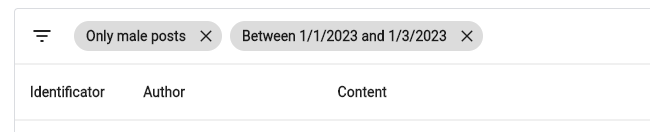
Every filter type must define, at least, the `id`, the `name` and the `chipFormatter` properties. The first one is the identifier of the filter, used in the fetcher's `FilterMode` property. The name is the label displayed in the filter picker and the `chipFormatter` is a function that maps the actual selected value to a more user-friendly string that is displayed in the selected filter's chip.
### Custom filters
To create your own filter, extend the `TableFilter` abstract class, where `T` is the type of value the filter will handle. Then, implement the `buildPicker` function, which renders the actual filter picker.
The implementation of the `TextTableFilter` as an example:
```dart
final class TextTableFilter extends TableFilter {
final InputDecoration? decoration;
const TextTableFilter({
this.decoration,
required super.chipFormatter,
required super.id,
required super.name,
super.initialValue,
super.enabled = true,
});
@override
Widget buildPicker(BuildContext context, FilterState state) {
return TextFormField(
decoration: decoration ?? InputDecoration(labelText: name),
initialValue: state.value,
onSaved: (newValue) {
if (newValue != null && newValue.isNotEmpty) {
state.value = newValue;
}
},
);
}
}
```
## Controller
If you want to control the table programatically, provide your own `PagedDataTableController` instance passing it to the `controller` property. It provides methods to interact with rows (selecting, unselecting, removing, inserting, updating), filters, sorting, pagination, and more.
## Internationalization
Update your `MaterialApp` or `CupertinoApp` widget with the following:
```dart
localizationsDelegates: const [
PagedDataTableLocalization.delegate
],
```
And you're done.
At the moment of writing this, the supported locales are:
- **es**: Spanish
- **en**: English
- **de**: Deutsch
If you want more languages, you can [contribute](#contribute).
## Screenshots
## Contribute
Any suggestion to improve/add is welcome, if you want to make a PR, you are welcome :)