https://github.com/tommathewxc/lidia
A fully customizable, super light-weight, cross-platform GenAI based Personal Assistant that can be run locally on your private hardware!
https://github.com/tommathewxc/lidia
deep-neural-networks genai huggingface llm local-genai local-llm local-llm-integration ocr-recognition ollama ollama-python personal-assistant speech-to-text text-to-speech vllm
Last synced: about 2 months ago
JSON representation
A fully customizable, super light-weight, cross-platform GenAI based Personal Assistant that can be run locally on your private hardware!
- Host: GitHub
- URL: https://github.com/tommathewxc/lidia
- Owner: tommathewXC
- Created: 2025-03-15T03:58:35.000Z (over 1 year ago)
- Default Branch: main
- Last Pushed: 2025-03-15T04:35:15.000Z (over 1 year ago)
- Last Synced: 2025-03-15T05:20:53.644Z (over 1 year ago)
- Topics: deep-neural-networks, genai, huggingface, llm, local-genai, local-llm, local-llm-integration, ocr-recognition, ollama, ollama-python, personal-assistant, speech-to-text, text-to-speech, vllm
- Language: Python
- Homepage:
- Size: 21.5 KB
- Stars: 0
- Watchers: 1
- Forks: 0
- Open Issues: 0
-
Metadata Files:
- Readme: README.md
Awesome Lists containing this project
README
# Lidia


Lidia is a voice-enabled AI assistant framework that integrates audio processing, computer vision, and language models into a cohesive multimodal experience. It can understand spoken commands, visually perceive the desktop environment, and respond with natural-sounding speech.
## Table of Contents
- [Features](#-features)
- [Requirements](#-requirements)
- [Quick Start](#-quick-start)
- [Usage](#-usage)
- [Basic Usage](#basic-usage)
- [LLM Options](#llm-options)
- [TTS Options](#tts-options)
- [Configuration](#-configuration)
- [Architecture](#-architecture)
- [How It Works](#-how-it-works)
- [Demo](#-demo)
- [Custom Tools and Actions](#-custom-tools-and-actions)
- [Understanding the Tool System](#understanding-the-tool-system)
- [Existing Tools](#existing-tools)
- [Creating a Custom Tool](#creating-a-custom-tool)
- [Beyond LangChain](#beyond-langchain)
- [Model Repository](#-model-repository)
- [Current Implementation](#current-implementation)
- [Future Extensions](#future-extensions)
- [Adding New Models](#-adding-new-models)
- [Speech Recognition Models](#speech-recognition-models)
- [Text-to-Speech Models](#text-to-speech-models)
- [LLM Models](#llm-models)
- [OCR Models](#ocr-models)
- [Image Captioning Models](#image-captioning-models)
- [After Adding New Models](#after-adding-new-models)
- [Tips for Model Selection](#tips-for-model-selection)
- [Known Limitations](#-known-limitations)
- [Contributing](#-contributing)
- [License](#-license)
- [Acknowledgments](#-acknowledgments)
## 🌟 Features
- **Voice Interaction**: Speech-to-text and text-to-speech capabilities for natural conversations
- **Computer Vision**: Real-time desktop monitoring with OCR and image captioning
- **Multiple LLM Backends**: Support for local models, Ollama, and OpenAI
- **API Extensions**: Modular design with APIs for screenshot capture and datetime
- **Orchestration**: Seamless coordination between all components
- **Custom Tools**: Extensible architecture for adding new capabilities
## 📋 Requirements
- Python 3.9+
- Required packages listed in `requirements.txt`
- For local LLM mode: 16GB+ RAM recommended
- For speech synthesis: Audio output device
- For speech recognition: Microphone
## 🚀 Quick Start
1. Clone the repository:
```bash
git clone https://github.com/yourusername/lidia.git
cd lidia
```
2. Create and activate a virtual environment:
```bash
python -m venv venv
source venv/bin/activate # On Windows: venv\Scripts\activate
```
3. Install dependencies:
```bash
pip install -r requirements.txt
```
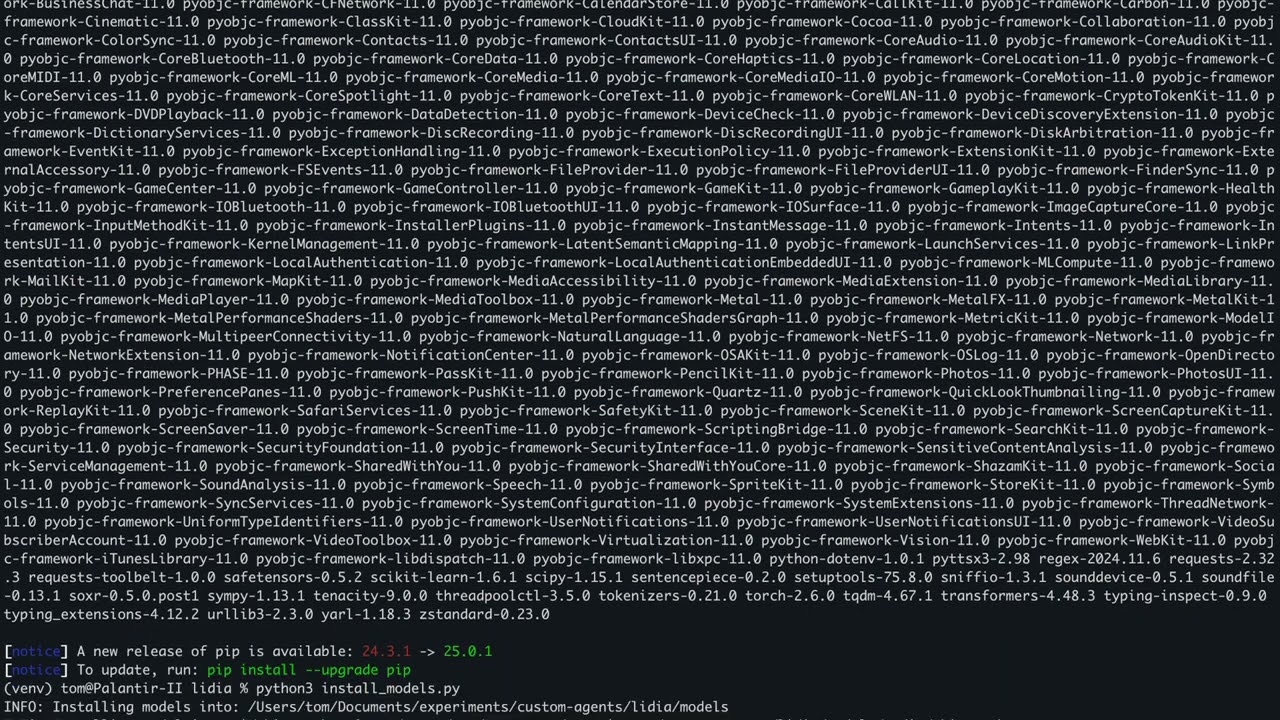
4. Download the required models:
```bash
python install_models.py
```
5. Run Lidia with default settings:
```bash
python main.py
```
## 💻 Usage
### Basic Usage
```bash
# Make sure your virtual environment is activated
source venv/bin/activate # On Windows: venv\Scripts\activate
# Run with default settings
python main.py
```
### LLM Options
```bash
# Use OpenAI's API (requires API key in ~/.accesstokens/openai-api)
python main.py --llm_mode openai
# Use Ollama (must have Ollama installed with models available)
python main.py --llm_mode ollama
# Use a local model (requires downloaded models)
python main.py --llm_mode local
```
### TTS Options
```bash
# Use system TTS (faster, less resource-intensive)
python main.py --tts_mode system
# Use ML-based TTS (higher quality, more resource-intensive)
python main.py --tts_mode ml
```
## 🔧 Configuration
Configuration options can be found in `lidia/config/config.py`. Key settings include:
- **LLM Backend**: Choose between local models, Ollama, or OpenAI
- **Model Paths**: Customize paths to speech recognition, LLM, and TTS models
- **Voice Settings**: Adjust voice parameters and assistant name
- **Screenshot Settings**: Configure monitor index and capture interval
- **Audio Settings**: Adjust silence timeout and chunk duration
## 📊 Architecture
Lidia is organized into several modular components:
- **Audio Module**: Handles speech-to-text and text-to-speech
- `audiostreamer.py`: Manages audio input and transcription
- `audiosynthesizer.py`: Converts text to speech
- **Vision Module**: Processes visual information
- `screenshot.py`: Captures desktop screenshots
- `ocr_processor.py`: Extracts text from images
- **LLM Module**: Manages language model interactions
- `llmagent.py`: Interfaces with various LLM backends
- **APIs**: Exposes functionality to the LLM
- `screenshot_api.py`: Provides screen analysis capabilities
- `datetime_api.py`: Offers date and time information
- **Orchestrator**: Coordinates all components for a seamless experience
## 📚 How It Works
1. **Audio Streaming**: The system continuously listens for user input using the microphone
2. **Speech Recognition**: User speech is transcribed to text via Whisper
3. **LLM Processing**: Text is sent to the configured LLM with context and tools
4. **Tool Integration**: The LLM can use tools like screenshot analysis when needed
5. **Response Generation**: Responses are generated and streamed from the LLM
6. **Speech Synthesis**: Text responses are converted to speech using the configured TTS system
## 🎬 Demo
[](https://www.youtube.com/watch?v=KN5Jbkyp0z4)
*Click the image above to watch the demo video on YouTube*
### Demo Environment
The demonstration showcases Lidia running on a MacBook Pro, highlighting:
- **Natural Voice Interaction**: Lidia responds to spoken queries with synthesized speech
- **Screen Analysis**: The assistant can capture and analyze screen content in real-time
- **Multi-modal Capabilities**: Integration of vision, audio, and language understanding
- **Tool Usage**: Examples of the assistant utilizing datetime and screenshot tools
The demo illustrates how Lidia functions in a real-world environment, using the system's voice synthesis capabilities and showing the responsive nature of the assistant running entirely on local hardware.
## 🧰 Custom Tools and Actions
Lidia can be extended with custom tools and actions that allow the assistant to perform specific tasks beyond conversation. The current implementation uses LangChain for its tool framework, but this is designed to be configurable.
### Understanding the Tool System
Tools in Lidia are Python functions that:
1. Accept structured inputs
2. Perform actions (API calls, data processing, etc.)
3. Return results that the LLM can incorporate into responses
LangChain provides the scaffolding to register these tools and make them accessible to the LLM.
### Existing Tools
Lidia comes with two built-in tools:
1. **DateTime API** (`datetime_api.py`): Provides the current date and time
2. **Screenshot API** (`screenshot_api.py`): Captures and analyzes screen content
### Creating a Custom Tool
Here's how to create your own custom tool:
1. **Create a new API file** in the `lidia/apis/` directory:
```python
# lidia/apis/weather_api.py
"""API for retrieving weather information."""
from logging import getLogger
import requests
logger = getLogger(__name__)
def get_weather(location: str = "New York"):
"""Gets the current weather for a location."""
try:
# Replace with your actual weather API call
logger.info(f"Getting weather for {location}")
return f"Current weather in {location}: Sunny, 22°C"
except Exception as e:
logger.error(f"Error getting weather: {e}")
return f"Error retrieving weather: {e}"
```
2. **Register your tool in `llmagent.py`**:
```python
# Add the import
from lidia.apis.weather_api import get_weather
# In the _setup_tools method
class WeatherInput(BaseModel):
"""Input schema for weather tool."""
location: str = Field(default="New York", description="City or location name")
# Add to the tools list
tools = [
# Existing tools...
StructuredTool(
name="get_weather",
func=get_weather,
description="Gets the current weather for a location.",
args_schema=WeatherInput,
return_direct=True
)
]
```
3. **Update the system message** to inform the LLM about the new tool:
```python
system_message = SystemMessage(content="""You are an AI assistant that can perceive the environment through vision and interact through speech.
When a user asks about time or date, ALWAYS use the get_current_datetime tool.
When asked to look at or analyze the screen, ALWAYS use the take_screenshot tool.
When asked about weather, ALWAYS use the get_weather tool.
Tools available: {tools}
Format your responses in a natural, conversational way.""")
```
### Beyond LangChain
While Lidia currently uses LangChain for tools integration, the architecture is designed to be framework-agnostic. Future versions may include:
- Support for alternative tool frameworks
- Direct LLM tool integration without middleware
- Tool discovery and registration systems
- Tool version management
## 🧠 Model Repository
Lidia currently uses HuggingFace as its primary model repository. Models are downloaded during the installation process and stored locally for optimal performance.
### Current Implementation
The system downloads models from HuggingFace for:
- Speech recognition (Whisper)
- Text-to-speech (SpeechT5)
- LLM functionality (when using local mode)
- OCR processing (TrOCR)
- Image captioning (BLIP)
### Future Extensions
The architecture is designed to be model-repository agnostic. Future versions will:
- Support multiple model repositories beyond HuggingFace
- Allow easy switching between different model sources
- Enable custom model integrations from any open-source repository
- Support model mixing from different sources
## 🧩 Adding New Models
Lidia's modular design makes it easy to extend with new models. Below are step-by-step guides for adding models for each component.
### Speech Recognition Models
1. **Identify a suitable Whisper model variant** on HuggingFace (e.g., `openai/whisper-tiny`, `openai/whisper-small`, `openai/whisper-medium`)
2. **Update the model installation script** at `install_models.py`:
```python
MODELS = {
"audio": {
"whisper-base": "openai/whisper-base",
"whisper-medium": "openai/whisper-medium", # Add your new model here
"speecht5_tts": "microsoft/speecht5_tts",
"speecht5_hifigan": "microsoft/speecht5_hifigan"
},
# ...
}
```
3. **Update the configuration** in `lidia/config/config.py` to use your new model:
```python
global_config = {
"speech_to_text": "models/audio/whisper-medium", # Change to your new model path
# ...
}
```
### Text-to-Speech Models
1. **Find compatible TTS models** on HuggingFace (SpeechT5 compatible models like `microsoft/speecht5_tts`)
2. **Add the model to the installation script**:
```python
MODELS = {
"audio": {
# ...
"speecht5_tts": "microsoft/speecht5_tts",
"speecht5_tts_new": "path/to/new/tts/model", # Add your new model here
"speecht5_hifigan": "microsoft/speecht5_hifigan"
},
# ...
}
```
3. **Update the configuration** to use your new TTS model:
```python
global_config = {
# ...
"text_to_speech": {
"model": "models/audio/speecht5_tts_new", # Point to your new model
"vocoder": "models/audio/speecht5_hifigan"
},
# ...
}
```
### LLM Models
1. **Select a compatible LLM** from HuggingFace (e.g., models like LLaMA, Mistral, DeepSeek)
2. **Add the model to the installation script**:
```python
MODELS = {
# ...
"llm": {
"DeepSeek-R1-Distill-Llama-70B": "deepseek-ai/DeepSeek-R1-Distill-Llama-70B",
"Mistral-7B": "mistralai/Mistral-7B-v0.1" # Add your new model here
},
# ...
}
```
3. **Update the configuration** to use your model:
```python
global_config = {
# ...
"llm": "models/llm/Mistral-7B", # Point to your new model
# ...
}
```
4. **For Ollama models**, update the Ollama model name:
```python
global_config = {
# ...
"ollama_model": "mistral:7b", # Update with equivalent Ollama model
# ...
}
```
### OCR Models
1. **Find a TrOCR compatible model** on HuggingFace (e.g., `microsoft/trocr-base-handwritten`, `microsoft/trocr-large-printed`)
2. **Add the model to the installation script**:
```python
MODELS = {
# ...
"ocr": {
"trocr": global_config["ocr"]["model"],
"trocr_handwritten": "microsoft/trocr-base-handwritten" # Add your new model here
},
# ...
}
```
3. **Update the configuration** to use your new OCR model:
```python
global_config = {
# ...
"ocr": {
"model": "models/ocr/trocr_handwritten" # Point to your new model
},
# ...
}
```
### Image Captioning Models
1. **Select an image captioning model** from HuggingFace (e.g., `Salesforce/blip-image-captioning-large`)
2. **Add the model to the installation script**:
```python
MODELS = {
# ...
"image": {
"blip": global_config["image_captioning"]["model"],
"blip_large": "Salesforce/blip-image-captioning-large" # Add your new model here
},
# ...
}
```
3. **Update the configuration** to use your new captioning model:
```python
global_config = {
# ...
"image_captioning": {
"model": "models/image/blip_large" # Point to your new model
},
# ...
}
```
### After Adding New Models
1. **Run the model installation script** to download new models:
```bash
source venv/bin/activate # Activate your virtual environment
python install_models.py
```
2. **Test the new model** by running Lidia:
```bash
python main.py
```
3. **Consider model compatibility**: Always check the model's documentation for compatibility with Lidia's architecture. Some models may require additional transformations or preprocessing steps.
### Tips for Model Selection
- **Balance size and performance**: Larger models generally perform better but require more resources
- **Check hardware requirements**: Some models need significant GPU memory
- **Consider inference speed**: Slower models may impact real-time interaction
- **Verify model license**: Ensure the model license is compatible with your use case
## ⚠️ Known Limitations
- Resource usage can be high when using ML-based TTS and local LLMs
- Limited multi-language support in the current version
- OCR may struggle with complex visual content
## 🤝 Contributing
Contributions are welcome! Please feel free to submit a Pull Request.
## 📜 License
[MIT License](LICENSE)
## 🙏 Acknowledgments
- HuggingFace for transformer models
- OpenAI for Whisper and GPT
- Microsoft for Speech T5 and TrOCR
- Ollama for local LLM integration
- LangChain for the tools framework