https://github.com/transformrs/trv
Transform slides and speaker notes into video
https://github.com/transformrs/trv
Last synced: about 1 year ago
JSON representation
Transform slides and speaker notes into video
- Host: GitHub
- URL: https://github.com/transformrs/trv
- Owner: transformrs
- License: mit
- Created: 2025-02-19T11:59:41.000Z (over 1 year ago)
- Default Branch: main
- Last Pushed: 2025-04-12T13:12:52.000Z (over 1 year ago)
- Last Synced: 2025-04-24T13:48:42.900Z (over 1 year ago)
- Language: Rust
- Homepage:
- Size: 125 KB
- Stars: 35
- Watchers: 1
- Forks: 2
- Open Issues: 9
-
Metadata Files:
- Readme: README.md
- Changelog: CHANGELOG.md
- License: LICENSE
Awesome Lists containing this project
README
# trv
Transform slides and speaker notes into video.
[](https://transformrs.github.io/trv/demo.mp4)
## Features
- 🛠️ Version control friendly - store your video source in git.
- 🚀 Caching of audio files to avoid redundant API calls.
- 🚀 Caching of video files for quick re-builds.
- 🚀 A development mode with a built-in web server for fast feedback.
- 🌐 Support for multiple languages and voices.
- 🚀 Small file sizes for easy sharing and hosting.
- 🔒 Support for fully offline video generation via the Kokoro text-to-speech model.
## Installation
```raw
$ cargo install trv
```
It also requires [`ffmpeg`](https://ffmpeg.org/) and [`typst`](https://github.com/typst/typst?tab=readme-ov-file#installation) to be installed.
## Usage
This tool is designed to work with [Typst](https://github.com/typst/typst) presentations.
Typst is a new typesetting system that is similar to LaTeX.
To create a video, create a Typst presentation with speaker notes (we show only the first slide here):
```typ
#import "@preview/polylux:0.4.0": *
#set page(paper: "presentation-16-9")
// --- trv config:
// provider = "openai-compatible(kokoros.transformrs.org)"
// model = "tts-1"
// voice = "af_sky"
// speed = 0.95
// audio_format = "wav"
// ---
#slide[
#set page(fill: black)
#set text(fill: white)
#v(6em)
#set text(size: 35pt)
#align(center)[*Text to video*]
#toolbox.pdfpc.speaker-note(
```md
What if you could easily generate videos from text?
```
)
]
```
Next, we can work on the video with the following command:
```raw
$ trv watch examples/first.typ
```
This will start a local web server that will automatically update the video as you make changes to the presentation.
Once everything looks good, we can build the final video with the following command:
```raw
$ trv build examples/first.typ
```
This generates the following video:
[](https://transformrs.github.io/trv/first.mp4)
## Offline
To create a video without an API key nor an internet connection, you can self-host [Kokoros](https://github.com/lucasjinreal/Kokoros).
See the [Kokoros section](#kokoros) for more information.
## Via DeepInfra
For more voices and faster audio generation, you can use the Kokoro models hosted at DeepInfra.
```raw
$ export DEEPINFRA_KEY=""
$ trv --input=presentation.typ
INFO Generating audio file for slide 0
INFO Generating audio file for slide 1
INFO Creating video clip _out/1.mp4
INFO Created video clip _out/1.mp4
INFO Creating video clip _out/2.mp4
INFO Created video clip _out/2.mp4
INFO Concatenated video clips into _out/out.mp4
```
To create a video without an API key nor an internet connection, you can self-host [Kokoros](https://github.com/lucasjinreal/Kokoros).
See the [Kokoros section](#kokoros) for more information.
Or for a state-of-the-art model with voice cloning capabilities, see the [Zyphra Zonos section](#zyphra-zonos).
## Kokoros
Kokoros is available at `kokoros.transformrs.org`, to use that one, set the following in your `trv` config:
```typ
// --- trv config:
// provider = "openai-compatible(kokoros.transformrs.org)"
// model = "tts-1"
// voice = "af_sky"
// audio_format = "wav"
// ---
```
If you want to use Kokoros locally, the easiest way is to use the Docker image.
```raw
$ git clone https://github.com/lucasjinreal/Kokoros.git
$ cd Kokoros/
$ docker build --rm -t kokoros .
$ docker run -it --rm -p 3000:3000 kokoros openai
```
Then, you can use the Docker image as the provider:
```typ
#import "@preview/polylux:0.4.0": *
// --- trv config:
// provider = "openai-compatible(localhost:3000)"
// model = "tts-1"
// voice = "af_sky"
// audio_format = "wav"
// ---
...
```
```raw
$ trv build presentation.typ
```
## Google
Another text-to-speech engine is the one from Google.
```raw
$ export GOOGLE_KEY=""
$ trv build examples/google.typ
```
[](https://transformrs.github.io/trv/google.mp4)
## ElevenLabs
The following settings use the "Brian" voice from ElevenLabs:
```typst
#import "@preview/polylux:0.4.0": *
// --- trv config:
// provider = "elevenlabs"
// seed = 42
// model = "eleven_multilingual_v2"
// voice = "nPczCjzI2devNBz1zQrb"
// ---
```
Quality is [generally higher](https://huggingface.co/spaces/TTS-AGI/TTS-Arena), but note that the price is also much higher.
With DeepInfra Kokoro, you pay about $0.80 per million characters.
With ElevenLabs, you pay $0.30 per 1000 credits (equals 1000 characters), or $300 for 1 million credits.
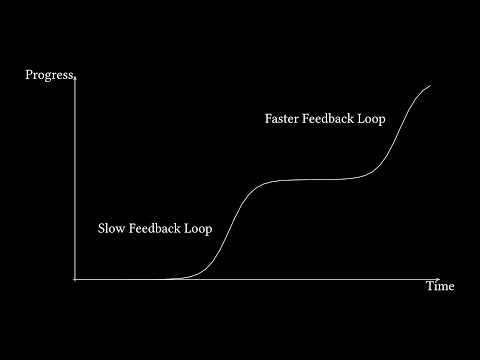
Here is a YouTube video that was made with ElevenLabs:
[](https://www.youtube.com/watch?v=Ni-dKlCpnb4)
## Zyphra Zonos
To use the Zyphra Zonos model, you need 8 GB of VRAM.
So it's probably easiest to use DeepInfra:
```typst
#import "@preview/polylux:0.4.0": *
// --- trv config:
// provider = "deepinfra"
// model = "Zyphra/Zonos-v0.1-transformer"
// voice = "american_male"
// audio_format = "mp3"
// ---
```
```raw
$ export DEEPINFRA_KEY=""
$ trv build examples/zonos.typ
```
[](https://transformrs.github.io/trv/zonos.mp4)
Here the model was set to the transformer (`Zonos-v0.1-transformer`) model instead of the hybrid one (`Zonos-v0.1-hybrid`).
According to the [Zyphra Zonos playground](https://playground.zyphra.com/audio), the transformer model is better for "clear articulation" and "better with long texts".
The hybrid model is better for "emotional speech", with a "more natural prosody", and is "better for short phrases".
Since slides typically have relatively long texts, the transformer model is probably the better option.
## Portrait Video
To create a portrait video, like a YouTube Short, you can set the page to
```typ
#set page(width: 259.2pt, height: 460.8pt)
```
The rest should work as usual.
This will automatically create slides with 1080 x 1920 resolution since Typst is set to 300 DPI.
Next, ffmpeg will automatically scale the video to a height of 1920p so in this case the height will not be changed.
For landscape videos, it might scale the image down to 1920p.
## Static Videos
The videos created by `trv` consist only of static images.
This might seem limiting, but as long as the content of the video is high, static images should be fine.
Here are some YouTubers that have hundreds of thousands to millions of views with only static images:
- [Asianometry](https://www.youtube.com/@Asianometry)
- [Perun](https://www.youtube.com/@PerunAU)
- [No Boilerplate](https://www.youtube.com/@NoBoilerplate)
- [The Histocrat](https://www.youtube.com/@TheHistocrat)
- [Christopher Manning](https://youtu.be/5Aer7MUSuSU)
- [Richard McElreath](https://www.youtube.com/@rmcelreath)
Static images with a talking-head:
- [Tony Seba](https://www.youtube.com/@tonyseba)
- [The Wild West Extravaganza](https://www.youtube.com/@WildWestExtravaganza)
- [Andrej Karpathy](https://youtu.be/zjkBMFhNj_g)
Static images with a computer-generated moving hand:
- [Simplilearn](https://www.youtube.com/@SimplilearnOfficial)
## Subtitles
To add subtitles to the video, you can use OpenAI's [`whisper`](https://github.com/openai/whisper):
```raw
$ whisper _out/out.mp4 -f srt --model small --language=en
```
This will create a `out.srt` file with the subtitles.
## Extracting the Speaker Notes
The speaker notes (narration) can be extracted from the Typst file with the `notes` command.
For example:
```raw
$ trv notes presentation.typ
```
This will print the speaker notes to the terminal.