https://github.com/tutorialwork/cloud_kit
Flutter plugin to use CloudKit in your iOS app
https://github.com/tutorialwork/cloud_kit
apple cloudkit dart flutter flutter-package flutter-plugin ios swift
Last synced: about 1 year ago
JSON representation
Flutter plugin to use CloudKit in your iOS app
- Host: GitHub
- URL: https://github.com/tutorialwork/cloud_kit
- Owner: Tutorialwork
- License: gpl-3.0
- Created: 2021-04-02T10:55:16.000Z (over 5 years ago)
- Default Branch: main
- Last Pushed: 2024-09-14T12:27:28.000Z (almost 2 years ago)
- Last Synced: 2024-09-14T22:23:31.969Z (almost 2 years ago)
- Topics: apple, cloudkit, dart, flutter, flutter-package, flutter-plugin, ios, swift
- Language: Swift
- Homepage: https://pub.dev/packages/cloud_kit
- Size: 2.19 MB
- Stars: 14
- Watchers: 2
- Forks: 9
- Open Issues: 6
-
Metadata Files:
- Readme: README.md
- Changelog: CHANGELOG.md
- License: LICENSE
Awesome Lists containing this project
README

# CloudKit
CloudKit is a simple Flutter package to access on iOS devices the iCloud using the Apple CloudKit Api.
You can save with the package key value pairs in the private database of the users iCloud.
# 📝 Usage
Simply create a new instance of the CloudKit class with the container id of the CloudKit container you created.
And then, if the user is signed in to their iCloud account, you can store and delete key-value pairs.
First, instantiate a CloudKit instance to use the plugin.
To do this, you will need to pass your container id, which you will need to create in order to use CloudKit.
More information about creating a container can be found in the [Setup section](#-setup) of this page.
```dart
CloudKit cloudKit = CloudKit('iCloud.dev.tutorialwork.cloudkitExample'); // Enter your container id
```
Before start using CloudKit you need to check if the user is logged in, otherwise the process of saving and getting value will fail.
```dart
CloudKitAccountStatus accountStatus = await cloudKit.getAccountStatus()
if (accountStatus == CloudKitAccountStatus.available) {
// User is logged in to iCloud, you can start using the plugin
}
```
Once the instance has been created, you can access it to retrieve, save and delete entries.
```dart
cloudKit.save('key', 'value'); // both must be strings, if you want to save objects use the JSON format
cloudKit.get('key'); // returns a string with the value or null if the key was not found or you are not on iOS
cloudKit.delete('key'); // returns a boolean if it was successful
```
You can also delete the entire user database with a single command.
```dart
cloudKit.clearDatabase(); // also returns a boolean if successful
```
And if you want to check what's in the database, you can also get all entries.
```dart
cloudKit.getAll(); // return a map with all key-value pairs -> {key: value, secondKey: secondValue}
```
# 💻 Setup
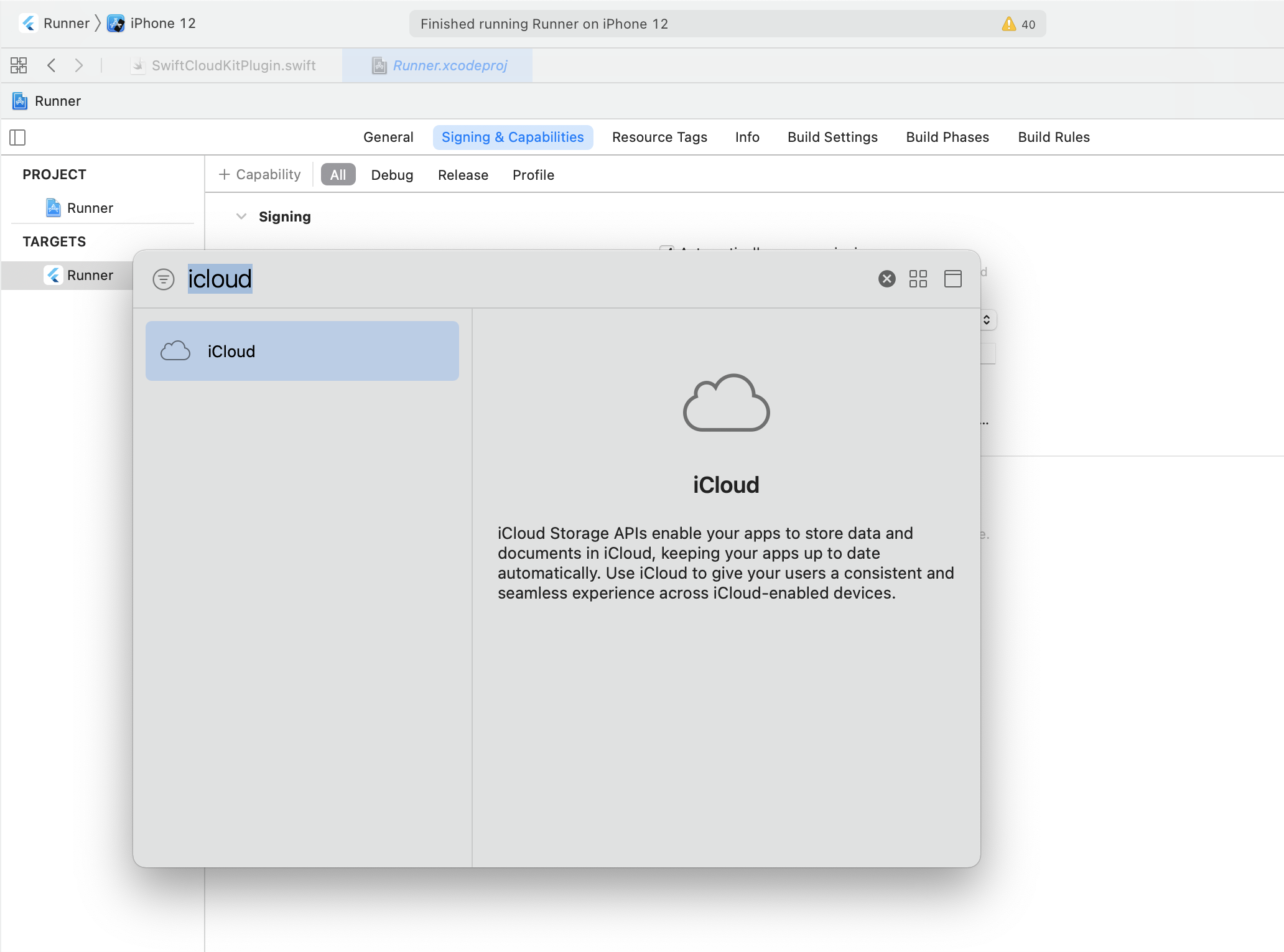
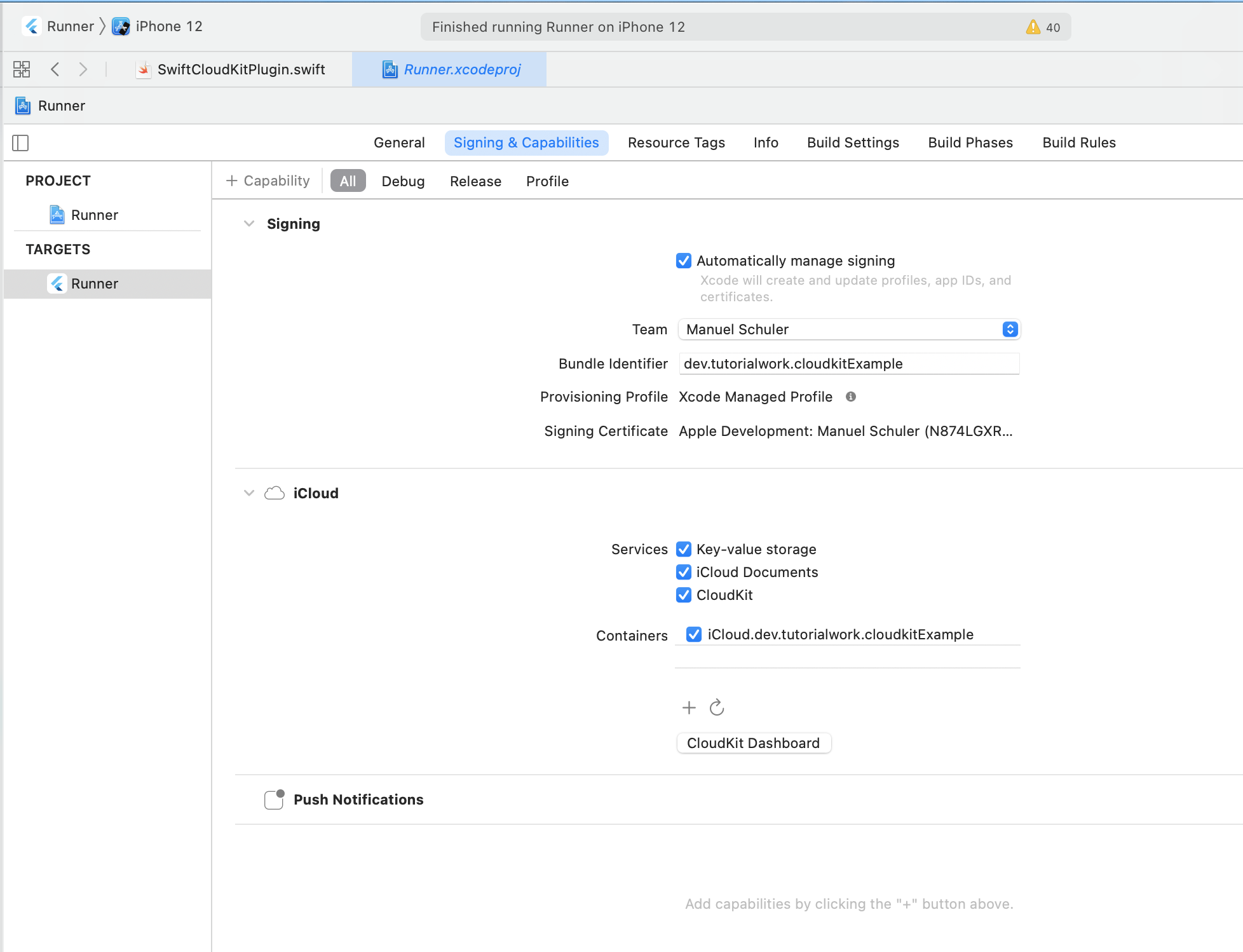
- Add the iCloud capability to your XCode project and tick all the three options and create with the plus icon a new CloudKit container and select it.
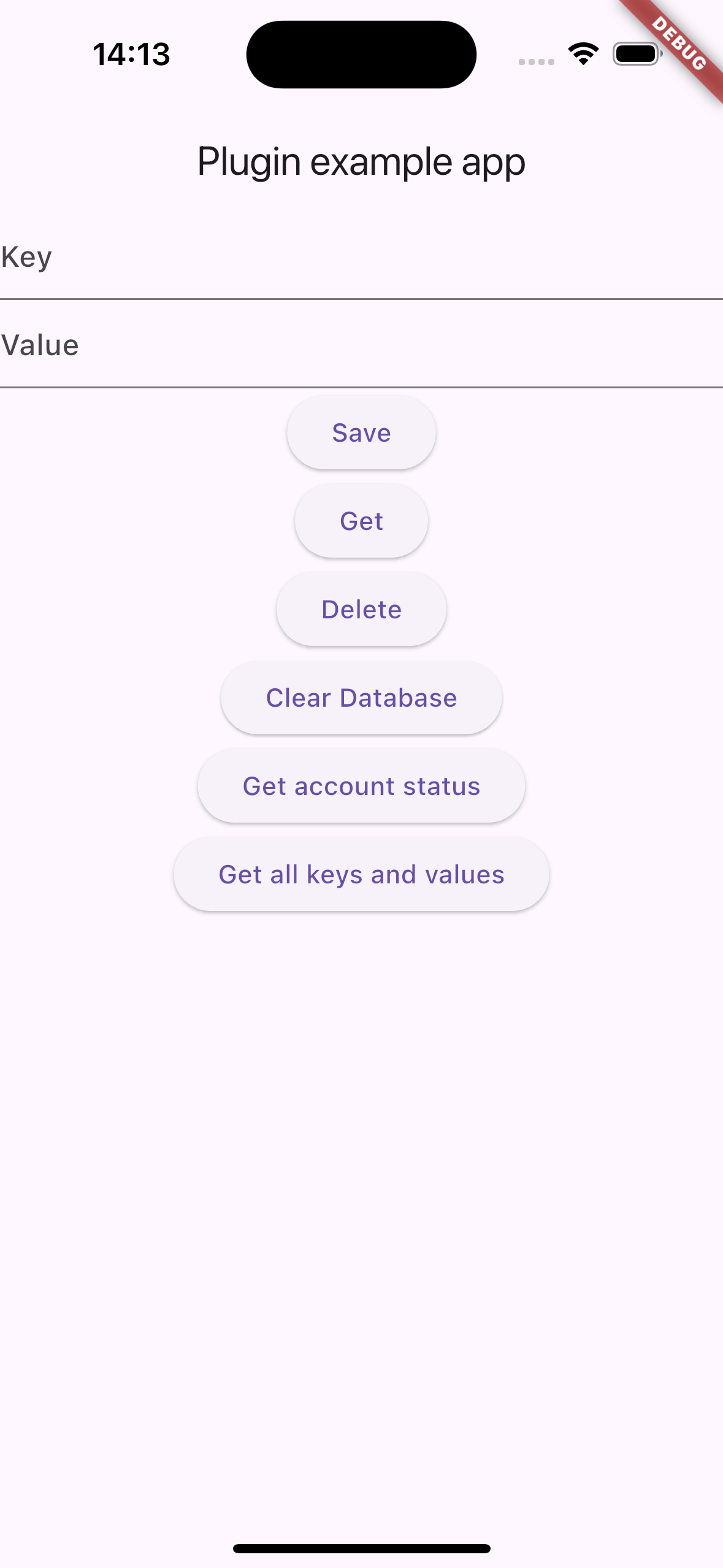
- Then it's important for the next step that you are creating your first entry. You can do this with the [example app](https://github.com/Tutorialwork/cloud_kit/tree/main/example) in this repository or with your own app by saving your first key value pair.
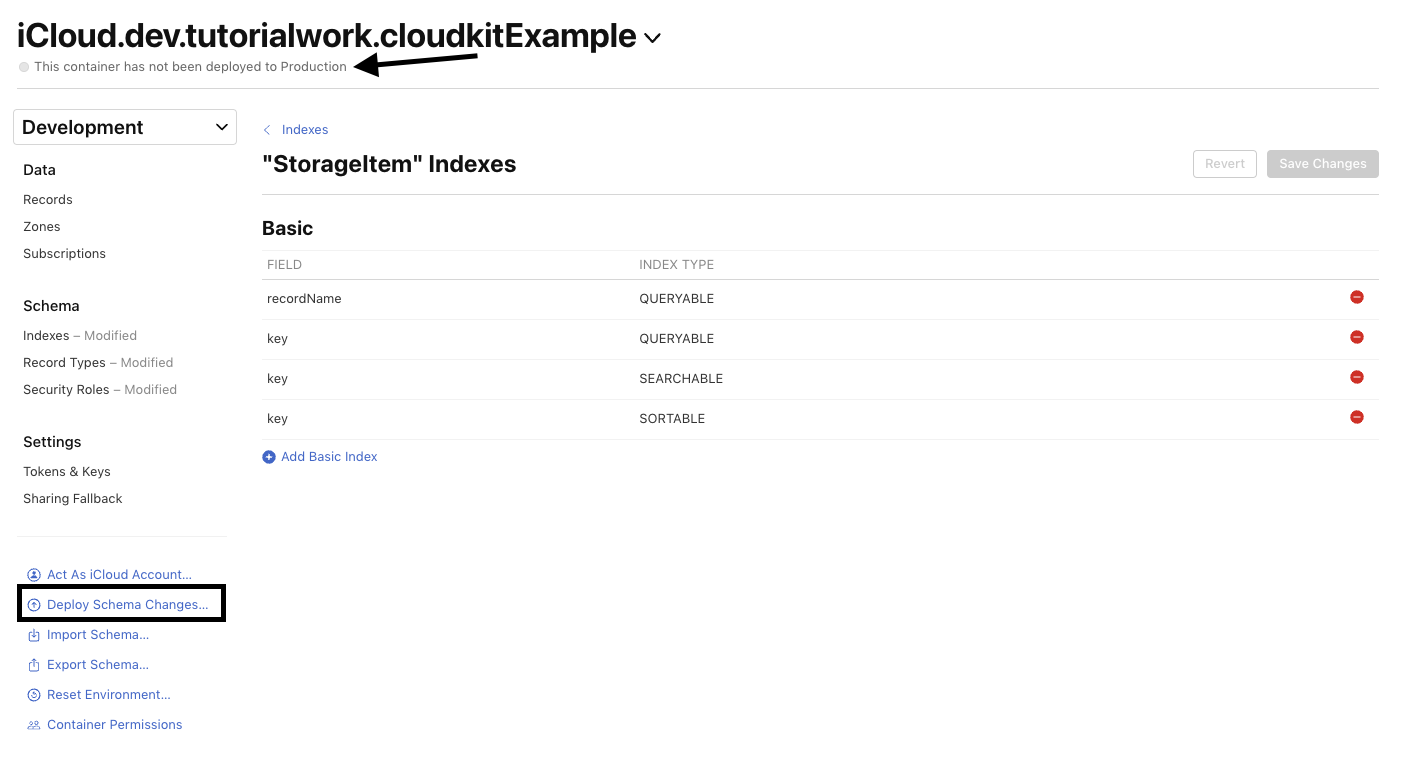
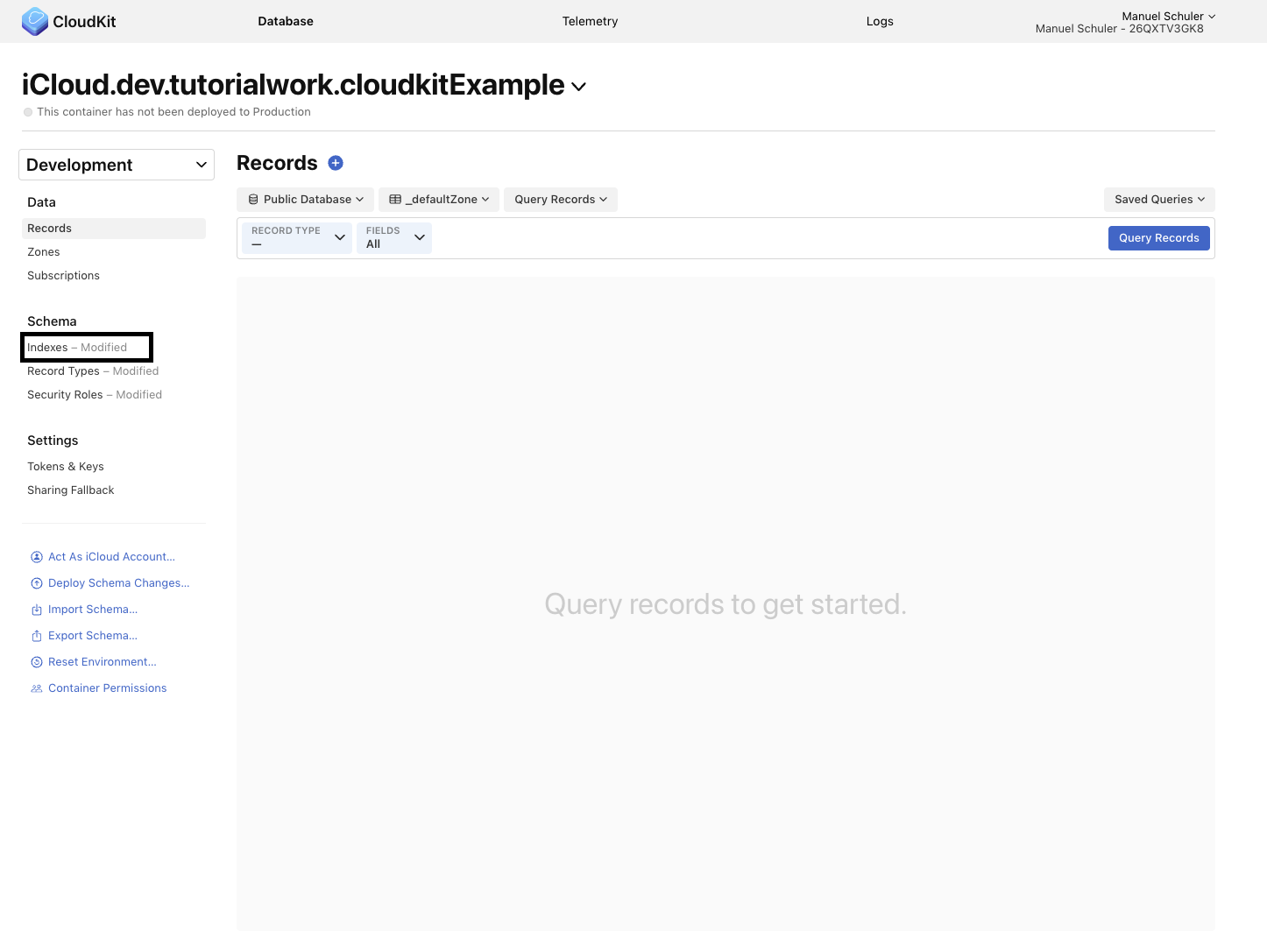
- After that please open the [CloudKit Dashboard](https://icloud.developer.apple.com) and select your created CloudKit container and then open the "**Indexes**" page.
And select on these page the "**StorageItem**"
- Click on "**Add Basic Index**" and select "**recordName**" and "**Queryable**" and then make sure you don't forgot to save your changes.
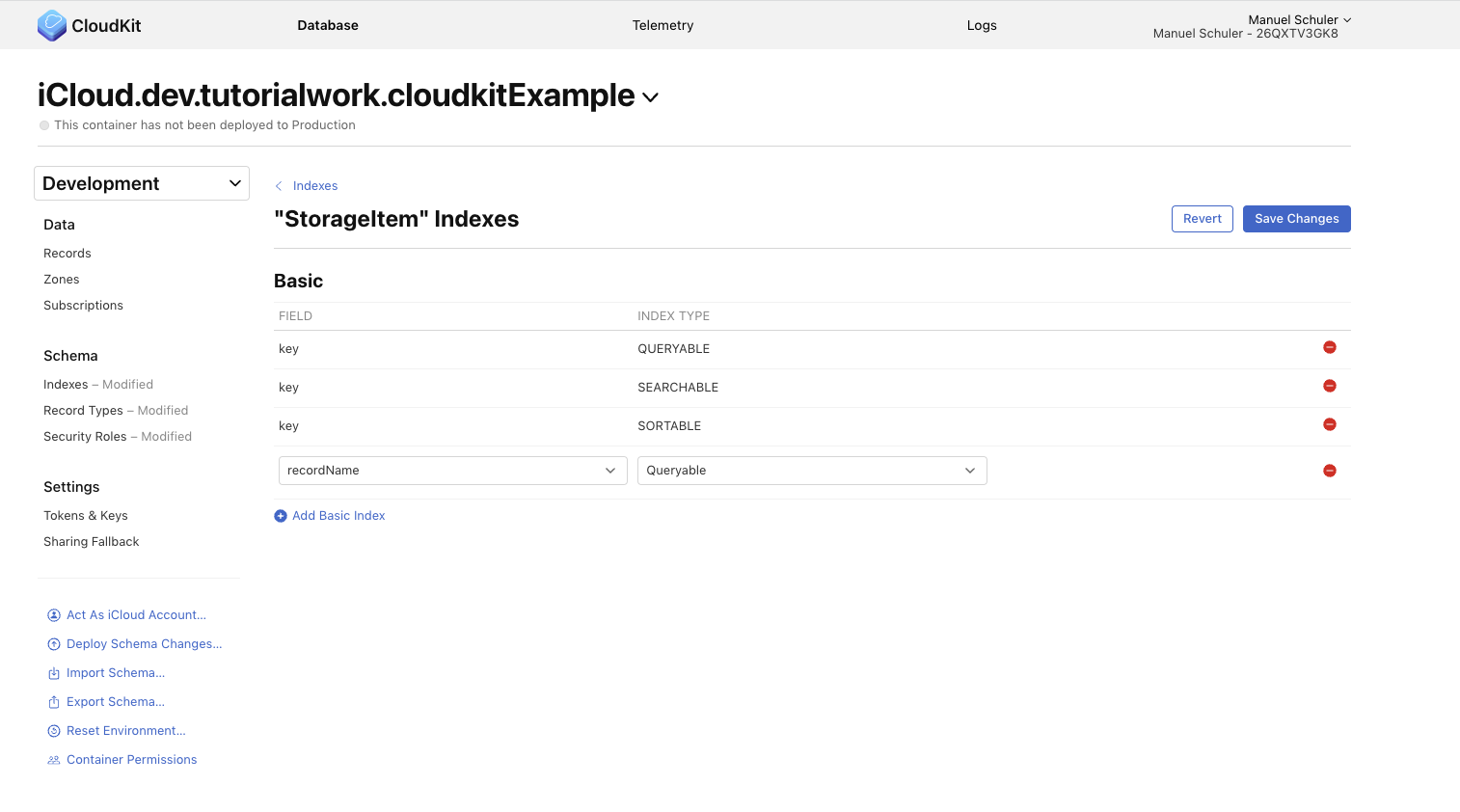
- Make sure before you are deploying your app, you need to deploy the database schema using the "**Deploy Schema Changes…**" button.