https://github.com/tuyile006/cshpargdiparticle
使用C#Winform程序实现的一系列粒子效果,主要是实验一下C#+GDI写动画效果的能力。使用了双缓存和GDI+,界面还是很丝滑的。一共写了6个例子特效动画,欢迎大家补充。
https://github.com/tuyile006/cshpargdiparticle
csharp gdi
Last synced: 12 months ago
JSON representation
使用C#Winform程序实现的一系列粒子效果,主要是实验一下C#+GDI写动画效果的能力。使用了双缓存和GDI+,界面还是很丝滑的。一共写了6个例子特效动画,欢迎大家补充。
- Host: GitHub
- URL: https://github.com/tuyile006/cshpargdiparticle
- Owner: tuyile006
- License: apache-2.0
- Created: 2025-02-20T12:11:28.000Z (over 1 year ago)
- Default Branch: main
- Last Pushed: 2025-02-20T13:38:25.000Z (over 1 year ago)
- Last Synced: 2025-02-20T14:34:06.486Z (over 1 year ago)
- Topics: csharp, gdi
- Language: C#
- Homepage:
- Size: 4.88 KB
- Stars: 0
- Watchers: 1
- Forks: 0
- Open Issues: 0
-
Metadata Files:
- Readme: README.md
- License: LICENSE
Awesome Lists containing this project
README
# CShparGDIParticle
使用C#Winform程序实现的一系列粒子效果,主要是实验一下C#+GDI写动画效果的能力。使用了双缓存和GDI+,界面还是很丝滑的。一共写了6个例子特效动画,欢迎大家补充。
部分界面如下:
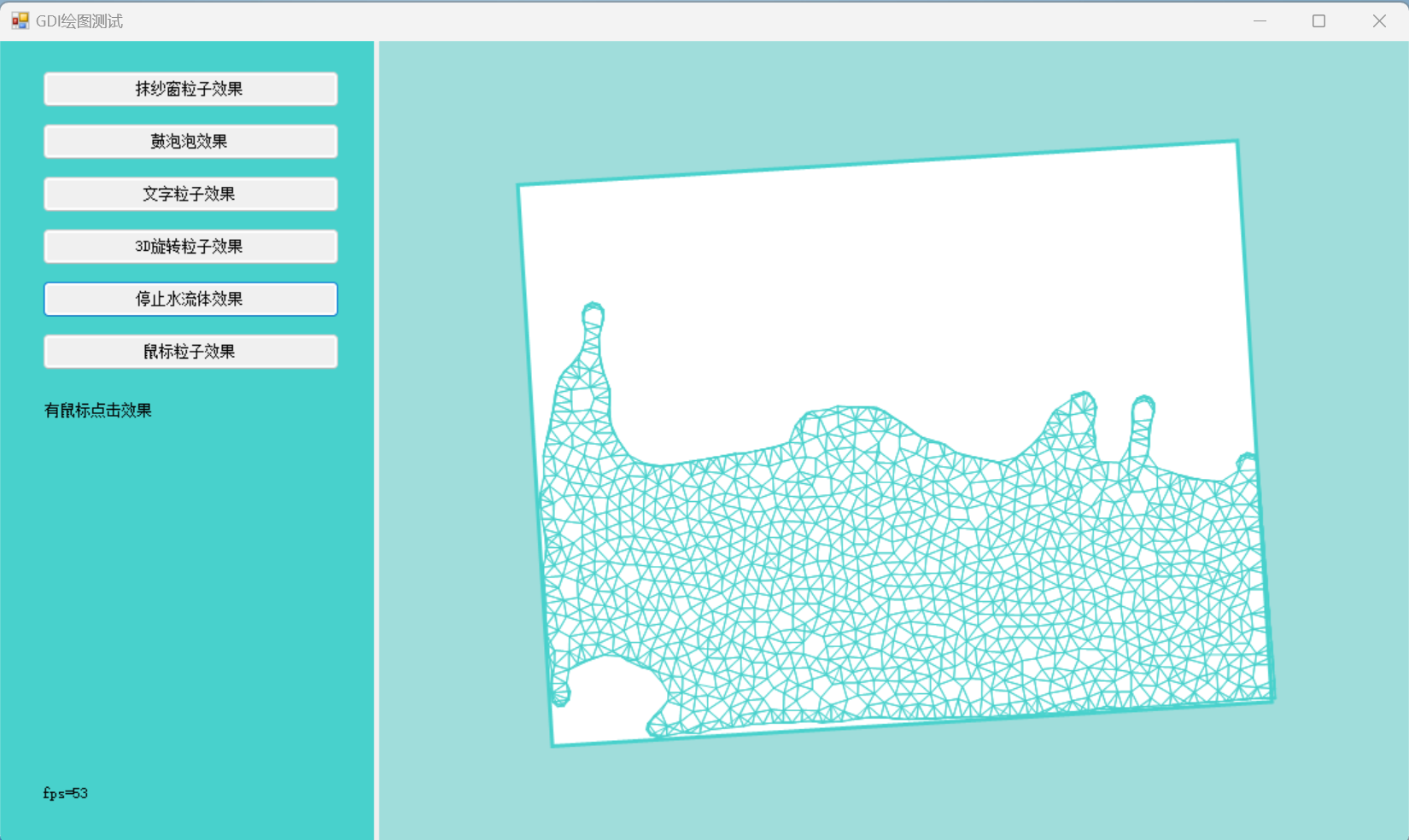

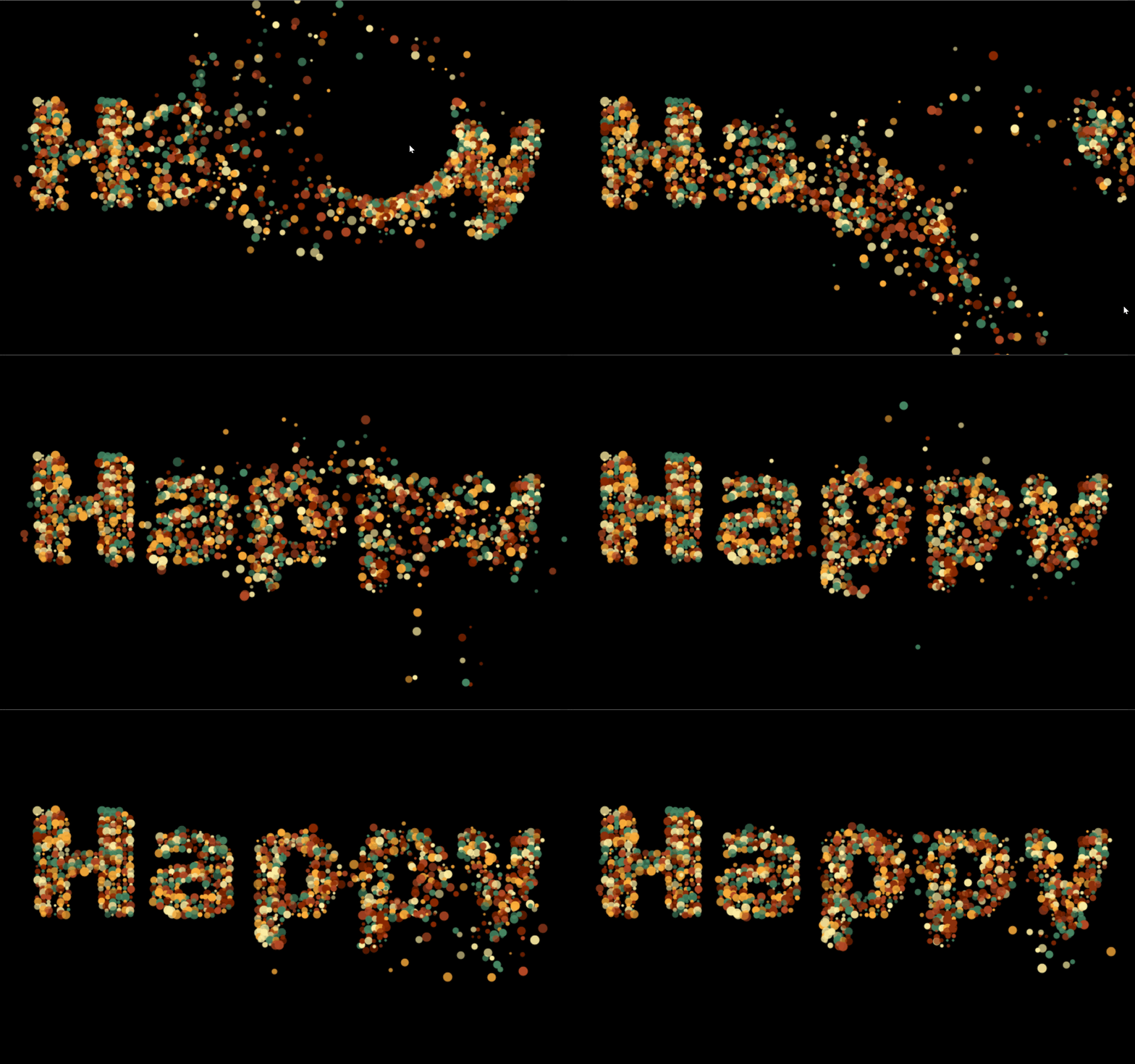
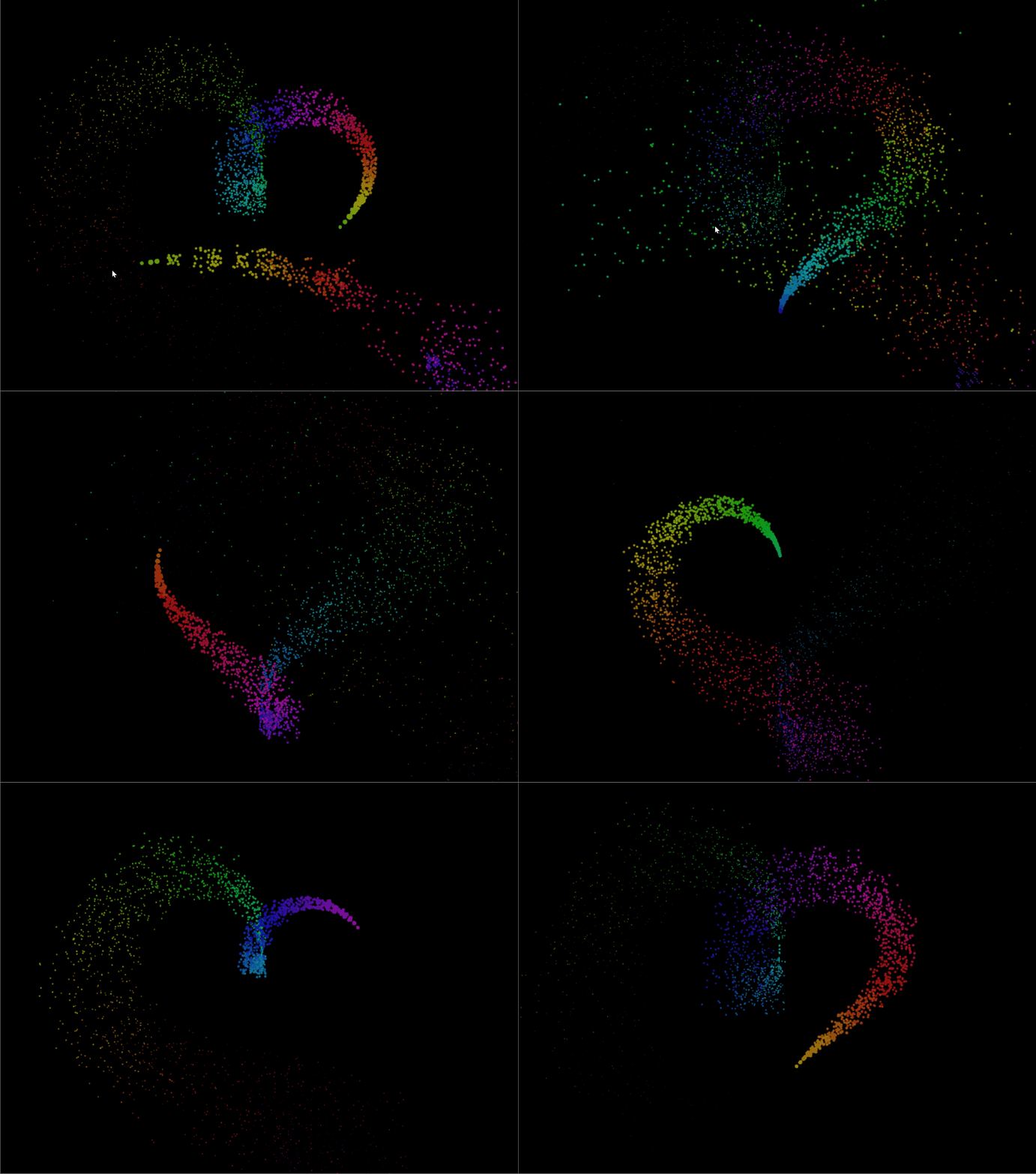
写完之后感受就是,C#也是可以写出炫酷的粒子效果的,而且不卡顿很丝滑。
其中几个关键点:
**1. 窗体设置双缓存:**
```C#
public Form1()
{
DoubleBuffered = true; //设置双缓冲
InitializeComponent();
}
```
**2. 在Paint事件中重绘粒子,不要在While(true)之类的循环里无间隔调用**。Winform中的Paint事件就相当于JavaScript中的requestAnimationFrame事件。
**3. 每次重绘调用的方法统一返回一张Bitmap图片**,换句话说就是把全部的粒子画到一张Bitmap中,不能直接用pictureBox1.CreateGraphics()的Graphics对象来画粒子。否则会出现卡顿。而且这个**Bitmap**要用公共变量,不能每次调用都重新创建,否则**内存会疯涨**。
**4.取像素点的数据要用内存拷贝法**,不可直接调用img.GetPixel(i ,j).R ,否则性能极差,粒子一多也会出现卡顿。
内存拷贝法取像素点代码如下:注意其中的Data.Stride属性,用LockBits返回的像素数据每一行会有个补全操作,若采用Format24bppRgb格式也就是每个像素占用24位,3个字节分别表示B,G,R,且每行长度为Stride,不足Stride的会补全。
```C#
Bitmap bmp=new Bitmap(w,h, PixelFormat.Format24bppRgb);
BitmapData data = bmp.LockBits(new Rectangle(0, 0, w, h), ImageLockMode.ReadWrite, PixelFormat.Format24bppRgb);
int length = h * data.Stride;
byte[] RGB = new byte[length];
System.IntPtr Scan0 = data.Scan0;
System.Runtime.InteropServices.Marshal.Copy(Scan0, RGB, 0, length);
for (int y = 0; y < h; y++)
{
int index = y * data.Stride;
for (int x = 0; x < w; x++)
{
if (x % span == 0 && y % span == 0)
{
particles.Add(new ParticleObj()
{
x = x,
y = y,
vx = x,
vy = y,
vspeed = 2
});
//改变颜色。
RGB[index + 3 * x] = 255;
RGB[index + 3 * x+1] = 255;
RGB[index + 3 * x+2] = 255;
}
}
}
System.Runtime.InteropServices.Marshal.Copy(RGB, 0, Scan0, length);
bmp.UnlockBits(data);
g.DrawImage(bmp,0,0);
```
欢迎大家补充,实现更多有想象力的粒子效果。
效果见:[更多效果图](https://www.cnblogs.com/tuyile006/p/18698404)