https://github.com/uriel1998/networkcontrol-wicd-networkmanager
A bash program to automagically run commands in userspace on network connection and disconnection. Written to work with both WICD and Network-Manager
https://github.com/uriel1998/networkcontrol-wicd-networkmanager
automation bash linux networking script
Last synced: 3 months ago
JSON representation
A bash program to automagically run commands in userspace on network connection and disconnection. Written to work with both WICD and Network-Manager
- Host: GitHub
- URL: https://github.com/uriel1998/networkcontrol-wicd-networkmanager
- Owner: uriel1998
- License: gpl-2.0
- Created: 2014-07-14T06:18:59.000Z (almost 12 years ago)
- Default Branch: master
- Last Pushed: 2021-11-26T13:58:37.000Z (over 4 years ago)
- Last Synced: 2025-10-08T16:40:30.054Z (9 months ago)
- Topics: automation, bash, linux, networking, script
- Language: Shell
- Homepage: http://uriel1998.github.io/networkcontrol-wicd-networkmanager/
- Size: 608 KB
- Stars: 1
- Watchers: 1
- Forks: 1
- Open Issues: 0
-
Metadata Files:
- Readme: README.md
- License: LICENSE
Awesome Lists containing this project
README
# network-middle-manager
==================================
A bash program to automagically run commands in userspace on network connection and disconnection. Written to work with both WICD and Network-Manager
This originally started with [this](http://ideatrash.net/2013/10/getting-auto-login-window-on-public.html) and has grown into something quite a big larger, and then totally rewritten in 2021 to be a LOT simpler and more effective.
I like this little octopus. I imagine them being our manager. You cannot pronouce their name with a human tongue, sorry.

## Contents
1. [About](#1-about)
2. [License](#2-license)
3. [Prerequisites](#3-prerequisites)
4. [Installation](#4-installation)
5. [Usage](#5-usage)
6. [TODO](#6-todo)
***
## 1. About
`network-middle-manager`:
* is focused on running tasks on network change
* runs tasks *in userspace*, not as root
* assumes *all* networks are **untrusted** unless explictly configured otherwise
* works with both `network-manager` and `wicd`
* uses a simple "plugin" style system for you to define what tasks to do where
* uses YAD to provide an (optional) simple GUI to add tasks
You're traveling for the holidays. You're at a coffeeshop. And so on. You connect
to different networks, and want to spin up (or down) various processes depending
on what network you've connected to, and whether or not you trust them.
That's what `network-middle-manager` does.
This is written in the spirit of [Cuttlefish](https://www.debugpoint.com/2015/02/cuttlefish-an-event-driven-ubuntu-app-that-realises-reflexes-on-your-computer/)
was an ambitious (and needed!) automation driver for linux...which hasn't been
updated for a decade and doesn't currently run/compile on my system.
I had written a very kludgy, very awkward script that kind of handled that, but
it was so bad and flaky that even I didn't use it much. So I've rewritten it
entirely. It's in BASH so that it hopefully is more resistant to bitrot and is
easily hackable by others.
## 2. License
This project is licensed under the MIT license. For the full license, see `LICENSE`.
## 3. Prerequisites
### These may already be installed on your system.
* `network-manager` or `wicd`
* `curl`, `wget`, `awk`, `sed`, `sleep`, `grep`
* `arp`, `netstat` (From `net-tools` in Debian)
* `dig` (From `bind9-dnsutils` in Debian)
* `iwgetid` (From `wireless-tools` in Debian)
* `ip` (From `iproute2` in Debian)
### Optional
* [yad](https://smokey01.com/yad/) for GUI task setup, from `yad` in Debian
## 4. Installation
### For **both** Network Manager *and* WICD
* Clone or download the repository and place it in a directory of your choice.
* Edit `02networkcontrol` (in the `emitters` directory) with the USERNAME to be used.
* Edit `02networkcontrol` (in the `emitters` directory) with the full path to `network-middle-manager.sh`.
* Put `02networkcontrol` in `/etc/NetworkManager/dispatcher.d/02networkcontrol`.
* `sudo chown root:root /etc/NetworkManager/dispatcher.d/02networkcontrol`
* `sudo chmod +x /etc/NetworkManager/dispatcher.d/02networkcontrol`
* Edit `network-middle-manager.ini` (see below).
* You can leave `network-middle-manager.ini` in the same directory or copy it to `$HOME/.config/network-middle-manager.ini`
* Set up your automatic processes.
### WICD only steps
* Put `up.sh` (in the `emitters` directory) in `/etc/wicd/scripts/preconnect`
* Put `down.sh` (in the `emitters` directory) in `/etc/wicd/scripts/postconnect`
* `sudo chmod +x /etc/wicd/scripts/preconnect/up.sh`
* `sudo chmod +x /etc/wicd/scripts/preconnect/down.sh`
### OPTIONAL
* `50-disable-wireless-when-wired` : Does exactly what it says on the tin. If you
wish to use this, copy it to `/etc/NetworkManager/dispatcher.d/` and then
* `sudo chown root:root /etc/NetworkManager/dispatcher.d/50-disable-wireless-when-wired`
* `sudo chmod +x /etc/NetworkManager/dispatcher.d/50-disable-wireless-when-wired`
### network-middle-manager.ini
The format is simple; all networks are considered **UN**trusted except for the
ones you mark as trusted. Therefore, the simplest setup is to leave everything
under "Trusted" blank.
Trusted networks can be identified either by the SSID or the MAC address of
the gateway. `wan_detect.sh` will give you that information for the **first**
connected network. (Network Manager will connect to both a wired and wireless
connection at the same time unless you use the optional `50-disable-wireless-when-wired`.)
The gateway MAC address should not change, even if you have a VPN running.
`latency` is used for a delay when you're *switching* networks - say from wireless
to wired - so that the up commands do not conflict with the down commands. Default
is 10 seconds.
**IMPORTANT** Do not have any lines that START with `SSID=` or `MAC=` and nothing
after the equals sign for security reasons.
```
[DEFAULT]
latency=10
[Trusted]
SSID=mySSIDisboring
MAC=1a:2b:3c:4d:5e:6f
```
### Set up actions
This part requires `YAD`, or manually editing files.
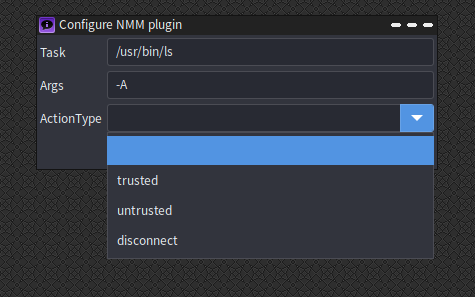
All actions are designed to happen in *userspace*. Run `setup-function.sh` in
the directory where you placed `network-middle-manager`. Put the full path to
the command you wish to run, any arguments on the next line, and use the dropdown
to determine whether the command should be run on a *trusted* network, an *untrusted*
network, or upon **any** network disconnect.
For example, I use [Private Internet Access](http://www.privateinternetaccess.com/pages/buy-a-vpn/1218buyavpn?invite=U2FsdGVkX1-SlyUtdYwtLcS0OJw83in87Dz9uyrKJUg%2CrHt7_wHO3z0c-uDZrCuQPIxALTo) (referral link).
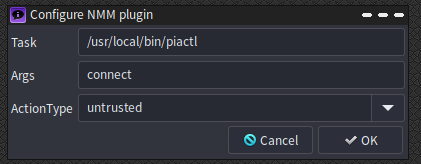
I am going to only use it with untrusted networks, so my first setup task is:
```
Task: /usr/local/bin/piactl
Args: connect
ActionType: untrusted
```
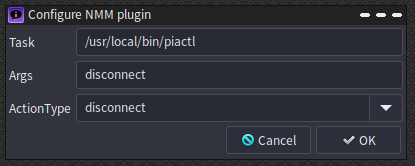
My second is
```
Task: /usr/local/bin/piactl
Args: disconnect
ActionType: disconnect
```
This creates the plugins using the `template.txt` file and puts them in the right
directory. If you decide to manually create these, BASENAME is the basename of
the command, TASKNAME and TASKARGS are hopefully obvious, and they should be
copied into the appropriate plugin directory.
### Multiple instances of the same command per network condition
This *will* fail if you have multiple commands with the same command for the
same network condition. That is, you cannot have two "trusted" actions with the
command `/bin/bash`.
In that case, making (or using) a script that has the commands you want with the
same base command name. It's all in your userspace, so hack away!
Likewise, if you have a script that you need to run as another user (or root),
(such as my [script for UFW](https://uriel1998.github.io/ufw-iptables-archer/)),
contain that inside another script as well.
### Note about PIA
Note: PIA requires either the applet running or for you to have the daemon running
by issuing the command `/usr/local/bin/piactl background enable` beforehand.
## 5. Usage
Restart network-manager to make sure that network-manager or wicd is aware of the new
scripts. `network-middle-manager` will run the commands you told it to on network
connection or disconnection as the user you defined.
You may see `nmm_up.pid` and `nmm_down.pid` briefly appear in the application directory.
You *will* see `nmm_status` appear in the application directory. This is because
of the way `network-manager` handles connection changes (e.g. when you plug an
ethernet cable into a system that's running on wireless).
### Utilities
There are two additional utility scripts that are used with `network-middle-manager` that
can be used standalone as well:
* `network_detect.sh`: Checks if you're connected to a network with the defined
properties and both returns an exit code of 0 (success) or 99 (fail) and emits success|fail to STDOUT.
`network_detect.sh --[match|unmatch] [MAC address|SSID|html file]`
Example:
```
network_detect.sh --match "http://10.10.1.5/default.html"
network_detect.sh --unmatch MySSID
```
* `wan_detect.sh`: Gives you information quickly about active interfaces. It checks for
the first active interface, LAN ip4 address, and WAN ip4 address. It also checks
the WAN address multiple ways if others fail.
```
-q : No headers on output.
-s : Only the WAN ip, and exit code 99 if fail, 0 if success
-v : Only the exit code 99 if fail, 0 if success
```
Example: `result=$(./wan_detect.sh -v; echo $?); if [ $result -eq 0 ];then ... ; fi`
## 6. Todo
* Have wan_detect be able to deal with multiple simultaneous connections.
* the .keep files are literally so the empty directories exist in the repo.