https://github.com/urlbox/wordpress-screenshots
A wordpress plugin to add website screenshots to your wordpress site
https://github.com/urlbox/wordpress-screenshots
Last synced: 5 months ago
JSON representation
A wordpress plugin to add website screenshots to your wordpress site
- Host: GitHub
- URL: https://github.com/urlbox/wordpress-screenshots
- Owner: urlbox
- Created: 2016-10-15T11:38:59.000Z (over 9 years ago)
- Default Branch: master
- Last Pushed: 2024-10-14T13:16:36.000Z (over 1 year ago)
- Last Synced: 2025-10-13T02:32:16.164Z (8 months ago)
- Language: PHP
- Size: 4.37 MB
- Stars: 2
- Watchers: 3
- Forks: 1
- Open Issues: 1
-
Metadata Files:
- Readme: README.md
Awesome Lists containing this project
README
# Urlbox WordPress Screenshots
🎉 Easily display screenshots of websites right in your WordPress site 🎉
Uses the [Urlbox](https://urlbox.com) API to generate website screenshots from any URL and displays them in your WordPress site using a simple shortcode.
Just add the `[urlbox]` shortcode to any of your posts with the Shortcode block.
## Basic Example
Just use `[urlbox url=urlbox.com thumb_width=600]` in a Shortcode block.
This will generate the following screenshot:

## Full Page Screenshot Example
Add full_page=true to your shortcode options `[urlbox url=urlbox.com thumb_width=600 full_page=true]`
And the resulting screenshot will look like this:

## What do you need
- WordPress
- Urlbox Account
- Urlbox API key and secret
[Sign up to obtain your API Key and Secret at urlbox.com](https://urlbox.com)
## Usage
Using the plugin is very easy:
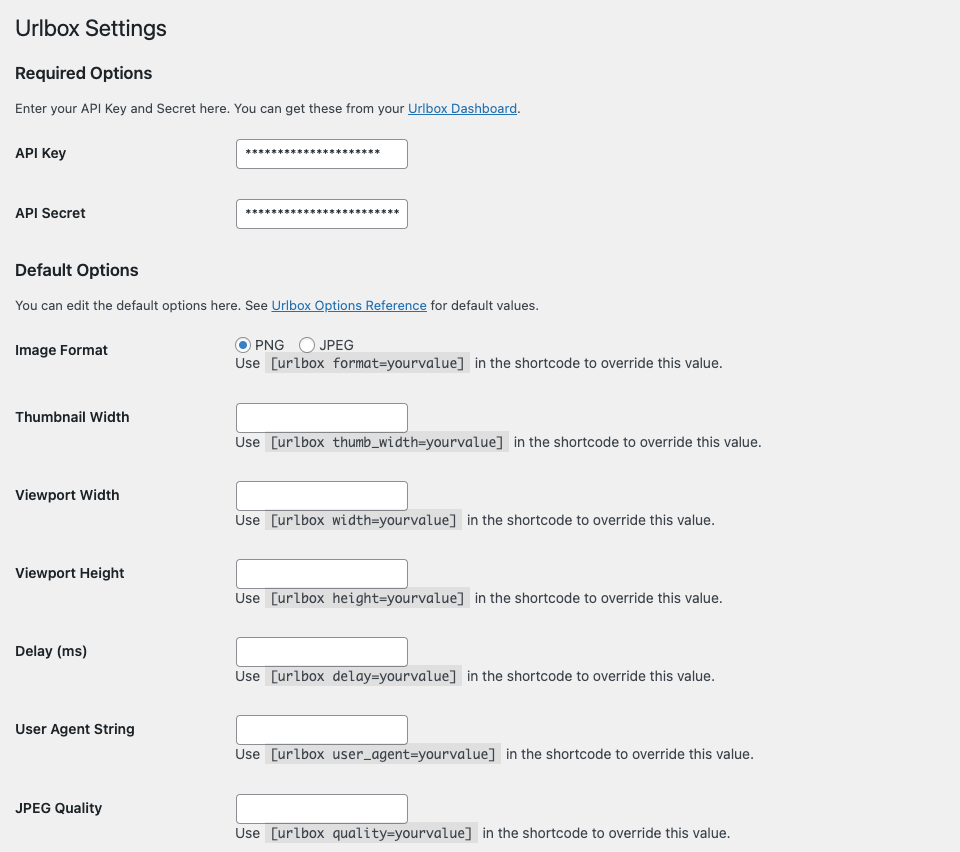
- First activate the plugin and fill in your Urlbox.com API Key and Secret in the settings page. (Settings -> Urlbox)
- (Optional) Set default options for your screenshots, such as width, height, and thumbnail width on the plugin settings page.
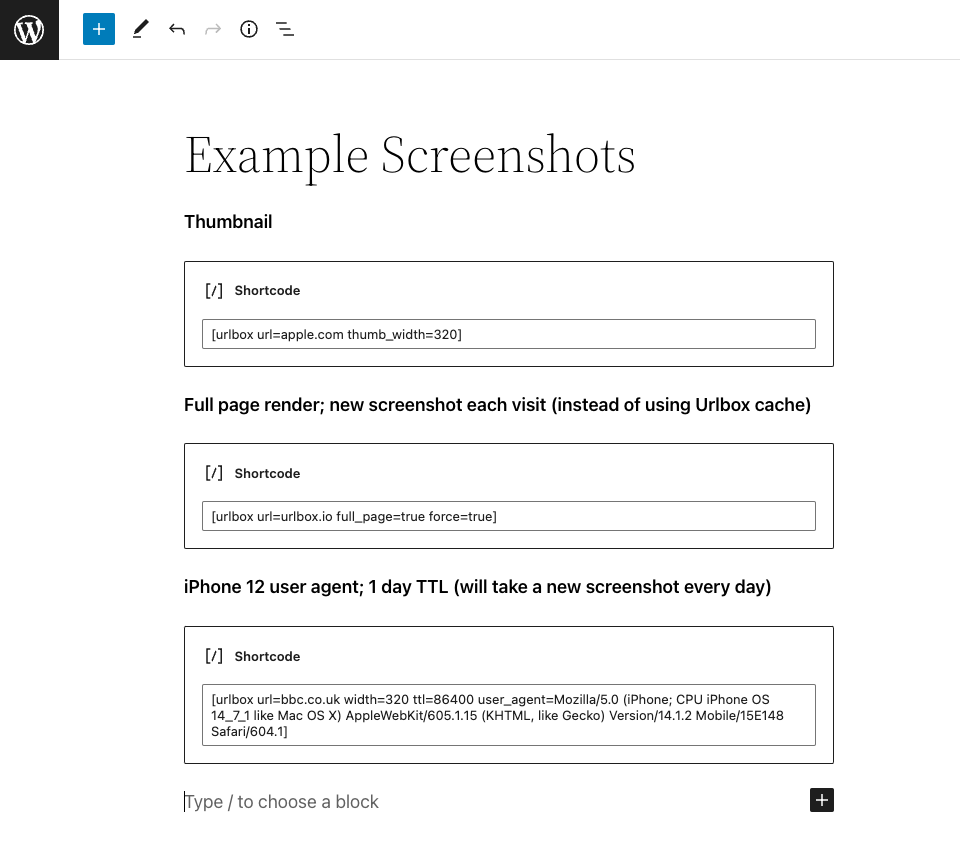
- Now when you want to display a screenshot inside a post, simply use the following shortcode in a Shortcode block:
`[urlbox url=google.com] // display a screenshot of google.com `
- If you want to add any extra settings, simply pass the option into the shortcode:
`[urlbox url=google.com full_page=true thumbnail_width=400] // display a full_page screenshot of google, thumbnailed down to 400px wide`
- The plugin wraps the `![]() ` element inside a `` element. You can set the class of both of these elements from the settings page (which will apply to all screenshots), and also override these settings for individual screenshots by passing in the options in the shortcode:
` element inside a `` element. You can set the class of both of these elements from the settings page (which will apply to all screenshots), and also override these settings for individual screenshots by passing in the options in the shortcode:
`[urlbox url=google.com div_class=my-div-class img_class=my-img-class ] // change the css classes of the elements`
## Frequently asked questions
- How to change options from the shortcode?
Pass them in like so: `[urlbox url=www.bbc.co.uk width=100]`
See the plugin settings page for all possible options
## Screenshots
1. Settings view
2. Using the shortcode in a post
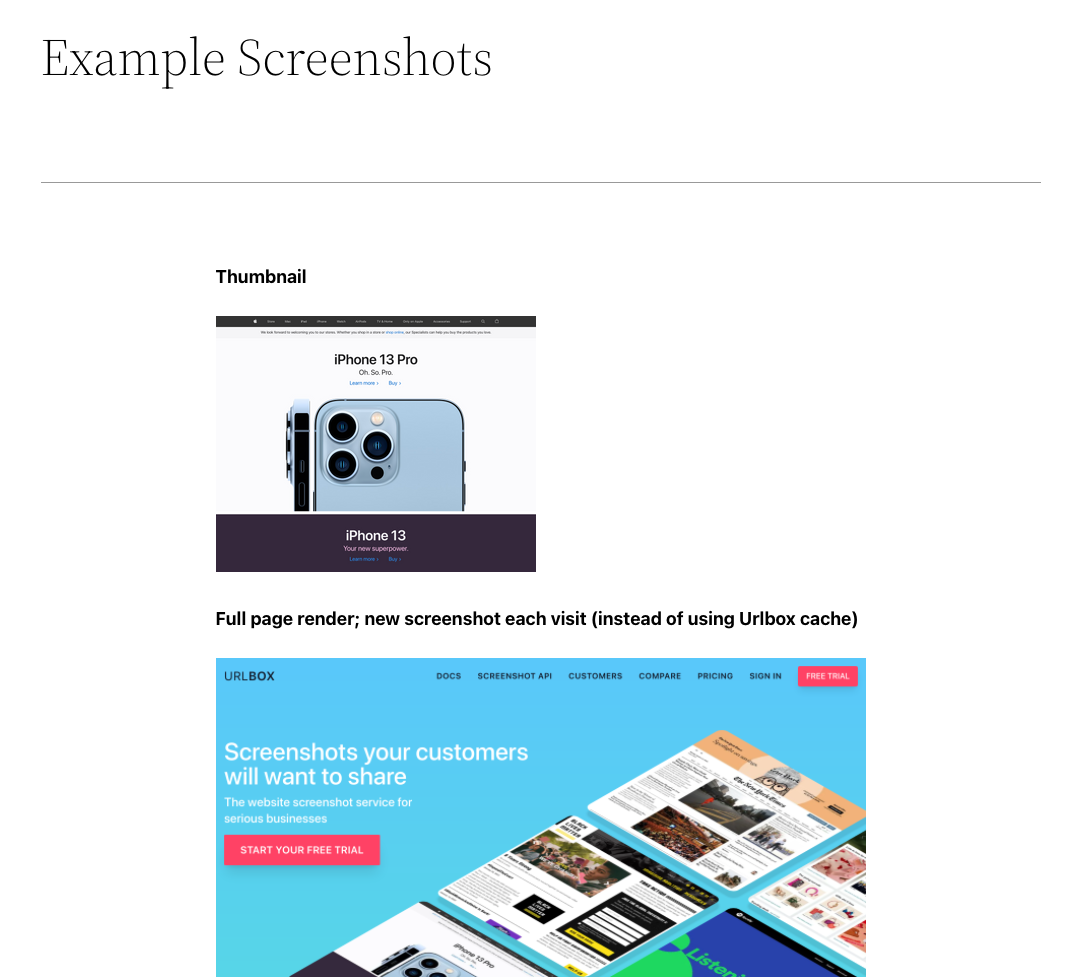
3. Viewing the results
## Known Bugs
- None at this time
## Changelog
### 1.6.2
Update instances of .io to .com. This includes the generated URL made by the generateUrl() method.
### 1.6.1
Performs a refactor of the plugin, fixing a bug in the proxy logic, adding more documentation to docblocks, improving security issues, and decoupling proxy logic into a specific test method for the proxy connection and a generalised POST /sync method.
### 1.6.0
Introduce proxy logic, so users can make urlbox screenshot requests via their proxy which is set in the plugin settings.
### 1.5.4
Fixes minor bug introduced in 1.5.3 - Checkbox state wasn't held in settings.
### 1.5.3
Updates shortcode logic to allow an 'alt' attribute in the ![]() tag
tag
### 1.5.2
Updated shortcode logic to allow all Urlbox API options
### 1.5.1
Updated HTML output and instructions for the block editor; tested with WordPress 5.9
### 1.5
Fixed minor bugs and tested with Wordpress 5.7-beta
### 1.0
Initial Release
## Upgrade Notice
### 1.5
Fixed minor bugs and tested with Wordpress 5.7-beta
### 1.0
Initial Release!
## Testing
There are two ways to test the plugin easily, one with the wordpress playground, and the other using wp-env.
To install wp env make sure you have Node installed and Docker. Make sure docker is running!
Install: `npm -g i @wordpress/env`
wp-env uses a config file held in this directory (wp-env.json). Make sure you're in this directory in your terminal, then run:
`WP_ENV_PORT=3333 wp-env start`
This will set the exposed port to 3333 instead of 8888 which some people often have in use. You can change this port to whatever you wish that is unused.
You can change wordpress and php versions by changing the wp-env.json:
```JSON
"core": "Wordpress/WordPress#6.0",
"phpVersion": "8.0",
```
Will change to wordpress version 6.0 and PHP 8.0 on rerunning wp-env start.
You can also test the plugin by zipping it from the root file, then importing the zipped file in this playground:
'''https://playground.wordpress.net/?storage=browser&php=8.0&wp=6.5&networking=yes'''
Ensure that you're on at least PHP 8, Wordpress 6.5 and you have networking enabled.
## Releasing/Updating the Plugin on Wordpress
[URLBox Screenshots Wordpress Plugin Homepage](https://wordpress.org/plugins/urlbox-screenshots/#developers)
### Overview
By creating a new tagged release with the zipped repo, GH actions should automatically update the wordpress.org repository.
Wordpress uses SVN, similar to Github.
The plugin is stored centrally on their servers, so any changes need to be pushed to their server using the svn CLI (there are also GUI's).
The publicly available svn repo is available for anyone to check out. Simply go [here](https://plugins.svn.wordpress.org/urlbox-screenshots/), and you'll see the publicly available repo served by apache.
NOTE - When updating to a new tag, ensure that the tag number is updated in the wordpress meta fields in both the readme.txt and the core .php file.
### Steps to update manually via SVN:
If the GH actions deployment isn't working you can update the plugin manually via SVN.
1. Checkout the svn repo
``` svn checkout https://plugins.svn.wordpress.org/urlbox-screenshots/ ```
2. Make changes from Github
Copy any files which changed in the github repo into the svn repo's /trunk directory. This would typically be the readme.txt (which Wordpress uses for your readme on their website) and urlbox-screenshots.php.
The /trunk directory is the 'working' or 'dev' directory. It is where unstable releases would typically sit.
NOTE - Make sure that readme.txt and urlbox-screenshots.php now includes the latest tag number.
3. make a new tag by copying the trunk folder into the new tag number (use versioning major/minor/patch):
``` cp /trunk /tags/1.5.3 ```
Check the svn status:
``` svn status ```
Any new files will have a `?` beside them, and any modified will have `M` beside them.
Add new files using:
``` svn add your/filepath ```
4. Finally, by committing them changes will be pushed to the remote server:
``` svn commit --username=USERNAMEGOESHERE --password=PASSWORDGOESHERE ```
Ensure the changes took effect by going [here](https://wordpress.org/plugins/urlbox-screenshots/#developers).
#### Further resources
https://developer.wordpress.org/plugins/wordpress-org/how-to-use-subversion/
See every publicly served github plugin - https://plugins.svn.wordpress.org/