https://github.com/viseshrp/workedon
Work tracking from your shell.
https://github.com/viseshrp/workedon
cli command-line command-line-tool journal journal-application log productivity python python3 work
Last synced: over 1 year ago
JSON representation
Work tracking from your shell.
- Host: GitHub
- URL: https://github.com/viseshrp/workedon
- Owner: viseshrp
- License: mit
- Created: 2021-08-08T15:13:11.000Z (almost 5 years ago)
- Default Branch: develop
- Last Pushed: 2023-09-05T05:27:22.000Z (almost 3 years ago)
- Last Synced: 2025-03-23T23:26:55.694Z (over 1 year ago)
- Topics: cli, command-line, command-line-tool, journal, journal-application, log, productivity, python, python3, work
- Language: Python
- Homepage:
- Size: 1.72 MB
- Stars: 34
- Watchers: 1
- Forks: 0
- Open Issues: 4
-
Metadata Files:
- Readme: README.md
- Changelog: CHANGELOG.md
- License: LICENSE
Awesome Lists containing this project
README
workedon
========
[](https://pypi.python.org/pypi/workedon)
[](https://pypi.org/project/workedon/)
[](https://github.com/viseshrp/workedon/actions?query=workflow%3ATest)
[](https://codecov.io/gh/viseshrp/workedon)
[](https://github.com/viseshrp/workedon/blob/develop/LICENSE)
[](https://pepy.tech/project/workedon)
Work tracking from your shell.
Why build this
--------------
I believe tracking your work is an important way of measuring productivity
and is a habit that is very helpful to develop. But the thing about habits
is - if they aren’t easy and accessible, you will eventually stop doing
them - just like going to a gym that is 40 minutes away :) I tried
different methods to log my work and failed. Google Docs, iCloud
Notes, Notepad++, Sticky Notes, etc. I really wanted a way of tracking
with very little effort so I could make this a habit.
It's pretty obvious that we all spend most of our day on the terminal.
Wouldn’t it be nice if I wrote a feature, committed it and then logged
what I did right then and there without a second thought?
What if I could also search this based on date so I could look at,
for example, how productive I was in the past week?
`workedon` is another attempt of mine to make work logging a habit and
improve my productivity.
How it works
------------
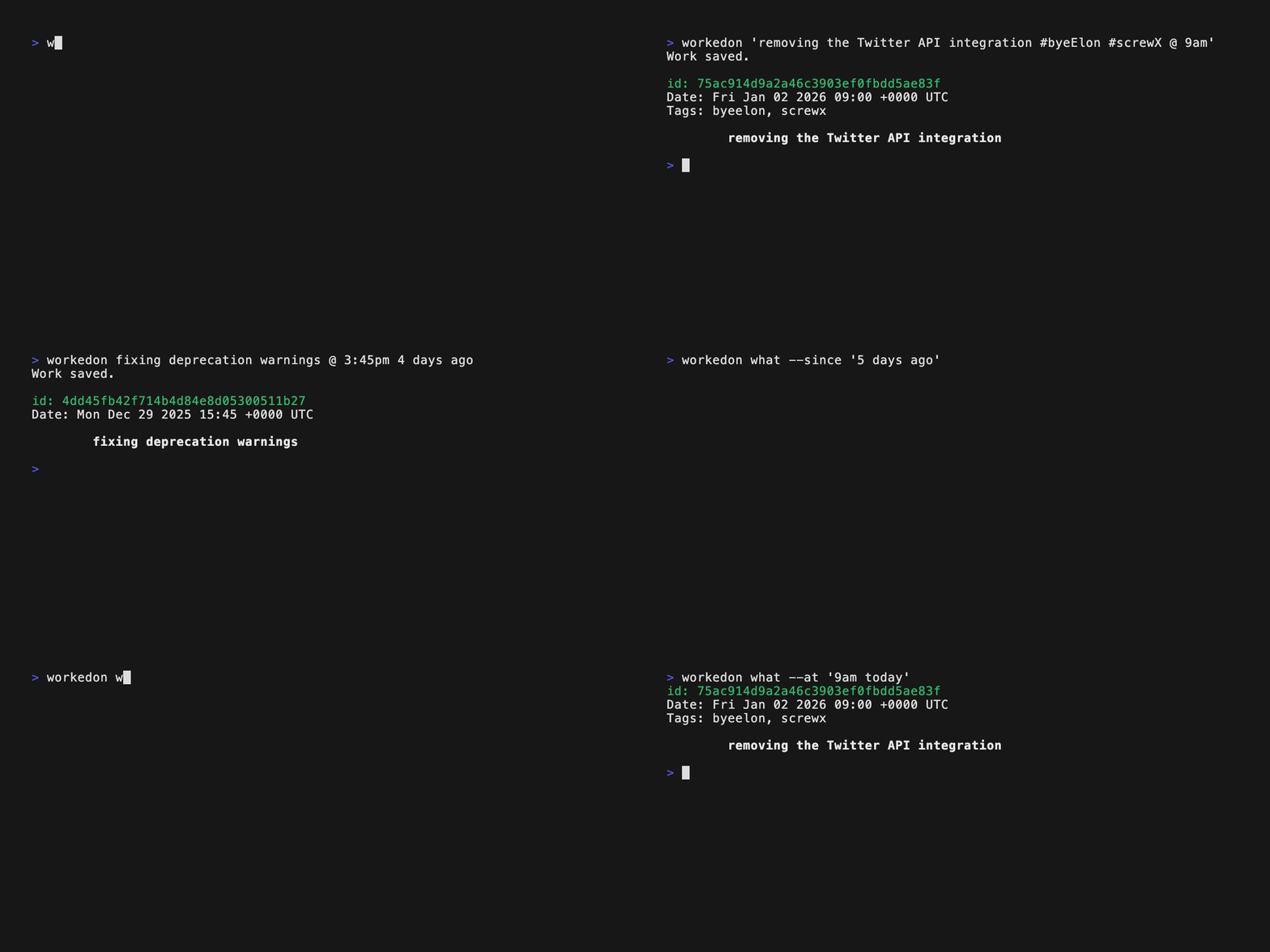
This tool is useful in two ways - for logging work and fetching logged work.
The implementation is very simple. Work is logged in the form of
`workedon @ `or just `workedon `
(which uses the current date/time). There is a custom parser that reads the
content, splits it at the `@` to a work and a date component and then uses
the awesome `dateparser` library to parse human-readable dates into datetime
objects. This is then saved in a SQLite database
([File location varies](https://github.com/platformdirs/platformdirs) based
on OS). Logged work can be fetched using multiple options that accept similar
human-readable date/times. The same parser is used again to parse into datetime
objects which are used to query the database. The output uses the current
shell's pager to display a paged list similar to `git log`
(your output may slightly vary based on your shell).
Installation
------------
``` {.bash}
pip install workedon
```
Requirements
------------
- Python 3.7+
Features
--------
- Log work from your shell in plain text with human-readable dates/times.
- The date/time is optional. The default is the current date/time.
- The `@` character is used to separate the text from the
date/time.
- Fetch logged work with human-readable dates/times.
- Familiar Git-like interface.
- Filter, sort, delete, format and display logged work on your shell.
- Set date/time format of the output through settings.
Settings
--------
Whenever `workedon` is run for the first time, a settings file named
`wonfile.py` is generated at the user's configuration directory, which
varies based on OS. To find out, run:
``` {.bash}
workedon --print-settings-path
```
Settings are strings used to configure the behavior of `workedon`.
The currently available settings are:
- `DATE_FORMAT` : Sets the date format of the output.
- Must be a valid Python [strftime](https://strftime.org/) string.
- Option: `--date-format `
- Environment variable: `WORKEDON_DATE_FORMAT`
- `TIME_FORMAT` : Sets the time format of the output.
- Must be a valid Python [strftime](https://strftime.org/) string.
- Option: `--time-format `
- Environment variable: `WORKEDON_TIME_FORMAT`
- `DATETIME_FORMAT` : Sets the date and time format of the output.
- Must be a valid Python [strftime](https://strftime.org/) string.
- Setting this overrides `DATE_FORMAT` and `TIME_FORMAT`.
- Option: `--datetime-format `
- Environment variable: `WORKEDON_DATETIME_FORMAT`
- `TIME_ZONE` : Sets the time zone of the output.
- Must be a valid
[timezone string](https://en.wikipedia.org/wiki/List_of_tz_database_time_zones).
- Default is the auto-detected timezone using the
[tzlocal](https://github.com/regebro/tzlocal) library.
- Option: `--time-zone `
- Environment variable: `WORKEDON_TIME_ZONE`
Order of priority is Option > Environment variable > Setting.
To find your current settings, run:
``` {.bash}
workedon --print-settings
```
Check the default settings
[here](https://github.com/viseshrp/workedon/blob/develop/workedon/default_settings.py).
Usage
-----
``` {.bash}
$ workedon --help
Usage: workedon [OPTIONS] COMMAND [ARGS]...
Work tracking from your shell.
Example usages:
1. Logging work:
workedon painting the garage
workedon studying for the SAT @ June 23 2010
workedon pissing my wife off @ 2pm yesterday
2. Fetching work:
workedon what
workedon what --from "2pm yesterday" --to "9am today"
workedon what --today
workedon what --past-month
Options:
-v, --version Show the version and exit.
-h, --help Show this message and exit.
Commands:
workedon* Specify what you worked on, with optional date/time.
what Fetch and display logged work.
$ workedon what --help
Usage: what [OPTIONS]
Fetch and display logged work.
If no options are provided, work
from the past week is returned.
Options:
-r, --reverse Reverse order while sorting.
-n, --count INTEGER Number of entries to return.
-s, --last Fetch the last thing you worked on
-i, --id TEXT id to fetch with.
-f, --from TEXT Start date-time to filter with.
-t, --to TEXT End date-time to filter with.
--since TEXT Fetch work done since a specified date-time in the
past.
-d, --past-day Fetch work done in the past 24 hours.
-w, --past-week Fetch work done in the past week.
-m, --past-month Fetch work done in the past month.
-y, --past-year Fetch work done in the past year.
-e, --yesterday Fetch work done yesterday.
-o, --today Fetch work done today.
--on TEXT Fetch work done on a particular date/day.
--at TEXT Fetch work done at a particular time on a particular
date/day.
--delete Delete fetched work.
-g, --no-page Don't page the output.
-l, --text-only Output the work log text only.
--date-format TEXT Sets the date format of the output. Must be a valid
Python strftime string.
--time-format TEXT Sets the time format of the output. Must be a valid
Python strftime string.
--datetime-format TEXT Sets the datetime format of the output. Must be a
valid Python strftime string.
--time-zone TEXT Sets the timezone of the output. Must be a valid
timezone string.
--help Show this message and exit.
```
Limitations
-----------
- Your input is limited by your shell. Certain characters like the single
quote `'` behave differently. Put your content within double quotes
to get around special characters.
For example:
``` {.bash}
workedon "repairing my wife's phone"
```
- The [date parser](https://github.com/scrapinghub/dateparser) which is
used may misinterpret some irregular phrases of date/time, but mostly
does great.
- There are some reserved keywords that are used as subcommands and
cannot be used as the first word of your log's content:
- `workedon`
- `what`
You can use double quotes here as well to get around this.
For example, this will not work:
``` {.bash}
workedon what my wife asked me to do @ 3pm 3 days ago
```
This is fine:
``` {.bash}
workedon "what my wife asked me to do" @ 3pm 3 days ago
```
Credits
-------
- [dateparser](https://github.com/scrapinghub/dateparser), for an
amazing date parser. This project would not be possible without it.
- [peewee](https://github.com/coleifer/peewee), for a nice and
tiny ORM to interact with SQLite.
- [Click](https://click.palletsprojects.com), for making writing CLI
tools a complete pleasure.
- [jrnl](https://github.com/jrnl-org/jrnl),
[fck](https://github.com/nvbn/thefuck) and
[Simon Willison](https://github.com/simonw/sqlite-utils/) for some
inspiration.