https://github.com/voronenko/projectdocs
This is boilerplate for project documentation portal. Example can be seen here
https://github.com/voronenko/projectdocs
blockdiag documentation plantuml python3 sphinx-doc
Last synced: over 1 year ago
JSON representation
This is boilerplate for project documentation portal. Example can be seen here
- Host: GitHub
- URL: https://github.com/voronenko/projectdocs
- Owner: Voronenko
- License: other
- Created: 2016-08-10T17:33:53.000Z (almost 10 years ago)
- Default Branch: master
- Last Pushed: 2022-12-08T09:53:14.000Z (over 3 years ago)
- Last Synced: 2025-03-23T03:07:26.891Z (over 1 year ago)
- Topics: blockdiag, documentation, plantuml, python3, sphinx-doc
- Language: JavaScript
- Homepage: https://voronenko.github.io/ProjectDocs/
- Size: 8.82 MB
- Stars: 4
- Watchers: 3
- Forks: 1
- Open Issues: 6
-
Metadata Files:
- Readme: README.md
- License: License.md
Awesome Lists containing this project
README
## Why documentation can’t be the project ?
#### Introduction
This article, based on my experience, demonstrates approach of organizing
documentation in your project aiming following:
* Make easier s/w project transition to support
* Get single entry point for updates and info
* Get project documented from multiple angles
* Get your stakeholders involved
* Get your developers involved
* Get your ops involved
* Get your testers involved
#### Background
I am in software development for more than decade now. I used to work in a
different teams and on different projects, including the one, that was
transferred on support from other teams and even companies.
On of the biggest and most usual problems faced were lacking of project
documentation. In number of situations it was cause of the longer time needed to
take ownership over project. This is not usually failure of the team, sometimes
documentation is just not included into budget.
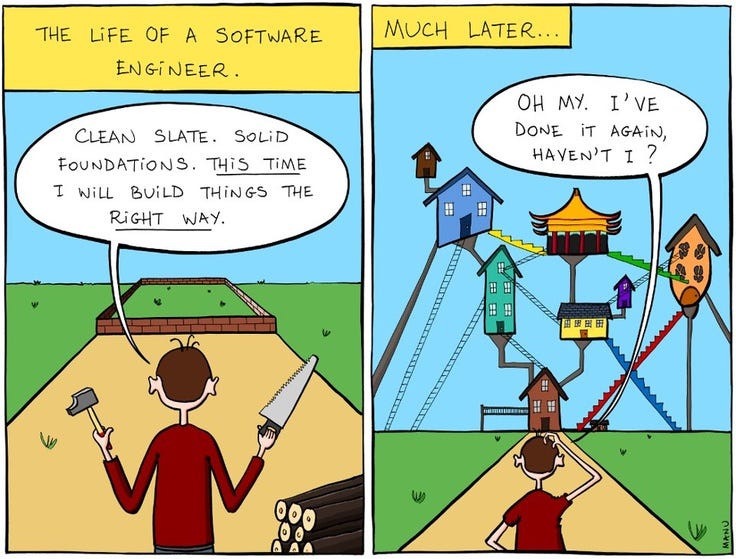
That’s why I always tried to include portions of the knowledge for future
support (even for myself in a few months or years)
Most often we are working with subset of diagrams, which are called informally
4+1 architectural view set, i.e.
**Development view**: Component, Package
**Logical view**: Activity, State,
Class
**Physical view**: deployment
**Process**: Activity, BPMN
**Scenarios**: Use Case
In a bigger projects, usually project manager decides what visualization
packages are used depending on his experience. I used to draw diagrams in MS
Visio, Edraw, yEd, Openoffice Draw, also number of online tools like Gliffy,
Lucida charts, draw.io etc.
Common issue I had — is constant feeling, that I would draw them much easier
with pencil and scan afterwards. On some more complex diagram set another
question I had was also “Hey how did I spend my working day today” :) As
diagrams also need to be constantly updated as software evolves, it was
sometimes hard to track differences in proprietary binary formats or even
constantly check diagrams differences online (like Gliffy, where versioning is
supported). On some projects we had google docs with number of diagram file
versions uploaded. If project used Confluence — it was probably the best case of
ever possible. On some projects we had just wiki provided by bitbucket …
For a quite long time I was looking for consistent approach, how to keep my
diagrams sources as simple as possible. Basically I had very basic set of
requirements:
* to spend minutes to draft diagram
* to be able to see history of changes in source control
* ideally be able to combine diagram with code
Let me share with you current state of my findings:
*****
### Tool #1: Plant UML
Site: [http://www.plantuml.com/](http://www.plantuml.com/)
Dependencies: java, GraphViz package
Diagrams supported: UML set & a bit more
Tool is able to draw full set of UML diagrams, which makes it almost ideal,
although your sales person probably will not be happy from look. But for
purposes of documentation they are perfect:
But what is great, is that diagrams sources are pure text:
This allows you to put them together with code, for example as a block comment
to your module, easily track changes in a source control system, etc
Tool has number of integrations with variety of software:
[http://plantuml.com/running](http://plantuml.com/running) from IDE, to wiki or
confluence.
You can try interactively how to draw diagrams now at
[https://www.planttext.com/](https://www.planttext.com/) or view few pre-created
diagrams at [http://bit.ly/plantdiag](http://bit.ly/plantdiag)
*****
### Tool #2: Blockdiag
Site: [http://www.blockdiag.com/](http://www.blockdiag.com/)
Dependencies: python 2+
Diagrams supported: blocks, sequences, activity,
network, rack, packet structure.
Activity diagram, for example, looks a way better than one generated by plantUML
Compared to PlantUML diagrams look better, but cons are that number of options
is much lower. From other hand, there are some specific kind of diagrams, like
packet structure, rack or just graphs — that make this tool ideal.
*****
### Tool #3: Sphinx doc
Site: [http://www.sphinx-doc.org/](http://www.sphinx-doc.org/)
Dependencies:
python 2+
Pros: universal, including your own custom code to build the pages
Cons: plugins matter
PlantUML and Blockdiag are perfect tools, and can be used on their own, to
generate diagram images that you insert into your wikis afterwards.
But if you are looking for a full cycle solution for your project documentation
— take a look on Sphinx doc.
This is universal solution to be engine of project documentation for project of
any size, and my compete with wiki, confluence, and similar tools
**Output formats**: HTML (including Windows HTML Help), LaTeX (for printable PDF
versions), ePub, Texinfo, manual pages, plain text
**Extensive cross-references**: semantic markup and automatic links for
functions, classes, citations, glossary terms and similar pieces of information
**Hierarchical structure**: easy definition of a document tree, with automatic
links to siblings, parents and children
**Automatic indices**: general index as well as a language-specific module
indices
**Code handling**: automatic highlighting using the Pygments highlighter
Extensions: automatic testing of code snippets, inclusion of docstrings from
Python modules (API docs), and more
**Contributed extensions**: more than 50 extensions contributed by users in a
second repository; most of them installable from PyPI
Per my humble opinion, pros are:
* Well known, themable
* Wide range of plugins and extensions
* Your own custom page generators
* Advanced rst syntax
At that moment I can’t skip cons you should take into consideration:
* “ReadTheDocs” theme
* You need carefully select plugins
* Development efforts at the start
* Confusion on Markdown — if you use markdown each day, switching between rst and
markdown will be a pane
When I say, that “ReadTheDocs” theme is a cons — I mean, that probably the only
existing fully adapted theme for documentation is the one you saw hundred of
times:
*****
### Project Docs bootstrap boilerplate
As a result of experimenting I came with solution based on tools demonstrated
above. The demo of the deployed artifact probably tells more than a few
paragraphs:
[http://labs.voronenko.info/ProjectDocs/](http://labs.voronenko.info/Project
### Known issues:
#### "BlockDiag not found"
Most likely you are hitting:
#### ubuntu, enable-jpeg requested but jpeg not found
error ValueError: --enable-jpeg requested but jpeg not found, aborting
solution: `sudo apt-get install libjpeg-dev`
#### MacOS
zlib not found or libjpeg not found
solution: install dev packages using `xcode-select --install` ,
install jpeg-devel using `brew install libjpeg`
#### Other clues
Take a look on https://github.com/Voronenko/projectdocs/blob/master/Dockerfile
it has listed all binary packages required. Check you have all of them or alternatives.
#### useful tools
Formats convertor: https://github.com/jgm/pandoc
Example, to convert docs artifact:
```sh
pandoc -s flow.docx -t rst -o product_flow.rst
```
Converting markdown artifact:
```sh
pandoc --from=markdown --to=rst --output=README.rst README.md
```
PandaDoc online: https://pandoc.org/try/
Online work pad for diagramming construction
http://interactive.blockdiag.com/
Online work pad for UML diagrams construction
http://plantuml.com/plantuml/uml/
PlantUML learning pad with examples:
http://www.planttext.com/planttext
Generate pgsql schema diagram with schemacrawler http://sualeh.github.io/SchemaCrawler/ , example:
```sh
schemacrawler -server=postgresql -database=demo_test -user=postgres -password=postgres -infolevel=maximum -command=graph -outputformat=pdf -outputfile=database-diagram.pdf
```
Generate pgsql schema diagram portal with schemaspy http://schemaspy.sourceforge.net/ , example:
```sh
schemaspy -t pgsql -db demo_test -host localhost -port 5432 -s public -u postgres -p postgres -o output
```
Incorporate static code analysis into your project:
Doxygen:
https://github.com/michaeljones/breathe/tree/master
## Building docs project
You have two options:
- build locally with diagramming software installed separately
- using dockerized image
### local setup
You would need:
- python 3 , pipenv, make
- java 6-7-8 for plantUML
diagramming software
- plantUML (http://plantuml.com/ , recipe https://github.com/Voronenko/ansible-developer_recipes/blob/master/tools/tasks_plantuml.yml)
- blockdiag (http://blockdiag.com/en/ , installed via requirements.txt)
### Running the local build
At this moment it is enough to run ./clean_build.sh
Result will be produced out/html
### Docker setup
------------
You need to have docker installed. File ./docker_build.sh does similar task as clean_build.sh
```sh
#!/bin/bash
DOCKER_UID=$(id -u)
DOCKER_USER=$(whoami)
RUNNING=$(docker inspect --format="{{ .State.Running }}" projectdocs 2> /dev/null)
if [ $? -eq 1 ]; then
echo "PROJECTDOCS CONTAINER DOES NOT EXIST - CREATE IT"
docker create -it -v $PWD:/opt/sphinxproject --name projectdocs softasap/sphinx-projectdocs:latest bash
docker start projectdocs
echo projectdocs container created
fi
if [ "$RUNNING" == "false" ]; then
echo "RUN PROJECTDOCS CONTAINER"
docker start projectdocs
echo projectdocs container running
fi
echo "building docs"
echo docker exec -it projectdocs bash -c "export DOCKER_UID=${DOCKER_UID} && export DOCKER_USER=${DOCKER_USER} && /opt/sphinxproject/docker_entry_point.sh"
docker exec -it projectdocs bash -c "export DOCKER_UID=${DOCKER_UID} && export DOCKER_USER=${DOCKER_USER} && /opt/sphinxproject/docker_entry_point.sh"
```
### Building epub project
make epub
Options for epub output
These options influence the epub output. As this builder derives from the HTML builder, the HTML options also apply where appropriate. The actual values for some of the options is not really important, they just have to be entered into the Dublin Core metadata.
epub\_basename
The basename for the epub file. It defaults to the project name.
epub\_theme
The HTML theme for the epub output. Since the default themes are not optimized for small screen space, using the same theme for HTML and epub output is usually not wise. This defaults to 'epub', a theme designed to save visual space.
epub\_title
The title of the document. It defaults to the html_title option but can be set independently for epub creation.
epub\_author
The author of the document. This is put in the Dublin Core metadata. The default value is 'unknown'.
epub\_language
The language of the document. This is put in the Dublin Core metadata. The default is the language option or 'en' if unset.
epub\_publisher
The publisher of the document. This is put in the Dublin Core metadata. You may use any sensible string, e.g. the project homepage. The default value is 'unknown'.
epub\_copyright
The copyright of the document. It defaults to the copyright option but can be set independently for epub creation.
epub\_identifier
An identifier for the document. This is put in the Dublin Core metadata. For published documents this is the ISBN number, but you can also use an alternative scheme, e.g. the project homepage. The default value is 'unknown'.
epub\_scheme
The publication scheme for the epub_identifier. This is put in the Dublin Core metadata. For published books the scheme is 'ISBN'. If you use the project homepage, 'URL' seems reasonable. The default value is 'unknown'.
epub\_uid
A unique identifier for the document. This is put in the Dublin Core metadata. You may use a random string. The default value is 'unknown'.
epub\_cover
The cover page information. This is a tuple containing the filenames of the cover image and the html template. The rendered html cover page is inserted as the first item in the spine in content.opf. If the template filename is empty, no html cover page is created. No cover at all is created if the tuple is empty. Examples:
epub\_cover = ('_static/cover.png', 'epub-cover.html')
epub\_cover = ('_static/cover.png', '')
epub\_cover = ()
The default value is ().
New in version 1.1.
epub\_pre\_files
Additional files that should be inserted before the text generated by Sphinx. It is a list of tuples containing the file name and the title. If the title is empty, no entry is added to toc.ncx. Example:
epub\_pre\_files = [
('index.html', 'Welcome'),
]
The default value is [].
epub\_post\_files
Additional files that should be inserted after the text generated by Sphinx. It is a list of tuples containing the file name and the title. This option can be used to add an appendix. If the title is empty, no entry is added to toc.ncx. The default value is [].
epub\_exclude\_files
A list of files that are generated/copied in the build directory but should not be included in the epub file. The default value is [].
epub\_tocdepth
The depth of the table of contents in the file toc.ncx. It should be an integer greater than zero. The default value is 3. Note: A deeply nested table of contents may be difficult to navigate.
epub\_tocdup
This flag determines if a toc entry is inserted again at the beginning of it’s nested toc listing. This allows easier navitation to the top of a chapter, but can be confusing because it mixes entries of differnet depth in one list. The default value is True.
### Building kindle project
make mobi
The following configuration values can be used in `conf.py`. At a minimum, you must set the *mobi\_theme* option:
mobi\_add\_visible\_links
Whether or not to write out the full text of a hyperlink next to the link itself. If the document will be read on paper (or printed), it is a good idea to set this to `True`.
Default: `True`
mobi\_author
The author of the book.
> Default: `'unknown'`
mobi\_basename
The basename of the output file (the part of the filename that precedes `.mobi`)
> Default: The project name, with spaces removed.
mobi\_copyright
The copyright holder of the book.
> Default: The value of **copyright** in `conf.py`
mobi\_cover
The cover image for the book. This should be in `.jpg` format.
> Default: No cover image is used.
mobi\_exclude\_files
> Default: no files are excluded.
mobi\_identifier
> Default: `'unknown'`
mobi\_language
> Default: The value of *language* in `conf.py`, or `'en'` if *language* is not set.
mobi\_post\_files
> Default: no post files are used.
mobi\_pre\_files
> Default: no pre files are used.
mobi\_publisher
The publisher name for the book.
> Default: `'unknown'`
mobi\_scheme
> Default: `'unknown'`
mobi\_theme
*Required*. The mobi theme-file to use. If you don’t have a theme of your own, use the `epub` theme:
mobi_theme = 'epub'
mobi\_title
> Default: The value of *html\_title* in `conf.py`.
mobi\_tocdepth
> Default: `3`.
mobi\_tocdup
> Default: `True`
mobi\_uid
> Default: `'unknown'`
# Additional resources
https://github.com/yoloseem/awesome-sphinxdoc