https://github.com/vtex-apps/checkout-ui-custom
https://github.com/vtex-apps/checkout-ui-custom
app-store b2b b2c us-1st-party-apps
Last synced: 6 months ago
JSON representation
- Host: GitHub
- URL: https://github.com/vtex-apps/checkout-ui-custom
- Owner: vtex-apps
- Created: 2020-08-17T17:23:13.000Z (almost 6 years ago)
- Default Branch: master
- Last Pushed: 2025-02-04T22:11:06.000Z (over 1 year ago)
- Last Synced: 2025-02-04T23:20:29.084Z (over 1 year ago)
- Topics: app-store, b2b, b2c, us-1st-party-apps
- Language: JavaScript
- Homepage:
- Size: 6.26 MB
- Stars: 24
- Watchers: 16
- Forks: 34
- Open Issues: 17
-
Metadata Files:
- Readme: docs/README.md
- Changelog: CHANGELOG.md
- Codeowners: .github/CODEOWNERS
Awesome Lists containing this project
README
# Checkout UI Custom
## ⚠️ Maintenance ⚠️
*Starting June 1st 2023, this application will no longer be maintained by VTEX.*
---
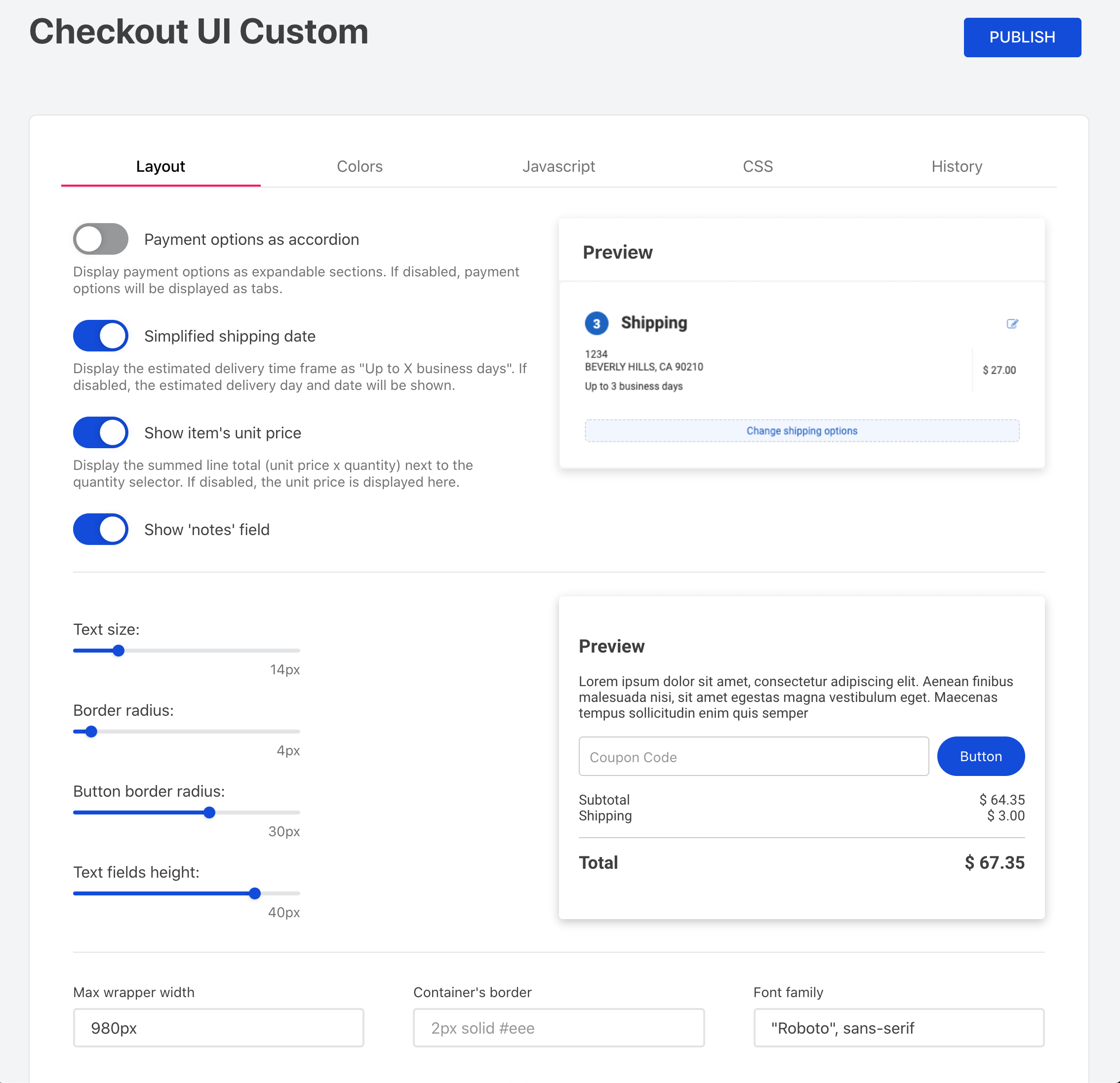
The Checkout UI Custom app is responsible for customizing your store's Checkout UI through the admin's interface.
## Configuration
1. Using your terminal and the [VTEX IO Toolbelt](https://vtex.io/docs/recipes/development/vtex-io-cli-installment-and-command-reference), log into the desired VTEX account.
2. Run `vtex install vtex.checkout-ui-custom` on the account you're working on.
3. Access your VTEX account's admin.
4. Access **Store Setup** and then **Checkout UI Custom**.
5. Make the desired changes using the interface and click on `Publish`.
ℹ️ \_Once the app is installed in your account, the `checkout6-custom.js` and `checkout6-custom.css` files will be replaced by the ones generated by this app.*
## Modus Operandi
If you access your VTEX account's admin using a [Development workspace](https://vtex.io/docs/concepts/workspace/) and publish your changes, the configurations performed using the app will only be applied into the workspace you are working in and not in your store Checkout.
However, notice the following: **you should not perform any changes in your account's Master workspace to make your Checkout UI configurations publicly available**. Instead, you should use a Development workspace and the **History** tab displayed on the admin app.
The `History` tab enables you to load app change history and, therefore, helps your checkout UI coding by reusing configurations performed in previous workspaces.
Let's assume you were working in a [Development workspace](https://vtex.io/docs/recipes/development/creating-a-development-workspace) called `testredcolor`, and now want your changes to be public. According to how workspaces work in the platform, your changes first need to be applied in a [Production workspace](https://vtex.io/docs/recipes/development/creating-a-production-workspace) that, in turn, will be [promoted to Master](https://vtex.io/docs/recipes/development/promoting-a-workspace-to-master) later.
For this purpose, you can access the `History` tab using the desired Production workspace, load your last changes from `testredcolor` and then click on `Publish`, copying your configurations to the Production workspace you are currently working in.
⚠️ _The Header and Footer HTMLs are still configured using the admin's Portal (`/admin/portal/#/sites`). In order to properly use the Checkout UI Custom app, it is strongly recommended to use the HTMLs stated below:_
- **Header HTML:**
```html
```
If you want to insert other contents, make sure of include the class `.v-custom-mhide` to hide it on mobile resolutions. For example:
```html
...

```
If you are yet using the classic CMS
You can create a workspace and install the app by there. While using the app, you will need apply your changes and copy/paste the content of the files to your portal.
## For VTEX Developers
When developing a new version of Checkout UI Custom, take care to compile the checkout files prior to opening a PR and/or publishing a new version of the app. This can be done by running `yarn app` in your CLI, inside the app's `/checkout-ui-custom/` subfolder.
During implementation, you will need to run `vtex link` on the root folder and also watch assets by running `yarn watch` in the `/checkout-ui-custom/` subfolder
❗Note that during implementation, avoid publishing changes to the workspace. As this will permanently add the changes to the workspace and any changes to the app will not be shown.
#
## Contributors ✨
Thanks goes to these wonderful people:
This project follows the [all-contributors](https://github.com/all-contributors/all-contributors) specification. Contributions of any kind welcome!