https://github.com/vtex-apps/store-form
The Store Form app provides blocks responsible for displaying an user form connected to Master Data through a JSON schema.
https://github.com/vtex-apps/store-form
b2b hacktoberfest store-framework vtex-io
Last synced: 6 months ago
JSON representation
The Store Form app provides blocks responsible for displaying an user form connected to Master Data through a JSON schema.
- Host: GitHub
- URL: https://github.com/vtex-apps/store-form
- Owner: vtex-apps
- Created: 2019-12-26T18:03:54.000Z (over 6 years ago)
- Default Branch: master
- Last Pushed: 2025-04-09T17:33:33.000Z (about 1 year ago)
- Last Synced: 2025-04-09T18:42:25.757Z (about 1 year ago)
- Topics: b2b, hacktoberfest, store-framework, vtex-io
- Language: TypeScript
- Homepage:
- Size: 668 KB
- Stars: 6
- Watchers: 11
- Forks: 15
- Open Issues: 8
-
Metadata Files:
- Readme: docs/README.md
- Changelog: CHANGELOG.md
- Codeowners: .github/CODEOWNERS
Awesome Lists containing this project
README
📢 Use this project, [contribute](https://github.com/vtex-apps/store-form) to it or open issues to help evolve it using [Store Discussion](https://github.com/vtex-apps/store-discussion).
# Store Form
[](#contributors-)
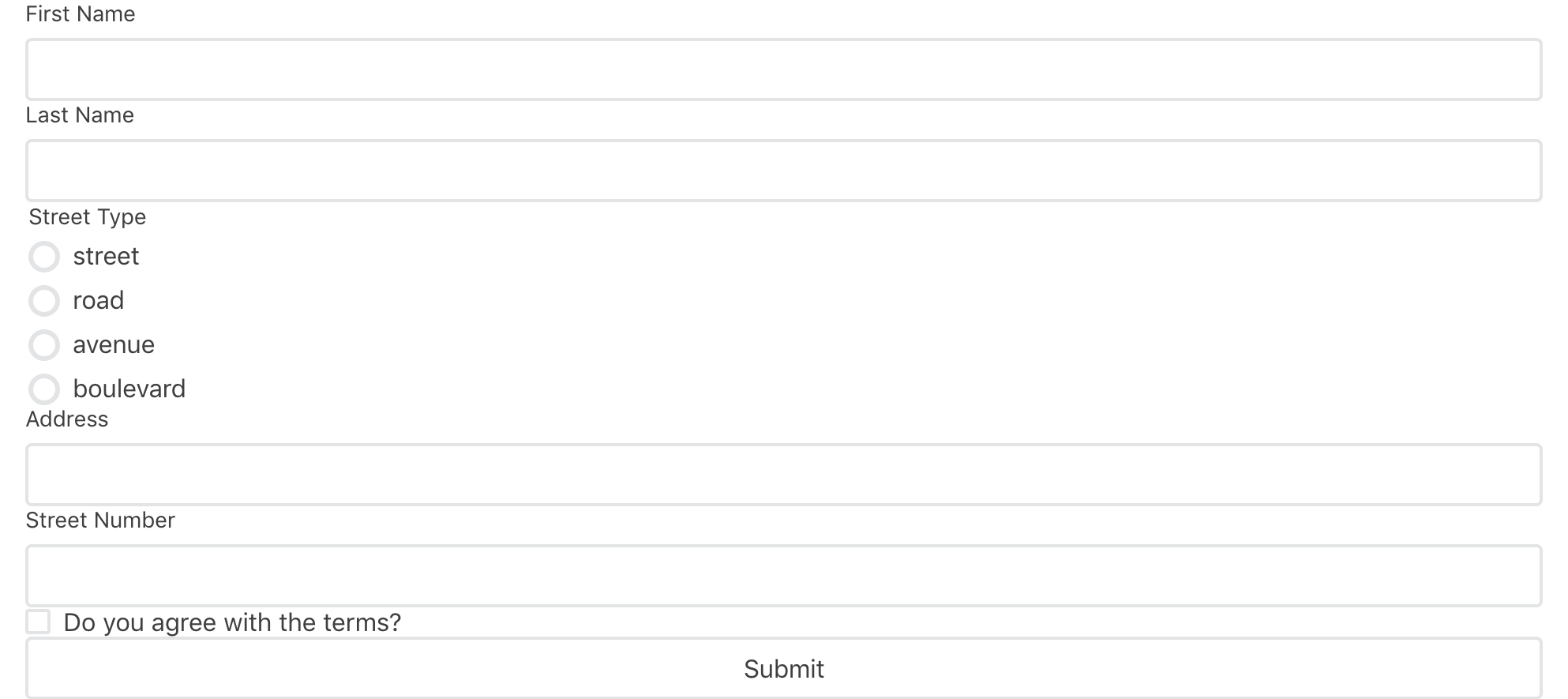
The Store Form app provides blocks responsible for displaying a user form connected to [**Master Data**](https://help.vtex.com/tutorial/what-is-master-data--4otjBnR27u4WUIciQsmkAw?locale=en) through a [JSON schema](https://json-schema.org/understanding-json-schema/index.html).
## Configuration
> ⚠️ Before configuring the Store Form block in your theme, make sure you have already configured a **JSON schema in Master Data**. Otherwise, the customer form will not be saved appropriately. To learn more, please refer to [Creating forms for your store users](https://developers.vtex.com/docs/guides/vtex-io-documentation-creating-a-native-form-for-your-store-users).
1. Add the `store-form` app to your theme dependencies in the `manifest.json`. For example:
```json
"dependencies": {
"vtex.store-form": "0.x"
}
```
Now, you can use all blocks exported by the `store-form` app. See the full list below:
| Block name | Description |
| - | - |
| `form` |  Top-level block, in which you will specify which entity and schema from Master Data will be used for building the form. It provides context to its 8 children blocks (listed below). |
| `form-input.checkbox` | Renders a checkbox field in the form. |
| `form-input.dropdown` | Renders a dropdown field in the form. |
| `form-input.radiogroup` | Renders a radio button field in the form. |
| `form-input.textarea` | Renders a big text field in the form. |
| `form-input.text` | Renders a small text field in the form with few available characters. |
| `form-field-group` | Renders different form blocks (such as `form-input.radiogroup` and `form-input.text`) based on the schema's sub-property type. |
| `form-input.upload` | Renders an `Upload` field in the form. |
| `form-submit` | Renders a button to submit the user form content. |
| `form-success` | Accepts an array of blocks rendered when the form is successfully submitted. Any children block is valid. |
2. In any desired store template, such as the `store.product`, add the `form` block. In the example below, the form block is contained in a Flex Layout row:
```json
{
"store.product": {
"children": [
"flex-layout.row#product-breadcrumb",
"flex-layout.row#product-main"
"flex-layout.row#form",
"shelf.relatedProducts",
"product-reviews",
"product-questions-and-answers"
]
},
...
}
```
3. Then, declare the `form` block. Remember to specify which `entity` and `schema` from Master Data should be fetched to build the block.
```JSON
{
"flex-layout.row#form": {
"children": [
"flex-layout.col#form"
]
},
"flex-layout.col#form": {
"children": [
"form"
]
},
"form": {
"props": {
"entity": "clients",
"schema": "person"
}
}
}
```
> ℹ️ If the `form` block does not have any children configured, **a default form will be rendered** automatically based on the JSON schema in Master Data. This reading and interpretation of JSON schemas is facilitated by the [Reacht Hook Form JSON Schema](https://github.com/vtex/react-hook-form-jsonschema) library, which supports the Store Form blocks logic behind the scenes.
| Prop name | Type | Description| Default value |
| - | - | - | - |
| `entity` | `string` |  The [entity](https://help.vtex.com/tutorial/creating-data-entity--tutorials_1265) in Master Data where the document will be saved. | `undefined` |
| `schema` | `string` |  The JSON schema name will be used. The schema name is set in the API request to create it in Master Data. | `undefined` |
4. If desired, complete the `form` block by adding and configuring an array of children blocks. You can use the blocks listed in the first table stated above. For example:
```json
"form": {
"props": {
"entity": "clients",
"schema": "person"
},
"children": [
"rich-text#formTitle",
"form-input.text#firstName",
"form-input.text#lastName",
"form-field-group#address",
"form-input.checkbox#agreement",
"form-submit"
],
"blocks": ["form-success"]
},
"form-success": {
"children": [
"rich-text#successSubmit"
]
},
"rich-text#successSubmit": {
"props": {
"text": "Succesfully submitted the data!",
"textAlignment": "CENTER",
"textPosition": "CENTER"
}
},
"form-input.text#firstName": {
"props": {
"pointer": "#/properties/firstName"
}
},
"form-input.text#lastName": {
"props": {
"pointer": "#/properties/lastName"
}
},
"form-input.checkbox#agreement": {
"props": {
"pointer": "#/properties/agreement",
"label": "Do you agree that this is the best form component in the whole wide world?"
}
},
"form-field-group#address": {
"props": {
"pointer": "#/properties/address"
}
},
"form-submit": {
"props": {
"label": "Submit"
}
}
```
### `form-input.radiogroup`, `form-input.dropdown`, `form-input.textarea` and `form-input.checkbox` props
| Prop name | Type | Description | Default value |
| - | - | - | - |
| `pointer` | `string` |  JSON schema pointer, i.e., the JSON schema path (for example: #/properties/firstName) in which the form block inputs should be validated against. | `undefined` |
| `label` | `string` |  Field name when rendered. | Property title |
### `form-input.textarea` props
| Prop name | Type | Description | Default value |
| - | - | - | - |
| `placeholder` | `string` | Placeholder for the text area input. | `undefined` |
### `form-input.text` props
| Prop name | Type | Description | Default Value |
| ----------- | ----------------------------------------- | -------------------------------------------------------------------------------------------------------------------------------------------------------------------------------------------------------------------------------------------------------- | ----------------- |
| `pointer` | `string` |  JSON schema path (e.g., `#/properties/firstName`) for validating form block inputs. | `undefined` |
| `inputType` | `enum` | Defines the type of the text field. Possible values are: `input` - renders a regular text field; `hidden` - renders a hidden text field used for pre-defining an editable value to be submitted to the form; `password` - renders a password text field. | `input` |
| `value` (optional) | `string` | Displays a pre-defined text to be submitted when the `inputType` is set as `hidden`. | `undefined` |
| `label` | `string` |  Label of the input field. | Property's title |
| `placeholder` | `string` | Placeholder for the text input. | `undefined` |
### `form-field-group` props
| Prop name | Type | Description | Default value |
| - | - | - | - |
| `pointer` | `string` |  JSON schema pointer, i.e., the JSON schema path (for example: #/properties/address) in which the form block inputs should be validated against. Note that since you are configuring a `form-field-group` block, the path must not include a schema sub-property, only a schema property. | `undefined` |
| `uiSchema` | `object` | Redefines how the `form-field-groups` block should render each sub-property declared in the JSON schema path defined in `pointer`. As previously mentioned, the `form-field-groups` already handle this functionality on their own. However, you have the option to override the sub-property types using a schema and redefine how each form block will be rendered. | `undefined` |
### `form-input.upload` props
| Prop name | Type | Description | Default value |
| - | - | - | - |
| `pointer` | `string` |  JSON schema pointer, i.e., the JSON schema path (for example: #/properties/address) in which the form block inputs should be validated against. Note that since you are configuring a `form-field-group` block, the path must not include a schema's sub-property, only a schema's property. | `undefined` |
| `accept` | `string` |  By default, the upload input only supports image and PDF format files. If you want to customize it, you can use the format type you want by following this pattern: `*.TYPEFILE`. Learn more [about the `accept` field](https://developer.mozilla.org/en-US/docs/Web/HTML/Element/input/file#accept). | |
- **`uiSchema` object:**
```js
const UISchema = {
type: UIType,
properties: {
// Note that the definition is recursive
childName: { UISchema },
childName: { UISchema },
// ...
childName: { UISchema },
},
};
```
Where `childName` should be replaced for the desired sub-property name and the `UIType` should be replaced for one of the following values:
- `default`: Will consider the `form-field-group` own logic (e.g. using the [React Hook Form JSON Schema](https://github.com/vtex/react-hook-form-jsonschema) library) for block rendering;
- `radio`: The sub-property will be rendered as a `form-input.radiogroup` block.
- `select`: The sub-property will be rendered as a `form-input.dropdown` block.
- `input`: The sub-property will be rendered as a `form-input.text` block with `inputType` set to `input`.
- `hidden`: The sub-property will be rendered as a `form-input.text` block with `inputType` set to `hidden`.
- `password`: The sub-property will be rendered as a `form-input.text` block with `inputType` set to `password`.
- `textArea`: The sub-property will be rendered as a `form-input.textarea` block.
- `checkbox`: The sub-property will be rendered as a `form-input.checkbox` block.
- `upload`: The sub-property will be rendered as a `form-input.upload` block.
## App Behavior
The JSON schema created in Master Data is responsible for informing the form blocks about the data they should receive. It specifies the type of input expected for each form field from users.
When the user clicks the `Submit` button, the form blocks retrieve all input data and send it to the Schema validation. This process, which involves understanding the expected input and sending it to Master Data, is facilitated by the [`React Hook Form JSON schema`](https://github.com/vtex/react-hook-form-jsonschema) library working behind the scenes.
If any unexpected answer is detected, and the form blocks does not match the Schema, Master Data will be unable to create a user form, and an error message will be returned to the user.
## Customization
In order to apply CSS customizations to this and other blocks, follow the instructions in [Using CSS handles for store customizations](https://developers.vtex.com/docs/guides/vtex-io-documentation-using-css-handles-for-store-customization).
| CSS handles |
| - |
| `form` |
| `formLoading` |
| `formErrorLoading` |
| `formSubmitContainer` |
| `formSubmitButton` |
| `formErrorServer` |
| `formErrorUserInput` |
## Contributors ✨
Thanks goes to these wonderful people ([emoji key](https://allcontributors.org/docs/en/emoji-key)):
This project follows the [all-contributors](https://github.com/all-contributors/all-contributors) specification. Contributions of any kind are welcome!

