https://github.com/weak-head/nimbus
Nimbus is engineered to optimize data backup processes and efficiently orchestrate service deployments for homelabs and dev environments.
https://github.com/weak-head/nimbus
administration backup deploy
Last synced: 13 days ago
JSON representation
Nimbus is engineered to optimize data backup processes and efficiently orchestrate service deployments for homelabs and dev environments.
- Host: GitHub
- URL: https://github.com/weak-head/nimbus
- Owner: weak-head
- License: mit
- Created: 2024-04-06T23:36:08.000Z (about 2 years ago)
- Default Branch: main
- Last Pushed: 2024-05-30T17:02:24.000Z (about 2 years ago)
- Last Synced: 2025-03-02T02:54:25.864Z (over 1 year ago)
- Topics: administration, backup, deploy
- Language: Python
- Homepage:
- Size: 721 KB
- Stars: 0
- Watchers: 0
- Forks: 0
- Open Issues: 11
-
Metadata Files:
- Readme: README.md
- Changelog: CHANGELOG.md
- License: LICENSE
Awesome Lists containing this project
README

# nimbus
Nimbus is engineered to optimize data backup processes and efficiently orchestrate service deployments for homelabs and dev environments.
[](https://github.com/weak-head/nimbus/actions/workflows/test.yaml)
[](https://codecov.io/github/weak-head/nimbus)
[](https://pypi.python.org/pypi/nimbuscli)
[](https://www.python.org/downloads/release/python-3120/)
[](https://opensource.org/license/mit)
## Table of Contents
- [Overview](#overview)
- [Getting Started](#getting-started)
- [Backups](#backups)
- [Directory Groups](#directory-groups)
- [Archiver Profiles](#archiver-profiles)
- [Uploader Profiles](#uploader-profiles)
- [Deployments](#deployments)
- [Service Providers](#service-providers)
- [Service Discovery](#service-discovery)
- [Environment Configuration](#environment-configuration)
- [Reports](#reports)
- [Notifications](#notifications)
## Overview
Nimbus stands as a comprehensive data backup manager and service deployment orchestrator tailored for homelabs, media centers, and local development environments. It offers a seamless, turnkey solution to streamline your data management and service orchestration needs. While Nimbus is robust for personal or developmental use, it is not intended to supplant production-level or mission-critical tools designed for commercial-scale backups and deployments.
## Getting Started
It is recommended to use [pipx](https://pipx.pypa.io/stable/) for installing Nimbus:
```bash
pipx install nimbuscli --python python3.12
ni --version
```
Before using Nimbus you need to configure it. By default, Nimbus looks for its configuration file at `~/.nimbus/config.yaml`. All application configurations are centralized within this file. Below is a minimal example configuration:
```yaml
commands:
deploy:
services:
- ~/services
backup:
destination: ~/backups
archive: tar
directories:
docs:
- ~/Documents
```
> [!TIP]
> When using the `ni` command, it’s essential to use `\*` in place of `*` when specifying a selector that follows a glob pattern. This is because `bash` or `sh` interprets `*` as a glob pattern and attempts to expand it before passing it to `ni`. By escaping the asterisk (`\*`), you ensure that `ni` receives the character literally, allowing it to process the glob pattern as intended.
With the above configuration:
- `ni up` deploys all Docker Compose services under `~/services`.
- `ni backup` creates a `tar` backup of the `~/Documents` directory and saves it under `~/backups/docs/Documents/Documents_{datetime}.tar`.
- Notifications (such as [Discord](https://discord.com/) or email) are disabled.
- Generation of the operation report is also disabled.
For additional configuration options, refer to the example [configuration file][configuration-example].
## Backups
The `backup` command facilitates the creation of backups and enables their optional upload to a remote destination, such as an AWS S3 bucket. The command accepts optional group selectors, that filter the configured backup groups using specified [glob patterns](https://en.wikipedia.org/wiki/Glob_(programming)).
```bash
ni backup [selectors]
```
### Directory Groups
Nimbus organizes backup directories into directory groups, allowing you to manage and back up specific sets of data. Each directory group can be backed up independently. You can also select multiple groups using group selectors. If no group selectors are specified, all directory groups will be backed up.
Consider the following directory groups defined in your configuration:
```yaml
directories:
photos:
- ~/Pictures
cloud:
- ~/.nextcloud
docs:
- ~/Documents
```
With these directory groups, the following `backup` commands would result in:
| Command | Selected Groups |
| --- | --- |
| `ni backup` | `photos` `cloud` `docs` |
| `ni backup nx*` | _(No groups selected)_ |
| `ni backup photos` | `photos` |
| `ni backup ph* *cloud*` | `photos` `cloud` |
| `ni backup *o??` | `cloud` `docs` |
### Archiver Profiles
Nimbus supports various archiver backends for creating backups. Each backend has a default profile with a matching name. For example the `tar` backend has a default `tar` profile that could be used using the `archive: tar` configuration. You can also create custom profiles or overwrite default ones.
**Available Archiver Backends**
| Backend | Support | Output | Default Profile |
| --- | --- | --- | --- |
| `zip` | Native | [zip](https://en.wikipedia.org/wiki/ZIP_(file_format)) archive | `compress: xz` |
| `tar` | Native | [tar](https://en.wikipedia.org/wiki/Tar_(computing)) archive | `compress: xz` |
| `rar` | Requires installation of [rar](https://www.win-rar.com/) | [rar](https://en.wikipedia.org/wiki/RAR_(file_format)) archive | `compress: 3`, `recovery: 3` |
**Customizing Archiver Profiles**
You can define custom profiles in your configuration file. For example:
```yaml
profiles:
archive:
- name: rar # Overwrite default 'rar' profile
provider: rar
recovery: 5
- name: rar_protected
provider: rar
password: SecretPwd
recovery: 3
compress: 1
```
In the above example:
- The `rar` profile is overwritten with custom settings (`recovery level: 5`).
- A new profile named `rar_protected` is defined with a password, recovery level, and compression settings.
Remember to adjust the profiles according to your backup requirements. For detailed configuration options, refer to the example [configuration file][configuration-example].
### Uploader Profiles
Nimbus supports various uploader backends for uploading the created archives. If you want to use the upload functionality, consider creating a custom uploader profile.
**Available Uploader Backends**
| Backend | Support | Destination |
| --- | --- | --- |
| `aws` | Native | [AWS S3](https://aws.amazon.com/s3/) bucket |
**Customizing Uploader Profiles**
Define custom profiles in your configuration file. For example:
```yaml
profiles:
upload:
- name: aws_store
provider: aws
access_key: XXXXXXX
secret_key: XXXXXXXXXXXXX
bucket: aws.storage.bucket
storage: STANDARD
- name: aws_archival
provider: aws
access_key: XXXXXXX
secret_key: XXXXXXXXXXXXXX
bucket: aws.archival.bucket
storage: DEEP_ARCHIVE
```
In the above example:
- The `aws_store` profile specifies settings for storing backups in an S3 bucket with standard storage class.
- The `aws_archival` profile configures archival storage with a deep archive storage class.
Remember to adjust the profiles according to your backup requirements. For detailed configuration options, refer to the example [configuration file][configuration-example].
## Deployments
Nimbus manages service deployments using the `up` and `down` commands. The commands accepts optional service selectors, allowing you to filter the discovered services using specified [glob patterns](https://en.wikipedia.org/wiki/Glob_(programming)).
```sh
# Deploys services based on the specified service selectors.
ni up [selectors]
# Undeploys services based on the specified service selectors.
ni down [selectors]
```
### Service Providers
Nimbus supports various service providers and performs recursive service discovery within the configured directories.
| Provider | Support | Identified By |
| --- | --- | --- |
| `docker` | Requires installation of [Docker](https://www.docker.com/) | [Docker Compose file](https://docs.docker.com/compose/compose-file/) |
### Service Discovery
Nimbus performs recursive service discovery within the configured directories, searching for specific files associated with each service provider to identify discovered services.
Let’s assume the following Nimbus configuration:
```yaml
commands:
deploy:
services:
- ~/.nimbus/services
```
Under the `~/.nimbus/services` directory, we have the following structure:
```
|- services
|- shared
|- media
|- .env
|- compose.yaml
|- getty
|- deploy.sh
|- readme.md
|- cloud
|- .env
|- compose.yaml
|- git
|- some_file.txt
|- start.sh
```
With this configuration and directory structure, the following deployment commands would result in:
| Command | Selected Services |
| --- | --- |
| `ni up` | `media` `cloud` |
| `ni up media` | `media` |
| `ni down g*` | _(No services selected)_ |
| `ni down git` | _(No services selected)_ |
| `ni down cl*` | `cloud` |
### Environment Configuration
Optionally, you can configure environment variable mappings for deployed services. Each environment mapping is specified by a [glob pattern](https://en.wikipedia.org/wiki/Glob_(programming)). The discovered service will receive a consolidated collection of environment variables based on all matched patterns, following a top-to-bottom approach. For example:
```yaml
commands:
deploy:
secrets:
- service: "*"
environment:
UID: 1001
GID: 1001
- service: "git*"
environment:
UID: 1002
GID: 1002
- service: "gitlab"
environment:
HTTP_PORT: 8080
SSH_PORT: 8022
```
With this configuration:
- The `cloud` service will have the following environment variables:
- `UID: 1001`
- `GID: 1001`
- The `gitlab` service will have the following environment variables:
- `UID: 1002`
- `GID: 1002`
- `HTTP_PORT: 8080`
- `SSH_PORT: 8082`
Feel free to customize your environment mappings based on your specific deployment needs. For the details, refer to the example [configuration file][configuration-example].
## Reports
Nimbus can optionally generate a detailed report for each executed command. By default, the detailed reports are disabled, but a summary report is output to stdout. To enable detailed reports, include the following `reports` section in your configuration file and configure the root directory where all reports will be stored:
```yaml
observability:
reports:
format: txt
directory: ~/.nimbus/reports
```
For more details, refer to the example [configuration file][configuration-example]. You can also find an example of the detailed report [here][report-example].
## Notifications
Nimbus supports Discord notifications for completed operations. If detailed reports are enabled, they will be included in the Discord notification as file attachments. To enable Discord notifications, configure a Discord webhook and specify it in the Nimbus configuration:
```yaml
observability:
notifications:
discord:
webhook: https://discord.com/api/webhooks/id/token
```
The following Discord notification, including the detailed operation report as an attachment, would be generated for the deployment command:
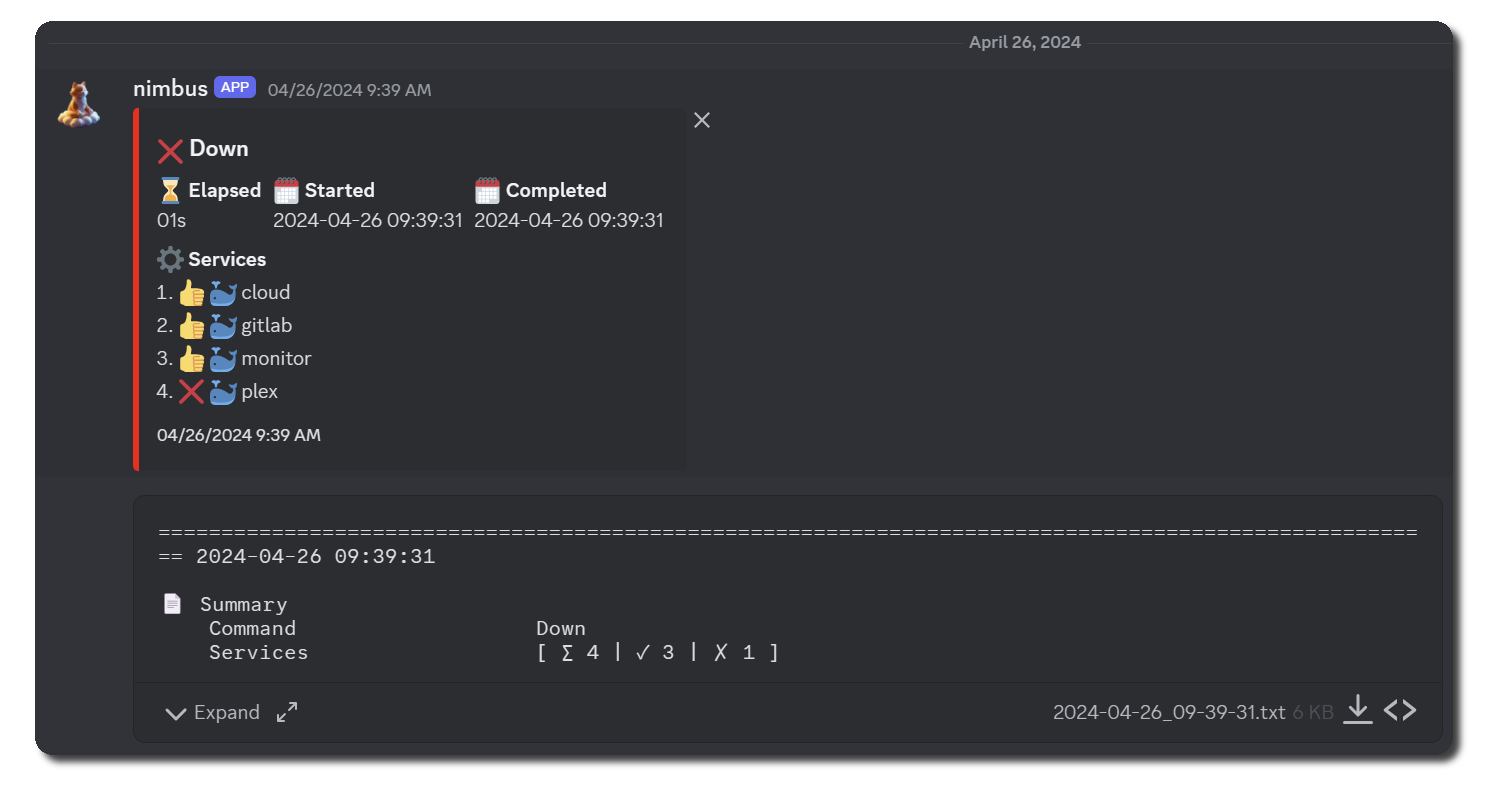
For more details, refer to the example [configuration file][configuration-example].
[configuration-example]: https://github.com/weak-head/nimbus/blob/main/docs/examples/config.yaml
[report-example]: https://github.com/weak-head/nimbus/blob/main/docs/examples/report.txt