https://github.com/webdevstudios/wds-wp-rest-api-connect-ui
Provides UI for connecting from one WordPress installation to another via the WP REST API over OAuth1 (https://github.com/WP-API/OAuth1)
https://github.com/webdevstudios/wds-wp-rest-api-connect-ui
Last synced: about 1 year ago
JSON representation
Provides UI for connecting from one WordPress installation to another via the WP REST API over OAuth1 (https://github.com/WP-API/OAuth1)
- Host: GitHub
- URL: https://github.com/webdevstudios/wds-wp-rest-api-connect-ui
- Owner: WebDevStudios
- Created: 2015-10-26T15:51:11.000Z (over 10 years ago)
- Default Branch: master
- Last Pushed: 2016-03-24T02:20:27.000Z (over 10 years ago)
- Last Synced: 2025-03-27T13:45:09.163Z (about 1 year ago)
- Language: PHP
- Homepage:
- Size: 8.03 MB
- Stars: 20
- Watchers: 7
- Forks: 7
- Open Issues: 1
-
Metadata Files:
- Readme: README.md
Awesome Lists containing this project
README
# WDS WP REST API Connect UI #
**Contributors:** WebDevStudios
**Donate link:** http://webdevstudios.com
**Tags:**
**Requires at least:** 4.4.2
**Tested up to:** 4.4.2
**Stable tag:** 0.2.5
**License:** GPLv2
**License URI:** http://www.gnu.org/licenses/gpl-2.0.html
## Description ##
Provides UI for connecting from one WordPress installation to another via the [WordPress REST API](http://wp-api.org/) over OAuth1. This plugin is a UI wrapper for [WDS WP REST API Connect](https://github.com/WebDevStudios/WDS-WP-REST-API-Connect).
#### Caveats:
* To use this plugin, you will need to run `composer install` from the root of the plugin to pull in the required dependencies, or [download this zip](https://raw.githubusercontent.com/WebDevStudios/WDS-WP-REST-API-Connect-UI/master/wds-rest-connect-ui.zip).
* Both the [WP REST API plugin](https://github.com/WP-API/WP-API) and the [OAuth plugin](https://github.com/WP-API/OAuth1) are required to be on the server you are connecting to.
* You'll need to create a '[Client Application](http://v2.wp-api.org/guide/authentication/#oauth-authentication)' on the server. You'll be given instructions from this plugin's settings page after you save the server URL.
#### Usage:
Once you've created a successful API connection via the Settings screen, you can use the the plugin's API helper function/filter. If the connection is successful, The helper function and filter both return a `WDS_WP_REST_API\OAuth1\Connect` object ([example usage here](https://github.com/WebDevStudios/WDS-WP-REST-API-Connect/blob/master/example.php)), which you can use to make your API requests.
The filter is an alternative to the helper function provided so that you can use in other plugins or themes without having to check if `function_exists`. To do that, simply use `$api = apply_filters( 'wds_rest_connect_ui_api_object', false );`. If the `wds_rest_connect_ui_api_object` function isn't available, you're original value, `false` will be returned. Whether using the function or the filter, you'll want to check if the `$api` object returned is a `WP_Error` object (`is_wp_error`) or a `WDS_WP_REST_API_Connect` object (`is_a( $api, 'WDS_WP_REST_API\OAuth1\Connect' )`) before proceeding with making requests.
```php
// Get API object
$api = apply_filters( 'wds_rest_connect_ui_api_object', false );
// If WP_Error, find out what happened.
if ( is_wp_error( $api ) ) {
echo ''. print_r( $api->get_error_message(), true ) .'';
}
// If a WDS_WP_REST_API\OAuth1\Connect object is returned, you're good to go.
if ( is_a( $api, 'WDS_WP_REST_API\OAuth1\Connect' ) ) {
$schema = $api->get_api_description();
// Let's take a look at the API schema
echo '$schema: '. print_r( $schema, true ) .'';
}
```
## Installation ##
### Manual Installation ###
1. Upload the entire `/wds-rest-connect-ui` directory to the `/wp-content/plugins/` directory.
2. Run `composer install` inside the `/wp-content/plugins/wds-rest-connect-ui` directory.
3. Activate WDS WP REST API Connect UI through the 'Plugins' menu in WordPress.
4. Update the connection settings.
To avoid step 2, [download this zip](https://raw.githubusercontent.com/WebDevStudios/WDS-WP-REST-API-Connect-UI/master/wds-rest-connect-ui.zip), unzip the file and follow steps 1, 3, and 4.
## Frequently Asked Questions ##
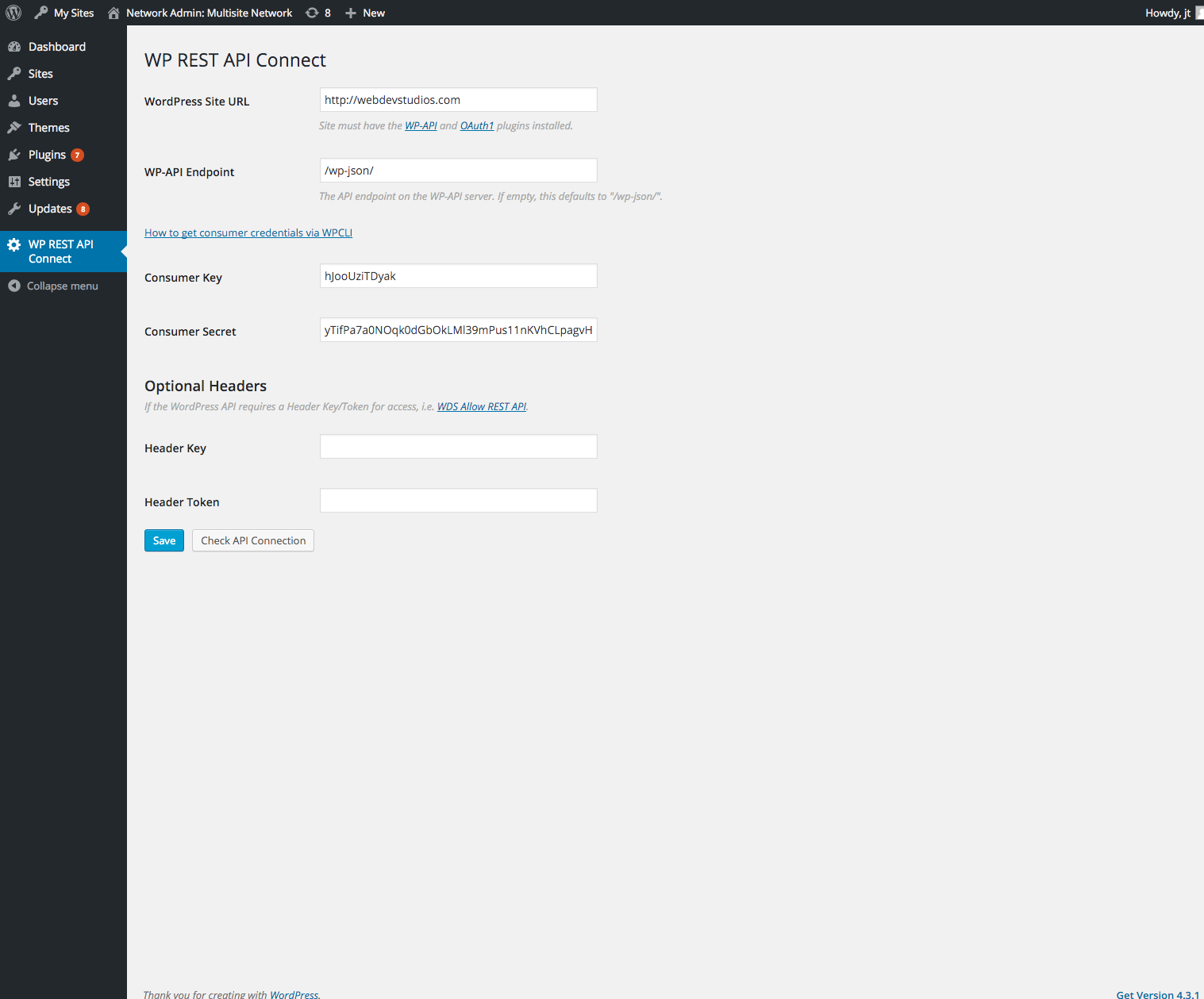
## Screenshots (a bit out of date since 0.2.0) ##
1. Settings
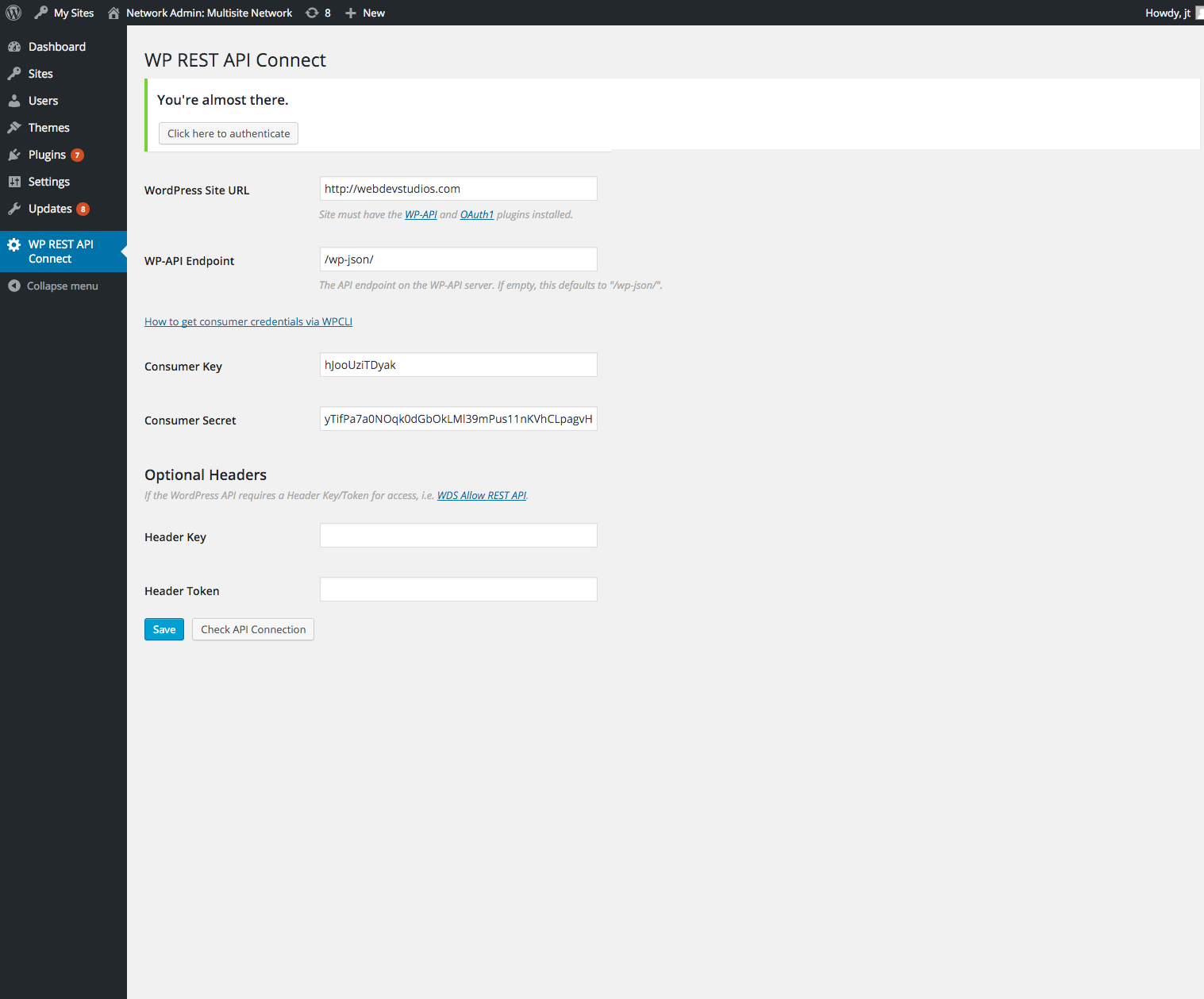
2. After settings are saved, authentication is required.
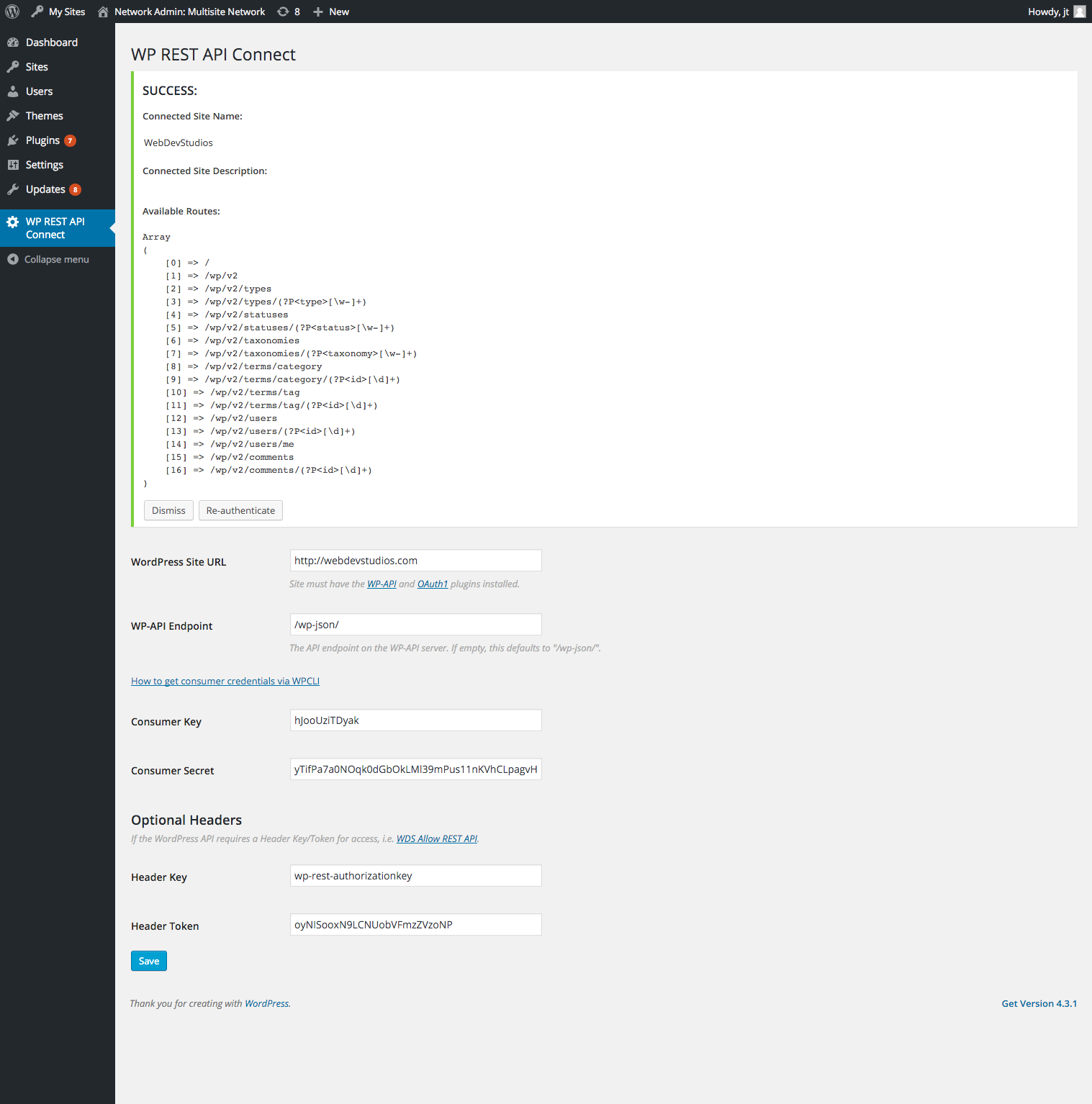
3. Successful authentication notice which demonstrates available routes.
## Changelog ##
### 0.2.5
* Update the wds-wp-rest-api-connect dependency to fix a typo from a variable which should be using an object property (for legacy mode).
### 0.2.4
* Update the wds-wp-rest-api-connect dependency to fix some bugs and in the `auth_request` method.
### 0.2.3
* Fix some authentication step logic, and ensure discovery is not called too often.
* Update the wds-wp-rest-api-connect dependency to fix some bugs and add filters to request args.
### 0.2.2
* The Optional Headers fields are now available for all steps, to ensure proper headers are sent during discovery.
* Update the wds-wp-rest-api-connect dependency, so that we use our own API Discovery library to use the WP http API, and to correctly pass any headers if they exist.
### 0.2.1 ###
* Update composer files to point to correct packagist repo for WDS WP REST API Connect.
### 0.2.0 ###
* Update to fix some security issues and work with the new version of the OAuth plugin.
### 0.1.0 ###
* First release