https://github.com/webengage/webengage-unity-ios
WebEngage Unity Package for iOS apps built with Unity
https://github.com/webengage/webengage-unity-ios
Last synced: 10 months ago
JSON representation
WebEngage Unity Package for iOS apps built with Unity
- Host: GitHub
- URL: https://github.com/webengage/webengage-unity-ios
- Owner: WebEngage
- Created: 2019-05-02T08:51:59.000Z (about 7 years ago)
- Default Branch: master
- Last Pushed: 2023-03-29T11:30:34.000Z (over 3 years ago)
- Last Synced: 2025-03-04T14:49:12.747Z (over 1 year ago)
- Language: C#
- Size: 23.3 MB
- Stars: 3
- Watchers: 5
- Forks: 0
- Open Issues: 0
-
Metadata Files:
- Readme: README.md
Awesome Lists containing this project
README
# WebEngage Unity iOS
WebEngage Unity iOS plugin for Unity iOS apps. This unitypackage is only for iOS and would not work on any other platform.
## Installation
1. Download the [WebEngageUnityiOS.unitypackage](https://github.com/WebEngage/webengage-unity-ios/raw/master/WebEngageUnityiOS.unitypackage).
2. Import the downloaded unitypackage into your Unity project through `Assets` > `Import Package` > `Custom Package...`.
## iOS Framework setup
1. Download latest [XCFramework](https://webengage-sdk.s3.us-west-2.amazonaws.com/unity/ios/latest/WebEngage.xcframework.zip) for WebEngage
2. Unzip zip file to get XCFramework file
3. Copy Unzipped `XCFramework` inside your project folder
4. Open Unity iOS Project in XCode
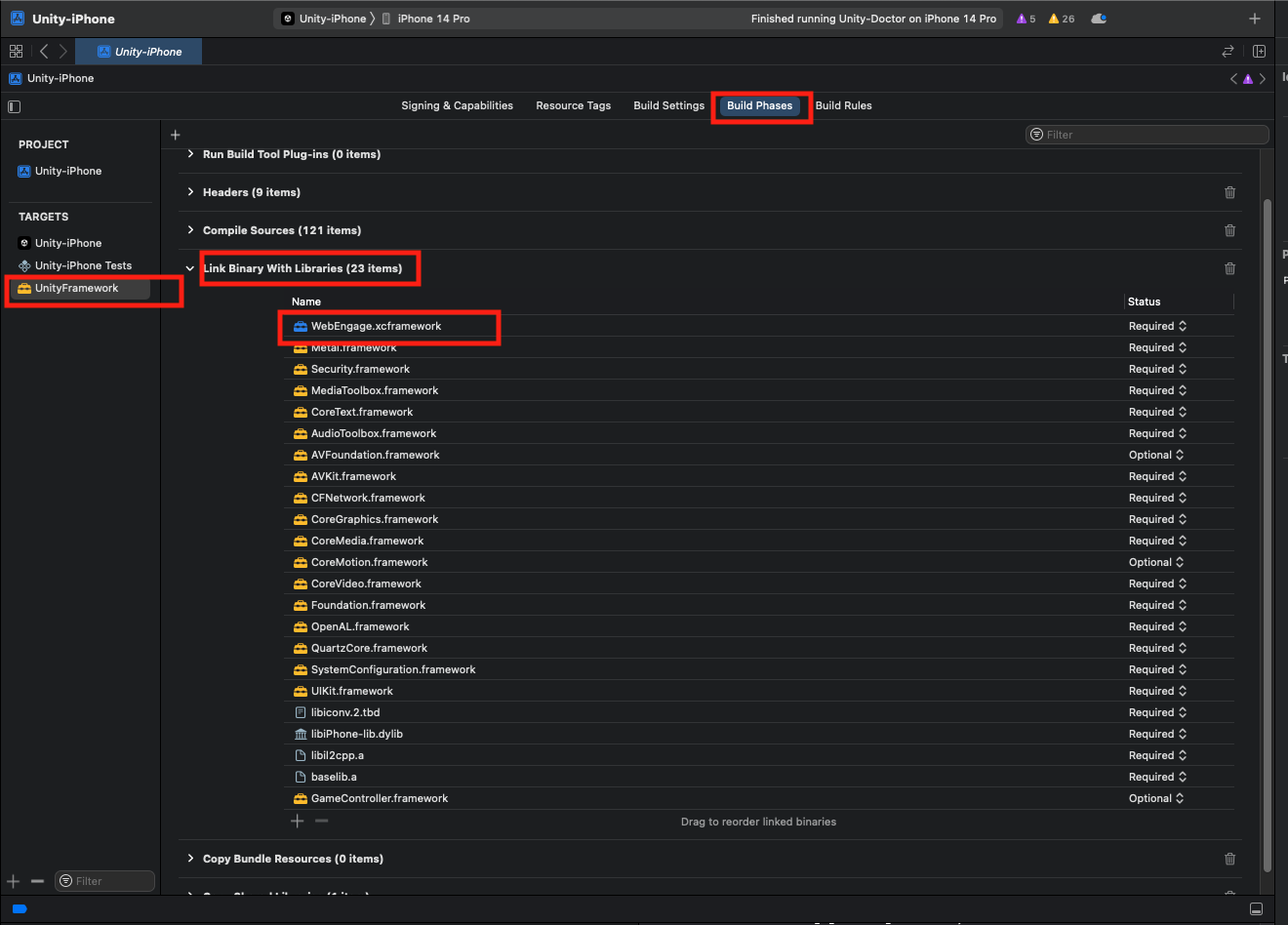
5. In Xcode, go to your `Targets`, under `UnityFramework` Target, select `Build Phases`
6. Add XCFramework under `Link Binary With Libraries`, You can drag and drop `XCFramework` or add thourgh + option under it
## Initialization
1. Add the following values in `/Assets/Editor/WebEngagePostProcessBuild.cs` file.
```csharp
...
public class WebEngagePostProcessBuild
{
[PostProcessBuild]
public static void EditXcodePlist(BuildTarget buildTarget, string pathToBuiltProject)
{
if (buildTarget == BuildTarget.iOS)
{
// Add your WebEngage license code
string WEBENGAGE_LICENSE_CODE = "YOUR-WEBENGAGE-LICENSE-CODE";
// Set debug log level
string logLevel = "VERBOSE";
...
}
}
}
```
**Note:** Replace YOUR-WEBENGAGE-LICENSE-CODE with your own WebEngage license code.
2. Initialize the WebEngage SDK in your `AppDelegate.m` class.
```objective-c
#import
...
-(BOOL)application:(UIApplication*) application didFinishLaunchingWithOptions:(NSDictionary*) options
{
[[WebEngage sharedInstance] application:application didFinishLaunchingWithOptions:options];
...
}
```
If you are not already implementing `AppDelegate.m` in your Unity app, then create a new file at `/Assets/Plugins/iOS/OverrideAppDelegate.m` and copy the below contents in it.
```objective-c
#import "UnityAppController.h"
#import
@interface OverrideAppDelegate : UnityAppController
@end
IMPL_APP_CONTROLLER_SUBCLASS(OverrideAppDelegate)
@implementation OverrideAppDelegate
-(BOOL)application:(UIApplication*) application didFinishLaunchingWithOptions:(NSDictionary*) options
{
[[WebEngage sharedInstance] application:application didFinishLaunchingWithOptions:options];
return [super application:application didFinishLaunchingWithOptions:options];
}
@end
```
## Tracking Users
1. Login and Logout
```csharp
using WebEngageBridge;
...
public class YourScript : MonoBehaviour
{
...
// User login
WebEngage.Login("userId");
// User logout
WebEngage.Logout();
}
```
2. Set system user attributes as shown below.
```csharp
using WebEngageBridge;
...
public class YourScript : MonoBehaviour
{
// Set user first name
WebEngage.SetFirstName("John");
// Set user last name
WebEngage.SetLastName("Doe");
// Set user email
WebEngage.SetEmail("john.doe@email.com");
// Set user hashed email
WebEngage.SetHashedEmail("144e0424883546e07dcd727057fd3b62");
// Set user phone number
WebEngage.SetPhoneNumber("+551155256325");
// Set user hashed phone number
WebEngage.SetHashedPhoneNumber("e0ec043b3f9e198ec09041687e4d4e8d");
// Set user gender, allowed values are ['male', 'female', 'other']
WebEngage.SetGender("male");
// Set user birth-date, supported format: 'yyyy-mm-dd'
WebEngage.SetBirthDate("1994-04-29");
// Set user company
WebEngage.SetCompany("Google");
// Set opt-in status, channels: ['push', 'in_app', 'email', 'sms']
WebEngage.SetOptIn("push", true);
// Set user location
double latitude = 19.0822;
double longitude = 72.8417;
WebEngage.SetLocation(latitude, longitude);
}
```
3. Set custom user attributes as shown below.
```csharp
using WebEngageBridge;
...
// Set custom user attributes
WebEngage.SetUserAttribute("age", 25);
WebEngage.SetUserAttribute("premium", true);
// Set multiple custom user attributes
Dictionary customAttributes = new Dictionary();
customAttributes.Add("Twitter Email", "john.twitter@mail.com");
customAttributes.Add("Subscribed", true);
WebEngage.SetUserAttributes(customAttributes);
```
4. Delete custom user attributes as shown below.
```csharp
using WebEngageBridge;
...
WebEngage.DeleteUserAttribute("age");
```
## Tracking Events
Track custom events as shown below.
```csharp
using WebEngageBridge;
...
// Track simple event
WebEngage.TrackEvent("Product - Page Viewed");
// Track event with attributes
Dictionary orderPlacedAttributes = new Dictionary();
orderPlacedAttributes.Add("Amount", 808.48);
orderPlacedAttributes.Add("Product 1 SKU Code", "UHUH799");
orderPlacedAttributes.Add("Product 1 Name", "Armani Jeans");
orderPlacedAttributes.Add("Product 1 Price", 300.49);
orderPlacedAttributes.Add("Product 1 Size", "L");
orderPlacedAttributes.Add("Product 2 SKU Code", "FBHG746");
orderPlacedAttributes.Add("Product 2 Name", "Hugo Boss Jacket");
orderPlacedAttributes.Add("Product 2 Price", 507.99);
orderPlacedAttributes.Add("Product 2 Size", "L");
orderPlacedAttributes.Add("Delivery Date", System.DateTime.ParseExact("2017-10-21 09:27:37.100", "yyyy-MM-dd HH:mm:ss.fff", null));
orderPlacedAttributes.Add("Delivery City", "San Francisco");
orderPlacedAttributes.Add("Delivery ZIP", "94121");
orderPlacedAttributes.Add("Coupon Applied", "BOGO17");
WebEngage.TrackEvent("Order Placed", orderPlacedAttributes);
// Track complex event
Dictionary product1 = new Dictionary();
product1.Add("SKU Code", "UHUH799");
product1.Add("Product Name", "Armani Jeans");
product1.Add("Price", 300.49);
Dictionary detailsProduct1 = new Dictionary();
detailsProduct1.Add("Size", "L");
product1.Add("Details", detailsProduct1);
Dictionary product2 = new Dictionary();
product2.Add("SKU Code", "FBHG746");
product2.Add("Product Name", "Hugo Boss Jacket");
product2.Add("Price", 507.99);
Dictionary detailsProduct2 = new Dictionary();
detailsProduct2.Add("Size", "L");
product2.Add("Details", detailsProduct2);
Dictionary deliveryAddress = new Dictionary();
deliveryAddress.Add("City", "San Francisco");
deliveryAddress.Add("ZIP", "94121");
Dictionary orderPlacedAttributes = new Dictionary();
List products = new List();
products.Add(product1);
products.Add(product2);
List coupons = new List();
coupons.Add("BOGO17");
orderPlacedAttributes.Add("Products", products);
orderPlacedAttributes.Add("Delivery Address", deliveryAddress);
orderPlacedAttributes.Add("Coupons Applied", coupons);
WebEngage.TrackEvent("Order Placed", orderPlacedAttributes);
```
## Push Notifications
1. Build your iOS app through Unity Editor and open Unity-iPhone.xcodeproj in your Xcode IDE.
2. Select your main app target (Unity-iPhone), under Capabilities enable Push Notifications.
3. Also under Capabilities enable Background Modes and check Remote notifications.
### Rich Push Notifications
#### 1. Banner Push Notifications
1. Download the [WebEngageNotificationService.unitypackage](https://github.com/WebEngage/webengage-unity-ios/raw/master/WebEngageNotificationService.unitypackage).
2. Import the downloaded unitypackage into your Unity project through `Assets` > `Import Package` > `Custom Package...`.
3. Build your iOS app through Unity Editor and open Unity-iPhone.xcodeproj in your Xcode IDE.
4. Verify that NotificationService extension is added and linked to your main app target.
#### 2. Rating and Carousel Push Notifications
1. Download the [WebEngageNotificationContent.unitypackage](https://github.com/WebEngage/webengage-unity-ios/raw/master/WebEngageNotificationContent.unitypackage).
2. Import the downloaded unitypackage into your Unity project through `Assets` > `Import Package` > `Custom Package...`.
3. Build your iOS app through Unity Editor and open Unity-iPhone.xcodeproj in your Xcode IDE.
4. Verify that NotificationContent extension is added and linked to your main app target.
#### Troubleshooting for Rich Push Notifications
**1. If you are facing integration or build issues with rich-push notification unity plugins, then try adding the extensions and pods manually.**
1. Remove the WebEngageNotificationService.unitypackage and WebEngageNotificationContent.unitypackage plugins (if added).
2. Build your iOS app through Unity Editor and open Unity-iPhone.xcodeproj in your Xcode IDE.
3. Follow the instructions at [WebEngage documentation](https://docs.webengage.com/docs/ios-push-messaging#section-5-rich-push-notifications).
## In-app Notifications
No additional steps are required for in-app notifications.
### Tracking Screens
```csharp
using WebEngageBridge;
...
// Set screen name
WebEngage.ScreenNavigated("Purchase Screen");
// Update current screen data
Dictionary currentData = new Dictionary();
currentData.Add("productId", "~hs7674");
currentData.Add("price", 1200);
WebEngage.SetScreenData(currentData);
// Set screen name with data
Dictionary data = new Dictionary();
data.Add("productId", "~hs7674");
data.Add("price", 1200);
WebEngage.ScreenNavigated("Purchase Screen", data);
```