https://github.com/xero/moebius-web
web based moebius ansi editor prototype aka “ansiedit”
https://github.com/xero/moebius-web
16colors 67 ansi ansi-art ansi-editor ansiedit artscene ascii ascii-art bbs blocktronics moebius text text-art textmode web web-based web-based-application webapp
Last synced: 10 months ago
JSON representation
web based moebius ansi editor prototype aka “ansiedit”
- Host: GitHub
- URL: https://github.com/xero/moebius-web
- Owner: xero
- License: mit
- Created: 2023-07-07T15:15:44.000Z (about 3 years ago)
- Default Branch: main
- Last Pushed: 2024-08-15T15:20:19.000Z (almost 2 years ago)
- Last Synced: 2024-08-15T17:23:37.244Z (almost 2 years ago)
- Topics: 16colors, 67, ansi, ansi-art, ansi-editor, ansiedit, artscene, ascii, ascii-art, bbs, blocktronics, moebius, text, text-art, textmode, web, web-based, web-based-application, webapp
- Language: JavaScript
- Homepage:
- Size: 7.79 MB
- Stars: 5
- Watchers: 2
- Forks: 1
- Open Issues: 0
-
Metadata Files:
- Readme: README.md
- License: LICENSE.txt
Awesome Lists containing this project
README
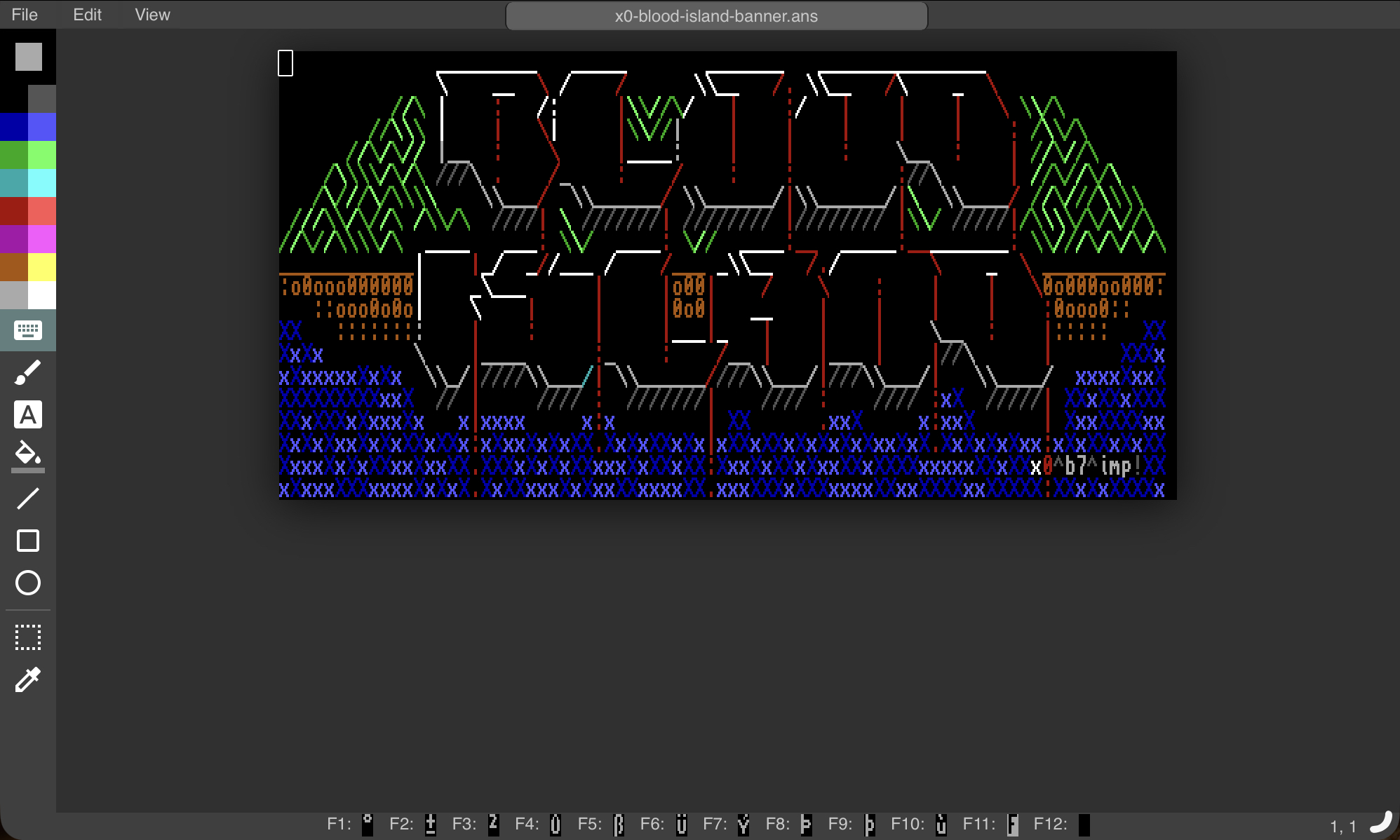
This was the web-based precursor to [moebius](https://blocktronics.github.io/moebius/), the best ansi editor around.
Code for both projects by the amazing [andy](http://github.com/andyherbert)
Revival, on-going dev, and maintenance by [xero](https://github.com/xero)
# Demo
The public working version (without netcode) is a available at [xero.github.io/moebius-web](https://xero.github.io/moebius-web/)
My personal instance is available at [ansi.0w.nz](https://ansi.0w.nz) - sometimes I have joints enabled, other times I don't. I also dev here, so it may be broken at any time.
# Client Usage
Moebius-web is a comprehensive web-based ANSI/ASCII art editor that operates entirely in the browser. This client-side application provides a full suite of drawing tools, color management, and file operations for creating text-based artwork.
## Features Overview
### Drawing Tools
**Keyboard Mode (K)** - Text input mode that allows typing characters directly onto the canvas with full keyboard navigation support.
**Freestyle/Freehand (F)** - Free drawing tool using half-block characters as large pixels. Supports pressure-sensitive drawing and straight lines when holding Shift.
**Character Brush (B)** - Draw with any character from the extended ASCII character set. Includes a character picker panel for easy selection.
**Fill Tool (N)** - Flood fill that works on single-color text characters or half-block pixels. Respects color boundaries and handles attribute conflicts intelligently.
**Attribute Brush (A)** - Paint-only tool that changes foreground/background colors without affecting the character itself. Hold Alt to paint background colors.
**Line Tool** - Draw straight lines between two points with immediate preview. Supports color conflict resolution.
**Square Tool** - Draw rectangles with outline or filled modes. Toggle between outline and filled using the floating panel.
**Circle Tool** - Draw circles and ellipses with outline or filled modes. Includes real-time preview during drawing.
**Selection Tool** - Select rectangular areas for copying, cutting, and manipulation. Includes flip horizontal/vertical and move operations.
**Sample Tool (Alt)** - Color picker that samples colors from existing artwork. Works as a quick color selection method.
### Color Management
- **16-color ANSI palette** with foreground/background color selection
- **iCE colors support** for extended color capabilities
- **Color swapping** and default color restoration
- **Real-time color preview** in the palette picker
- **Smart conflict resolution** when overlapping half-block colors
### File Operations
**Supported Import Formats:**
- ANSI (.ans) files
- Binary Text (.bin) files
- XBin (.xb) files
- Standard image formats (PNG, JPEG, GIF) with palette reduction
**Supported Export Formats:**
- Save as ANSI (.ans)
- Save as Binary Text (.bin)
- Save as XBin (.xb)
- Export as PNG image
- Export as UTF-8 ANSI
### Canvas Operations
- **Unlimited undo/redo** (up to 1000 operations)
- **Canvas resizing** with width/height controls
- **Grid overlay** for precise alignment
- **SAUCE metadata** editing (title, author, group)
- **Font selection** from multiple character sets
## Comprehensive Key Mappings
### Main Tool Shortcuts
| Key | Tool | Description |
|-----|------|-------------|
| `K` | Keyboard Mode | Enter text input mode with cursor navigation |
| `F` | Freestyle | Free drawing with half-block pixels |
| `B` | Character Brush | Draw with selected ASCII characters |
| `N` | Fill | Flood fill tool |
| `A` | Attribute Brush | Paint colors only (no characters) |
| `G` | Grid Toggle | Show/hide alignment grid |
### Color Shortcuts
| Key | Action | Description |
|-----|--------|-------------|
| `D` | Default Colors | Reset to default foreground/background |
| `Q` | Swap Colors | Exchange foreground and background colors |
| `1`-`8` | Select Colors | Choose from basic color palette |
| `Shift+1`-`8` | Bright Colors | Choose from highlighted palette |
| `F1`-`F12` | Special Characters | Insert predefined special characters |
### File Operations
| Key Combination | Action | Description |
|-----------------|--------|-------------|
| `Ctrl+Z` | Undo | Reverse last operation |
| `Ctrl+Y` | Redo | Restore undone operation |
| `Ctrl+X` | Cut | Cut selected area to clipboard |
| `Ctrl+C` | Copy | Copy selected area to clipboard |
| `Ctrl+V` | Paste | Paste from clipboard |
| `Ctrl+Shift+V` | System Paste | Paste from system clipboard |
| `Ctrl+Delete` | Delete | Delete selected area |
### Keyboard Mode Navigation
| Key | Action | Description |
|-----|--------|-------------|
| `Arrow Keys` | Navigate | Move cursor in text mode |
| `Home` | Line Start | Jump to beginning of line |
| `End` | Line End | Jump to end of line |
| `Page Up/Down` | Page Jump | Move cursor by screen height |
| `Tab` | Tab Character | Insert tab character |
| `Backspace` | Delete Left | Delete character to the left |
| `Enter` | New Line | Move to next line |
### Advanced Editing (Alt + Key)
| Key Combination | Action | Description |
|-----------------|--------|-------------|
| `Alt+Up` | Insert Row | Insert row above cursor |
| `Alt+Down` | Delete Row | Delete current row |
| `Alt+Right` | Insert Column | Insert column at cursor |
| `Alt+Left` | Delete Column | Delete current column |
| `Alt+E` | Erase Row | Clear entire row |
| `Alt+Shift+E` | Erase Column | Clear entire column |
| `Alt+Home` | Erase to Row Start | Clear from cursor to line beginning |
| `Alt+End` | Erase to Row End | Clear from cursor to line end |
| `Alt+Page Up` | Erase to Column Start | Clear from cursor to column top |
| `Alt+Page Down` | Erase to Column End | Clear from cursor to column bottom |
### Selection Operations
| Key | Action | Description |
|-----|--------|-------------|
| `[` | Flip Horizontal | Mirror selection horizontally |
| `]` | Flip Vertical | Mirror selection vertically |
| `M` | Move Mode | Toggle selection move mode |
### Special Function Keys
| Key | Character | Description |
|-----|-----------|-------------|
| `F1` | `░` | Light shade block |
| `F2` | `▒` | Medium shade block |
| `F3` | `▓` | Dark shade block |
| `F4` | `█` | Full block |
| `F5` | `▀` | Upper half block |
| `F6` | `▄` | Lower half block |
| `F7` | `▌` | Left half block |
| `F8` | `▐` | Right half block |
| `F9` | `■` | Small solid square |
| `F10` | `○` | Circle |
| `F11` | `•` | Bullet |
| `F12` | `NULL` | Blank/transparent |
### Menu Access
| Action | Key | Description |
|--------|-----|-------------|
| Canvas Resize | Menu → Edit | Change canvas dimensions |
| Font Selection | Menu → View | Choose character set |
| iCE Colors | Menu → View | Enable extended colors |
| SAUCE Info | Menu → File | Edit artwork metadata |
## Mouse Controls
- **Left Click**: Primary drawing action
- **Drag**: Continue drawing/create shapes
- **Shift+Click**: Draw straight lines in freehand mode
- **Alt+Click**: Color sampling/alternative drawing modes
- **Right Click**: Access context menus
## Tips and Workflow
1. **Start with Keyboard Mode** to lay out text and structure
2. **Use Grid** for precise alignment of elements
3. **Freestyle Tool** is best for artistic details and shading
4. **Character Brush** for textures and patterns
5. **Fill Tool** for quick color blocking
6. **Selection Tool** for moving and copying artwork sections
7. **Save frequently** using Ctrl+S or File menu options
8. **Use F-keys** for quick access to common block characters
9. **Alt+sampling** to pick colors from existing artwork
10. **Undo/Redo** extensively - it's unlimited within the session
## Server Architecture (Collaborative Mode)
Moebius-web supports a collaborative server mode for real-time multi-user ANSI/ASCII art editing.
The collaboration engine is implemented in `server.js` (entry point) and `src/ansiedit.js` (session/canvas management).
### Key Points:
- **Entry Point:** `server.js`
Starts an Express server, sets up session middleware, and configures WebSocket endpoints for both direct and proxied connections (`/ and `/server`).
- **Collaboration Engine:** `src/ansiedit.js`
Handles all real-time session management, canvas state, and user synchronization.
- **Persistence:**
Canvas and chat data are auto-saved to disk at configurable intervals, with timestamped backups for recovery.
- **SSL/HTTP Support:**
Can auto-detect and use SSL certificates for secure connections, or fall back to HTTP.
- **Session Customization:**
Supports custom session file names and save intervals.
- **Minimal Overhead:**
Designed for low resource usage—only manages collaborative drawing and session state.
### How it Works:
1. **Start the server:**
```sh
node server.js [port] [options]
```
2. **Clients connect via browser:**
- Directly, or through a reverse proxy (e.g., nginx).
- WebSocket endpoints handle all real-time drawing and chat messages.
3. **Session persistence:**
- Canvas and chat are auto-saved to `{sessionName}.bin` and `{sessionName}.json`.
---
## Server Command-Line Options
| Option | Description | Default |
|-----------------------|------------------------------------------------------------|---------------------|
| `[port]` | Port to run the server on | `1337` |
| `--ssl` | Enable SSL (requires certificates in `ssl-dir`) | Disabled |
| `--ssl-dir ` | SSL certificate directory | `/etc/ssl/private` |
| `--save-interval ` | Auto-save interval in minutes | `30` (minutes) |
| `--session-name `| Session file prefix (for state and chat backups) | `joint` |
| `--help` | Show help message and usage examples | - |
**Example:**
```sh
node server.js 8080 --ssl --ssl-dir /etc/letsencrypt --save-interval 15 --session-name myjam
```
- This starts the server on port 8080, enables SSL from `/etc/letsencrypt`, auto-saves every 15 minutes, and saves session files as `myjam.bin` and `myjam.json`.
---
## Install & Run Instructions (Server / Collaborative Mode)
### Requirements
- [Node.js](https://nodejs.org/) (v14+ recommended) or [Bun](https://bun.sh/)
- [npm](https://www.npmjs.com/) or [bun](https://bun.sh/) package manager
- (Optional) SSL certificates for HTTPS (see below)
- (Recommended) Systemd, forever, or another process manager
### Install Dependencies
You can use either `npm` or `bun`:
```sh
# using bun (preferred for speed)
bun install
# or using npm
npm install
```
### Running the Server
The collaboration server can be started with:
```sh
node server.js [port] [options]
```
- `[port]` (optional): Port to run the server (default: 1337)
- See the **Command-Line Options** table above for available flags
#### Example: Basic Start
```sh
node server.js
```
#### Example: Custom Port, Session, and Save Interval
```sh
node server.js 8080 --session-name myjam --save-interval 10
```
#### Example: With SSL
```sh
node server.js 443 --ssl --ssl-dir /etc/letsencrypt
```
> The server will look for `letsencrypt-domain.pem` and `letsencrypt-domain.key` in the specified SSL directory.
#### Example: All Options
```sh
node server.js 9000 --ssl --ssl-dir /etc/ssl/private --save-interval 5 --session-name collab
```
### Environment Variables
You can set the following environment variables before starting the server (especially when using a process manager or systemd):
| Variable | Description | Example |
|---------------|---------------------------------------------|-----------------------------|
| `NODE_ENV` | Node environment setting | `production` |
| `SESSION_KEY` | (Optional) Session secret key for express | `supersecretkey` |
> By default, the session secret is set to `"sauce"`. For production use, set a strong value via `SESSION_KEY` or modify in `server.js`.
### Dependencies
The server requires the following Node.js modules:
- `express` (Web framework)
- `express-session` (Session middleware)
- `express-ws` (WebSocket support)
- `fs`, `path` (built-in, for file and path management)
Install them with:
```sh
npm install
# or
bun install
```
### Example: Systemd Service
See the "process management" section above for a recommended systemd service file.
---
### Notes
- The server serves the `/public` directory for static files.
Make sure your web server (nginx, etc.) points to this as the document root.
- If using SSL, ensure your cert and key files are named as expected or update the code/paths as needed.
- You can run the server as a background process using `systemd`, `forever`, or similar tools for reliability.
- If you want to use this as a local only editor, you can just put the "public" folder on a web-server and you're good to go.
## process management
### systemd (Recommended for Servers)
- Built-in service manager on most Linux distributions.
- Extremely lightweight, reliable, and secure (no extra processes or userland code to maintain).
- Create a unit file for the server:
```INI
[Unit]
Description=Moebius Web Node.js Server
After=network.target
[Service]
ExecStart=/usr/bin/node /www/ansi/server.js
Restart=always
User=youruser
Environment=NODE_ENV=production
WorkingDirectory=/www/ansi/
StandardOutput=syslog
StandardError=syslog
[Install]
WantedBy=multi-user.target
```
- Reload systemd and enable:
```sh
sudo systemctl daemon-reload
sudo systemctl enable --now moebius-web.service
```
- Memory: Minimal—just your Node.js process.
- Monitoring: Use `journalctl` or your system's logging.
### forever
- Simple Node.js CLI tool for restarting scripts.
- Install: npm install -g forever
- Run: forever start server.js
- Memory: Very low—almost just your script.
- Downsides: Less robust than systemd
The server runs on port `1337` by default. But you can override it via an argument to server.js. You will need to update the port the client uses in `public/js/network.js` on line #113.
Now you need to setup a webserver to actually serve up the `/public` directory to the web. Here's an nginx example:
Create or edit an nginx config: `/etc/nginx/sites-available/moebius`
```
server {
listen 80;
listen 443 ssl;
default_type text/plain;
root /www/ansi/public;
index index.php index.html index.htm;
server_name ansi.0w.nz;
include snippets/ssl.conf;
location ~ /.well-known {
allow all;
}
location / {
try_files $uri $uri/;
}
location /server {
proxy_http_version 1.1;
proxy_set_header Upgrade $http_upgrade;
proxy_set_header Connection $connection_upgrade;
proxy_set_header Host $host;
proxy_set_header X-Real-IP $remote_addr;
proxy_set_header X-Forwarded-For $proxy_add_x_forwarded_for;
proxy_set_header X-Forwarded-Proto $scheme;
proxy_read_timeout 86400;
proxy_redirect off;
proxy_pass http://localhost:1337/; # use the correct port, and note the trailing slash
}
}
```
> Note that the webroot should contain the `/public` directory.
> proxy_pass should be the correct port you specified with a trailing slash.
Make sure you define your SSL setting in `/etc/nginx/snippets/ssl.conf`. At minimum point to the cert and key:
ssl_certificate /etc/ssl/private/letsencrypt-domain.pem;
ssl_certificate_key /etc/ssl/private/letsencrypt-domain.key;
Restart nginx and visit your domain. Time to draw some **rad ANSi!**
## Troubleshooting & Tips
### Common Issues
#### 1. Server Fails to Start / Port Already in Use
- **Symptom:** You see `EADDRINUSE` or "address already in use" errors.
- **Solution:**
- Make sure no other process is using the port (default: 1337).
- Change the server port with a command-line argument:
```sh
node server.js 8080
```
- Or stop the other process occupying the port.
#### 2. SSL/HTTPS Doesn't Work
- **Symptom:** Server crashes or browser reports "insecure" or "cannot connect" with SSL enabled.
- **Solution:**
- Ensure your SSL cert (`letsencrypt-domain.pem`) and key (`letsencrypt-domain.key`) are present in the specified `--ssl-dir`.
- Double-check file permissions on the cert/key; they should be readable by the server process.
- If issues persist, try running without `--ssl` to confirm the server works, then debug SSL config.
#### 3. Cannot Connect to Server from Browser
- **Symptom:** Web client shows "Unable to connect" or no collaboration features appear.
- **Solution:**
- Make sure the Node.js server is running and accessible on the configured port.
- Check that your reverse proxy (nginx) forwards WebSocket connections to `/server` with the correct port and trailing slash.
- Check firewall (ufw, iptables, etc.) for blocked ports.
- Review browser console and server logs for error details.
#### 4. WebSocket Disconnects or Fails to Upgrade
- **Symptom:** Collaboration features drop out or never initialize.
- **Solution:**
- Confirm nginx config includes the correct WebSocket headers (`Upgrade`, `Connection`, etc.).
- Make sure proxy_pass URL ends with a trailing slash (`proxy_pass http://localhost:1337/;`).
- Try connecting directly to the Node.js server (bypassing nginx) for troubleshooting.
#### 5. Session Not Saving / Data Loss
- **Symptom:** Drawings/chat are not persisted or backups missing.
- **Solution:**
- Ensure the server process has write permissions in its working directory.
- Check the value of `--save-interval` (defaults to 30 min); lower it for more frequent saves.
- Watch for errors in server logs related to disk I/O.
#### 6. Permissions Errors (systemd, forever, etc.)
- **Symptom:** Server fails to start as a service or can't access files.
- **Solution:**
- Make sure the `User` in your systemd service file has read/write access to the project directory and SSL keys.
- Review logs with `journalctl -u moebius-web` for detailed error output.
#### 7. Wrong Port on Client/Server
- **Symptom:** Client can’t connect, even though the server is running.
- **Solution:**
- The client code (see `public/js/network.js`, line ~113) must use the same port you start the server on.
- Update both if you change the port.
### General Tips
- **Auto-Restart:**
Always run the server with a process manager (systemd, forever) for automatic restarts on crash or reboot.
- **Frequent Saves:**
Lower the `--save-interval` value for high-collaboration sessions to avoid data loss.
- **SSL Best Practice:**
Always use SSL in production! Free certs: [let’s encrypt](https://letsencrypt.org/).
Automate renewals and always restart the server after cert updates.
- **Testing Locally:**
You can test the server locally with just `node server.js` and connect with `http://localhost:1337` (or your chosen port).
- **WebSocket Debugging:**
Use browser dev tools (Network tab) to inspect WebSocket connection details.
- **Session Backups:**
Periodic backups are written with timestamps. If you need to restore, simply rename the desired `.bin` and `.json` files as the main session.
- **Logs:**
Review server logs for all connection, error, and save interval events. With systemd, use `journalctl -u moebius-web`.
- **Firewall:**
Don’t forget to allow your chosen port through the firewall (`ufw allow 1337/tcp`, etc.).
If you encounter unique issues, please open an issue on [GitHub](https://github.com/xero/moebius-web/issues) with error logs and platform details!
# License
Distributed under the MIT licence. See LICENCE.txt
Uses Google's Material Icons. https://material.io/icons/