https://github.com/xtenzq/my-ubuntu-setup
My Ubuntu desktop setup (dual-boot with Windows)
https://github.com/xtenzq/my-ubuntu-setup
dual-boot-setups linux-setup ubuntu-desktop ubuntu-setup
Last synced: 10 months ago
JSON representation
My Ubuntu desktop setup (dual-boot with Windows)
- Host: GitHub
- URL: https://github.com/xtenzq/my-ubuntu-setup
- Owner: xtenzQ
- Created: 2021-10-29T12:09:30.000Z (over 4 years ago)
- Default Branch: main
- Last Pushed: 2022-05-16T14:08:50.000Z (about 4 years ago)
- Last Synced: 2025-04-01T12:49:12.650Z (about 1 year ago)
- Topics: dual-boot-setups, linux-setup, ubuntu-desktop, ubuntu-setup
- Language: Shell
- Homepage:
- Size: 4.63 MB
- Stars: 4
- Watchers: 1
- Forks: 2
- Open Issues: 0
-
Metadata Files:
- Readme: README.md
Awesome Lists containing this project
README
# 🛠️ My Ubuntu setup for development
 

### Hello everyone! 👋
I want to share with you an Ubuntu setup which I carefully built for myself. As a developer, I want my system not only to has all neccessary tools but to look nice. I hope you to enjoy my build!
Feel free to ask me using **[email](mailto:rusetscky@outlook.com)**.
P.S. I'm still working on this and I haven't added everything that I want atm. Thank you for understanding 🙏
---
**Table of contents:**
- [🛠️ My Ubuntu setup for development](#️-my-ubuntu-setup-for-development)
- [Hello everyone! 👋](#hello-everyone-)
- [Theme](#theme)
- [Shell](#shell)
- [Make other apps look native](#make-other-apps-look-native)
- [Chrome](#chrome)
- [Telegram](#telegram)
- [Tweaks and extensions](#tweaks-and-extensions)
- [Appearance](#appearance)
- [Fonts](#fonts)
- [Extensions](#extensions)
- [Dock conf](#dock-conf)
- [Audio device setup](#audio-device-setup)
- [Set default audio (optional)](#set-default-audio-optional)
- [Dual Boot Time Sync](#dual-boot-time-sync)
- [Bluetooth Dual Boot Pairing](#bluetooth-dual-boot-pairing)
- [Keyboard Shortcuts](#keyboard-shortcuts)
- [Software](#software)
- [Virtual Webcam Background](#virtual-webcam-background)
- [Terminal Tabby](#terminal-tabby)
- [Install `oh-my-zsh` and `p10k`](#install-oh-my-zsh-and-p10k)
- [Development setup](#development-setup)
- [Spacevim](#spacevim)
- [VS Code](#vs-code)
- [Other tools](#other-tools)
- [Emotes](#emotes)
---
## Theme
### Shell
I copied almost everything from **[ArcTechnologies](https://www.youtube.com/channel/UCtKKEqJIPCT9E6WMas7lC5Q)** (YouTube). I recommend to check their channel and video of setting up a Nord theme for GNOME Desktop.
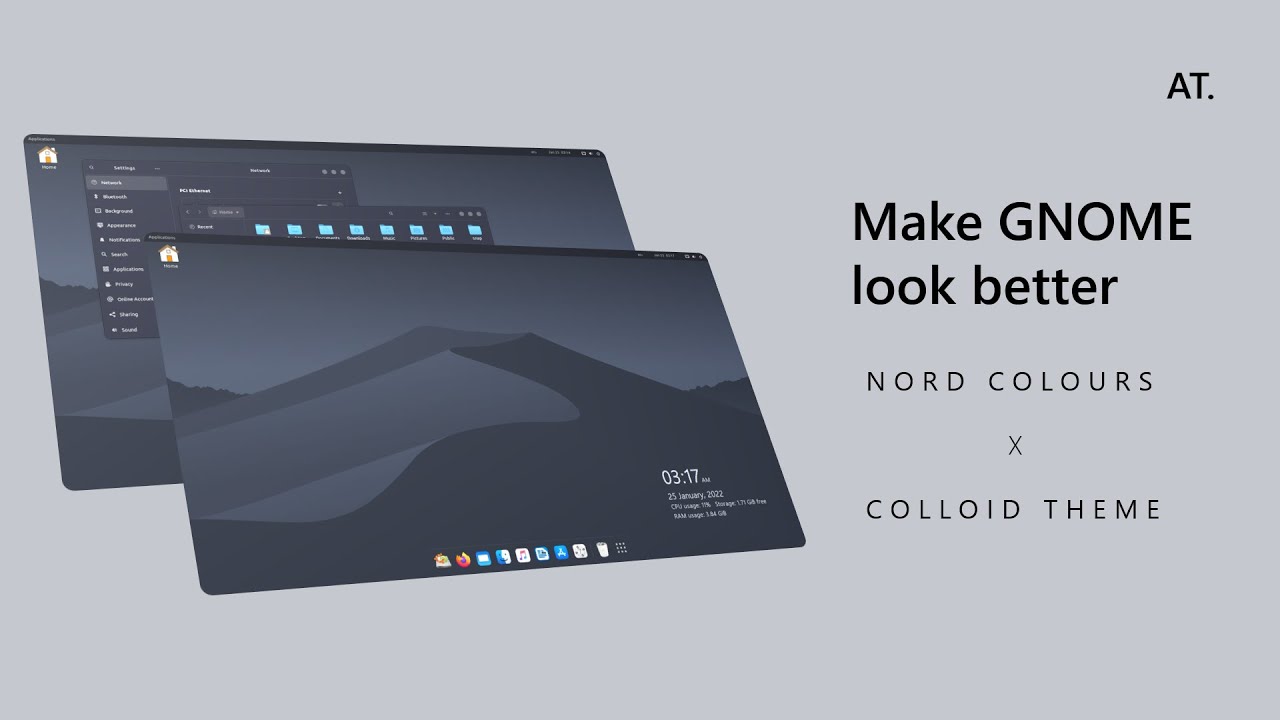
Wallpaper is taken from **[nordthemewallpapers.com](https://nordthemewallpapers.com)**:

Install Colloid-dark-nord theme:
```bash
$ curl -LJO https://github.com/vinceliuice/Colloid-gtk-theme/archive/refs/heads/main.zip && unzip
Colloid-gtk-theme.zip && cd Colloid-gtk-theme && sh -c install.sh --tweaks nord
```
### Make other apps look native
#### Chrome
Go to `Settings` -> `Apperance` -> `Theme` and set it to `GTK+`

#### Telegram
Go to `Settings` -> `Advanced` -> `System integration` -> `Use system window frame`

## Tweaks and extensions
Install GNOME Tweaks:
```bash
$ sudo apt install gnome-tweaks
```
### Appearance

| Themes | Value |
| ------------------- | --------------------------------------------------------------------------------------- |
| Cursor | Yaru |
| Icons | Mkos-Big-Sur |
| Shell | [Colloid-dark-nord](https://github.com/vinceliuice/Colloid-gtk-theme) (`--tweaks nord`) |
| Sound | Yaru |
| Legacy Applications | [Colloid-dark-nord](https://github.com/vinceliuice/Colloid-gtk-theme) (`--tweaks nord`) |
### Fonts

| Type | Font | Size |
| -------------------- | ------------------- | ---- |
| Interface Text | Ubuntu Regular | 11 |
| Document Text | Sans Regular | 11 |
| Monospace | Ubuntu Mono Regular | 13 |
| Legacy Window Titles | Ubuntu Regular | 11 |
- hinting: full (you can also
- antialiasing: subpixel
- scaling factor: 1.00
### Extensions
- [dynamic panel transparency](https://extensions.gnome.org/extension/1011/dynamic-panel-transparency/)
- background
- maximized opacity: 100%
- unmaximized opacity: А49%
- hide corners
- [simple monitor](https://extensions.gnome.org/extension/3891/simple-monitor/)
- [Unite](https://extensions.gnome.org/extension/1287/unite/)
- [window is ready notification remover](https://extensions.gnome.org/extension/1007/window-is-ready-notification-remover/)
- ubuntu dock
- user themes
### Dock conf
In the file.
To copy settings into your config use:
```Bash
$ dconf load /org/gnome/shell/extensions/dash-to-dock/ < dash-to-dock.conf
```
## Audio device setup

I spent lots of time setting up my audio environment on Ubuntu and it's a pure hell for a person who's not familiar with Linux.
1. Download `pavucontrol`:
```
$ sudo apt update && sudo apt install pavucontrol
```
2. Go to `Configuration` tab and disable all unused micro by clicking `Off` in dropdown menu.
3. Switch all your discrete microphones profiles from `Duplex` into `Input` (microphone is not an output device).
4. Switch all your discrete headphones profiles from `Duplex` into `Output`.
**If you have headset with mic leave `Duplex` as it is.**
### Set default audio (optional)
I use AKG Lyra & default stereo headphones preset (the command below is added into `Startup Applications`):
```
$ pactl set-default-sink alsa_output.pci-0000_00_1b.0.analog-stereo && pactl set-default-source alsa_input.usb-AKG_C44-USB_Microphone_AKG_C44-USB_Microphone-00.analog-stereo
```
To list your input and output devices use `pactl list short sinks` and `pactl list short sources`
## Dual Boot Time Sync
In Linux, use:
```
$ timedatectl set-local-rtc 1
```
## Bluetooth Dual Boot Pairing
Link:
https://unix.stackexchange.com/questions/255509/bluetooth-pairing-on-dual-boot-of-windows-linux-mint-ubuntu-stop-having-to-p
## Keyboard Shortcuts
- Copy a screenshort of an area to clipboard: `Shift` + `Super` +`S`
- Home folder: `Super` + `E`
- Launch terminal: `Super` + `T`
## Software
### [Virtual Webcam Background](https://github.com/fangfufu/Linux-Fake-Background-Webcam)
To use blur or any other webcam background at work.
### Terminal [Tabby](https://github.com/Eugeny/tabby)

Amazing terminal!
1. Download latest release **[here](https://github.com/Eugeny/tabby/releases)**.
2. Install `.deb` file.
```bash
$ sudo dpkg -i tabby-1.0.177-linux-x64.deb
```
3. Make Tabby a default terminal.
Add Tabby to terminals list.
```bash
$ sudo update-alternatives --install /usr/bin/x-terminal-emulator x-terminal-emulator /usr/bin/tabby 1
```
Change default terminal by choosing Tabby in the list by running this command:
```bash
$ sudo update-alternatives --config x-terminal-emulator
```
#### Install `oh-my-zsh` and `p10k`
Install `oh-my-zsh`:
```bash
$ sh -c "$(curl -fsSL https://raw.githubusercontent.com/ohmyzsh/ohmyzsh/master/tools/install.sh)" && chsh -s $(which zsh)
```
Install `p10k`:
```bash
$ git clone --depth=1 https://github.com/romkatv/powerlevel10k.git ${ZSH_CUSTOM:-$HOME/.oh-my-zsh/custom}/themes/powerlevel10k
```
Set `zsh` as default shell:
```
$ chsh -s $(which zsh)
```
Configure `p10k`:
```
$ p10k configure
```
## Development setup
Let's start with basic tools like `build-essential`:
```bash
$ sudo apt install build-essential
```
### Spacevim
Install SpaceVim:
```bash
$ curl -sLf https://spacevim.org/install.sh | bash
```
### VS Code
**Theme:** Copilot Theme

Install:
```bash
$ sudo snap install --classic code
```
I use these extensions:
- Java/Kotlin dev:
- [Debugger for Java](https://marketplace.visualstudio.com/items?itemName=vscjava.vscode-java-debug) `ext install vscjava.vscode-java-debug`
- [Extension Pack for Java](https://marketplace.visualstudio.com/items?itemName=vscjava.vscode-java-pack) `ext install vscjava.vscode-java-pack`
- [Kotlin](https://marketplace.visualstudio.com/items?itemName=fwcd.kotlin) `ext install fwcd.kotlin`
- [Kotlin Language](https://marketplace.visualstudio.com/items?itemName=mathiasfrohlich.Kotlin) `ext install mathiasfrohlich.Kotlin`
- [Maven for Java](https://marketplace.visualstudio.com/items?itemName=vscjava.vscode-maven) `ext install vscjava.vscode-maven`
- [Project Manager for Java](https://marketplace.visualstudio.com/items?itemName=vscjava.vscode-java-dependency) `ext install vscjava.vscode-java-dependency`
- [Language Support for Java(TM) by Red Hat](https://marketplace.visualstudio.com/items?itemName=redhat.java) `ext install redhat.java`
- [Test Runner for Java](https://marketplace.visualstudio.com/items?itemName=vscjava.vscode-java-test) `ext install vscjava.vscode-java-test`
- Frontend:
- [Bootstrap 5 & Font Awesome Snippets](https://marketplace.visualstudio.com/items?itemName=HansUXdev.bootstrap5-snippets) `ext install HansUXdev.bootstrap5-snippets`
- [Tailwind CSS IntelliSense](https://marketplace.visualstudio.com/items?itemName=bradlc.vscode-tailwindcss) `ext install bradlc.vscode-tailwindcss`
- Markdown
- [Markdown All in One](https://marketplace.visualstudio.com/items?itemName=yzhang.markdown-all-in-one) `ext install yzhang.markdown-all-in-one`
- [Markdown PDF](https://marketplace.visualstudio.com/items?itemName=yzane.markdown-pdf) `ext install yzane.markdown-pdf`
- [Markdown Table](https://marketplace.visualstudio.com/items?itemName=TakumiI.markdowntable) `ext install TakumiI.markdowntable`
- [LaTeX](https://marketplace.visualstudio.com/items?itemName=mathematic.vscode-latex) `ext install mathematic.vscode-latex`
- general dev:
- [Docker](https://marketplace.visualstudio.com/items?itemName=ms-azuretools.vscode-docker) `ext install ms-azuretools.vscode-docker`
- [GitHub Copilot](https://marketplace.visualstudio.com/items?itemName=GitHub.copilot) `ext install GitHub.copilot`
- [IntelliCode](https://marketplace.visualstudio.com/items?itemName=VisualStudioExptTeam.vscodeintellicode) `ext install VisualStudioExptTeam.vscodeintellicode`
- [Live Preview](https://marketplace.visualstudio.com/items?itemName=ms-vscode.live-server) `ext install ms-vscode.live-server`
And themes:
- [Copilot Theme](https://marketplace.visualstudio.com/items?itemName=BenjaminBenais.copilot-theme) `ext install BenjaminBenais.copilot-theme`
- [GitHub Theme](https://marketplace.visualstudio.com/items?itemName=GitHub.github-vscode-theme) `ext install GitHub.github-vscode-theme`
- [One Monokai Theme](https://marketplace.visualstudio.com/items?itemName=azemoh.one-monokai) `ext install azemoh.one-monokai`
To install extensions that I use type:
```bash
$ ./vscode-install-ext.sh
```
## Other tools
### Emotes
I miss `Ctrl` + `;` emote picker from Windows a lot so I decided to search for an Ubuntu analog and found `emote`! It's great! Let's install it using snap!
```bash
$ sudo snap install emote
```
It looks like this:

Don't forget to bind it to `Ctrl` + `;` (`Settings` -> `Keyboard` -> `Keyboard Shortcuts` -> `View and Customize Shortcuts` -> `Custom Shortcuts` -> Click `+` and add command `emote` to shortcut just like on screenshot below).
