https://github.com/yantis/docker-dynamic-video
Dynamic Video Drivers with X-Server on Docker. (Should work with Mesa & Nvidia 304.XX, 340.XX, 346.XX, and 349.XX series drivers (All?)) . Includes all 32 bit & 64 bit libraries.
https://github.com/yantis/docker-dynamic-video
Last synced: about 1 year ago
JSON representation
Dynamic Video Drivers with X-Server on Docker. (Should work with Mesa & Nvidia 304.XX, 340.XX, 346.XX, and 349.XX series drivers (All?)) . Includes all 32 bit & 64 bit libraries.
- Host: GitHub
- URL: https://github.com/yantis/docker-dynamic-video
- Owner: yantis
- License: mit
- Created: 2015-04-13T09:11:14.000Z (about 11 years ago)
- Default Branch: master
- Last Pushed: 2016-07-04T18:11:08.000Z (almost 10 years ago)
- Last Synced: 2025-03-26T16:38:42.988Z (about 1 year ago)
- Language: Shell
- Homepage:
- Size: 24.4 KB
- Stars: 8
- Watchers: 2
- Forks: 1
- Open Issues: 0
-
Metadata Files:
- Readme: README.md
- License: LICENSE
Awesome Lists containing this project
README
# docker-dynamic-video
Dynamic Video Drivers with optional X-Server on Docker. (Should work with Mesa & Nvidia 304.XX, 340.XX, and 367.XX series drivers)
Includes all 32 bit & 64 bit libraries as well so it should work out of the box with
[VirtualGL](https://github.com/yantis/docker-virtualgl), Wine, PlayonLinux etc.
The default mode is to start up the X-Server and SSH daemon but if you start it up with any command it will just default to that and not start up any servers.
Though if you do not startup any servers you do need to do the first time video initialization yourself. See the local usage section below.
On Docker hub [dynamic-video](https://registry.hub.docker.com/u/yantis/dynamic-video/)
on Github [docker-dynamic-video](https://github.com/yantis/docker-dynamic-video)
### Docker Images Structure
>[yantis/archlinux-tiny](https://github.com/yantis/docker-archlinux-tiny)
>>[yantis/archlinux-small](https://github.com/yantis/docker-archlinux-small)
>>>[yantis/archlinux-small-ssh-hpn](https://github.com/yantis/docker-archlinux-ssh-hpn)
>>>>[yantis/ssh-hpn-x](https://github.com/yantis/docker-ssh-hpn-x)
>>>>>[yantis/dynamic-video](https://github.com/yantis/docker-dynamic-video)
>>>>>>[yantis/virtualgl](https://github.com/yantis/docker-virtualgl)
>>>>>>>[yantis/wine](https://github.com/yantis/docker-wine)
# Description
The goal of this was a layer between [ssh-hpn-x](https://github.com/yantis/docker-ssh-hpn-x) and graphical applications.
That would just work with whatever video hardware someone had. Right now it defaults to Mesa but if it sees
that the host is using an Nvidia driver it will switch over to that one. It should support all Nvidia drivers.
This could also easily do the same for ATI but as I don't have one of those cards I am unable to test it.
You can fork this and add it yourself or if you send me SSH access to a server with an ATI card I can build it in as well.
It works well with [VirtualGL](https://github.com/yantis/docker-virtualgl). I have ran Blender as well as even Path of Exile on an Amazon EC2 GPU instance via
[VirtualGL](https://github.com/yantis/docker-virtualgl) and PlayOnLinux.
All in a Docker container. Checkout my Dockerfiles for these (If I didn't get around to putting them up. Just ask.)
## Usage (Local)
This example launches the container and initializes the graphcs with your drivers and in this case
runs nvidia-smi to get video card information.
```bash
xhost +si:localuser:$(whoami) >/dev/null
docker run \
--privileged \
--rm \
-ti \
-e DISPLAY \
-v /tmp/.X11-unix:/tmp/.X11-unix:ro \
-u docker \
yantis/dynamic-video /bin/bash -c "sudo initialize-graphics >/dev/null 2>/dev/null; nvidia-smi;"
```
### Breakdown
```bash
$ xhost +si:localuser:yourusername
```
Allows your local user to access the xsocket. Change yourusername or use $(whoami) or $USER if your shell supports it.
```bash
docker run \
--privileged \
--rm \
-ti \
-e DISPLAY \
-v /tmp/.X11-unix:/tmp/.X11-unix:ro \
-u docker \
yantis/dynamic-video /bin/bash -c "sudo initialize-graphics >/dev/null 2>/dev/null; nvidia-smi;"
```
This follows these docker conventions:
* `-ti` will run an interactive session that can be terminated with CTRL+C.
* `--rm` will run a temporary session that will make sure to remove the container on exit.
* `-e DISPLAY` sets the host display to the local machines display.
* `-v /tmp/.X11-unix:/tmp/.X11-unix:ro` bind mounts the X11 socks on your local machine to the containers and makes it read only.
* `-u docker` sets the user to docker. (or you could do root as well)
* `yantis/dynamic-video /bin/bash -c "sudo initialize-graphics >/dev/null 2>/dev/null; nvidia-smi;"`
you need to initialize the graphics or otherwise it won't adapt to your graphics drivers and may not work.
## Usage (Remote)
This example launches the container in the background.
Warning: Do not run this on your primary computer in remote mode as it will launch another X server that take over
your video cards and you will have to shutdown the container to get them back.
```bash
docker run \
--privileged \
-d \
-v /home/user/.ssh/authorized_keys:/authorized_keys:ro \
-h docker \
-p 49154:22 \
yantis/dynamic-video
```
This follows these docker conventions:
* `--privileged` run in privileged mode
If you do not want to run in privliged mode you can mess around with these:
AWS `--device=/dev/nvidia0:/dev/nvidia0` \
`--device=/dev/nvidiactl:/dev/nvidiactl` \
`--device=/dev/nvidia-uvm:/dev/nvidia-uvm` \
OR (Local) `--device=/dev/dri/card0:/dev/dri/card0` \
* `-d` run in daemon mode
* `-h docker` sets the hostname to docker. (not really required but it is nice to see where you are.)
* `-v $HOME/.ssh/authorized_keys:/authorized_keys:ro` Optionaly share your public keys with the host.
This is particularlly useful when you are running this on another server that already has SSH. Like an
Amazon EC2 instance. WARNING: If you don't use this then it will just default to the user pass of docker/docker
(If you do specify authorized keys it will disable all password logins to keep it secure).
* `-p 49158:22` port that you will be connecting to.
* `yantis/dynamic-video` the default mode is SSH server with the X-Server so no need to run any commands.
Now just SSH into it and use it (See [docker-virtualgl](https://github.com/yantis/docker-virtualgl) for how to access it and usage etc.)
# Tested
* Macbook Retina with Mesa drivers.
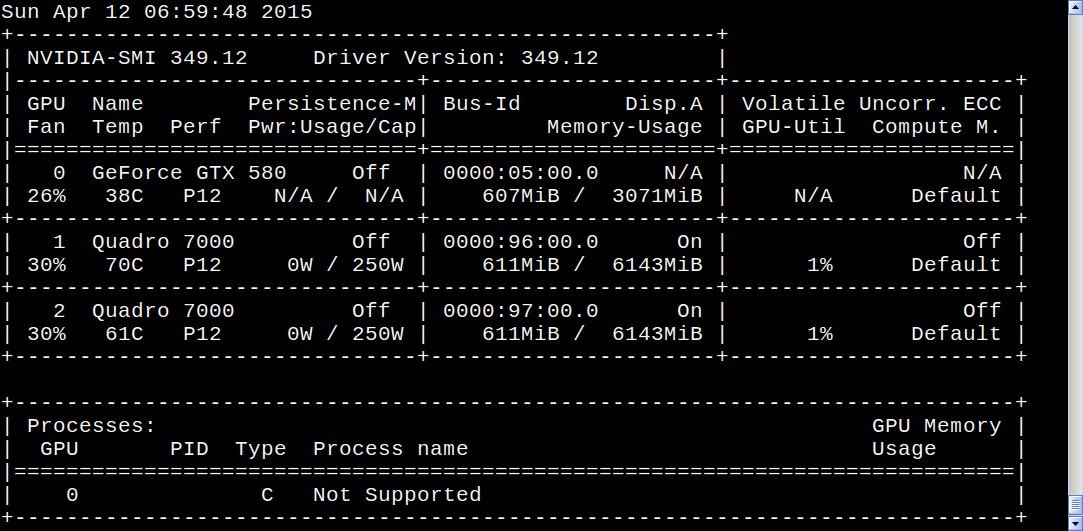
* Nvidia 349.xx OK (Current Beta Drivers)
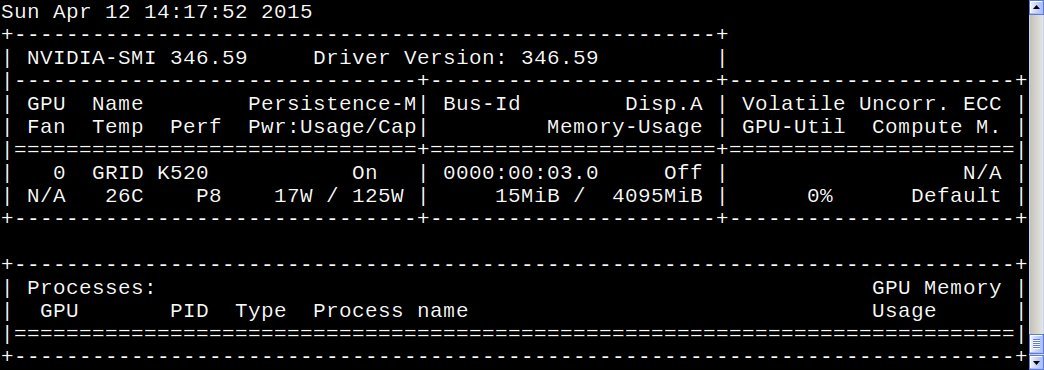
* Nvidia 346.xx OK (Current Generation Drivers) (This one is an Amazon EC2 GPU instance)
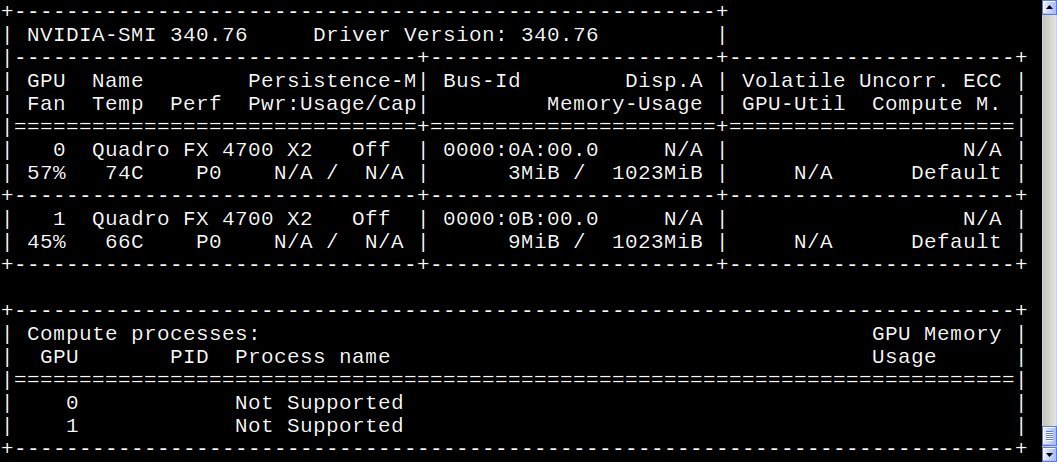
* Nvidia 340.xx OK (Previous Generation Drivers)