https://github.com/yohasebe/alfred-gyazo-workflow
Gyazo screenshot capture/upload/retrieve workflow for Alfred
https://github.com/yohasebe/alfred-gyazo-workflow
alfred gyazo ruby workflow
Last synced: 5 months ago
JSON representation
Gyazo screenshot capture/upload/retrieve workflow for Alfred
- Host: GitHub
- URL: https://github.com/yohasebe/alfred-gyazo-workflow
- Owner: yohasebe
- License: mit
- Created: 2018-03-07T04:09:38.000Z (over 8 years ago)
- Default Branch: master
- Last Pushed: 2018-03-07T06:03:33.000Z (over 8 years ago)
- Last Synced: 2025-02-12T09:09:49.293Z (over 1 year ago)
- Topics: alfred, gyazo, ruby, workflow
- Language: Ruby
- Size: 502 KB
- Stars: 0
- Watchers: 3
- Forks: 0
- Open Issues: 0
-
Metadata Files:
- Readme: README.md
- License: LICENSE
Awesome Lists containing this project
README
# Alfred Gyazo Workflow (AGW)
[DOWNLOAD WORKFLOW](https://github.com/yohasebe/alfred-gyazo-workflow/raw/master/package/Gyazo%20Screenshot.alfredworkflow)
[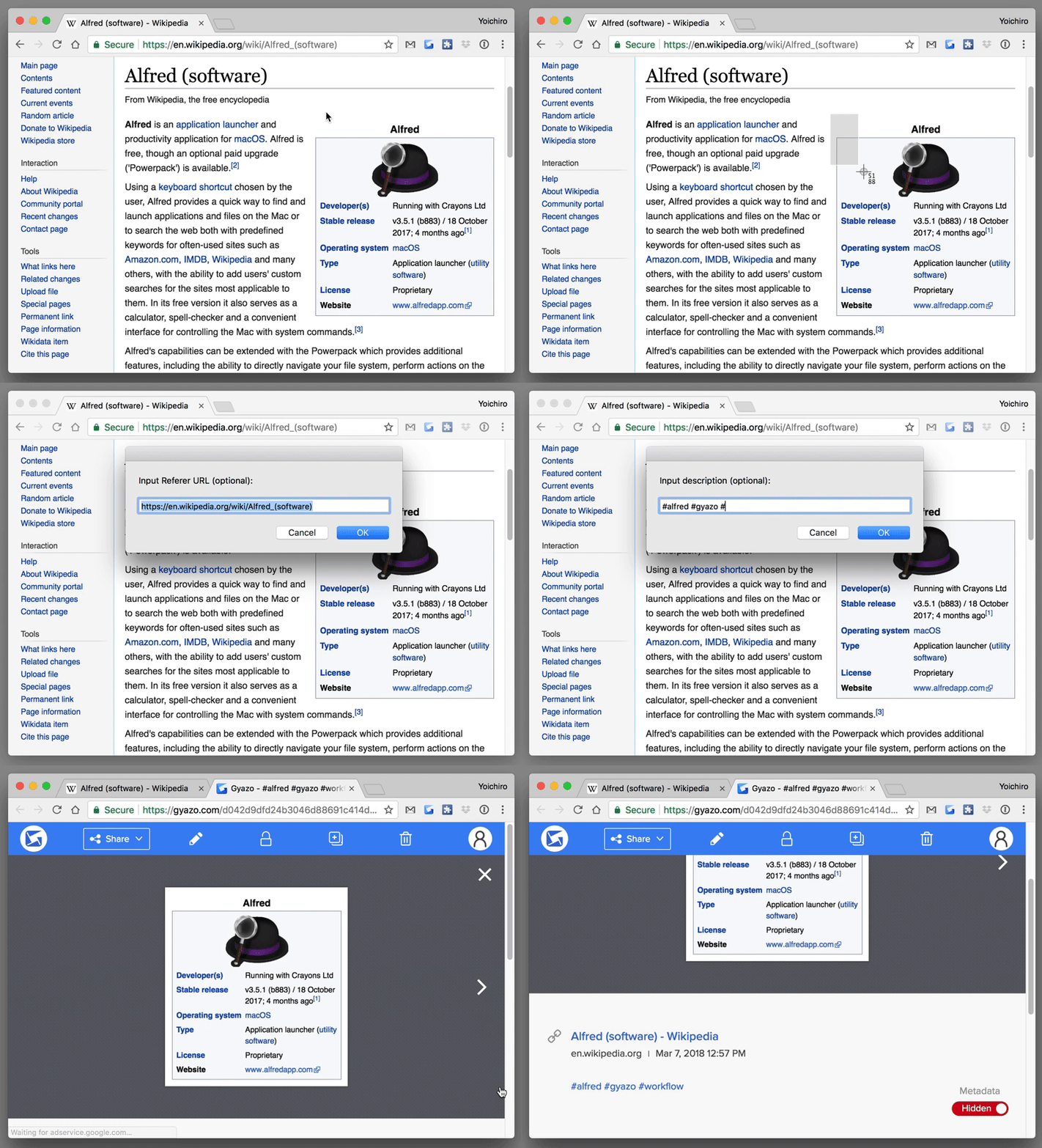](https://gyazo.com/119872a1f1a4445e81ba3a5e25c88a00)
This workflow does two things:
- Capture a screenshot and upload it to [Gyazo](https://gyazo.com) with specified **title**, **description**, and **URL**.
- Retrieve (a specified numbers of) recently uploaded screenshots.
## Setting up
First and formost, you need to sign up with [Gyazo ](https://gyazo.com) and obtain an API access token.
1. Go to https://gyazo.com/api
2. Click on `Register applications`
3. Click on `New Application`
4. Give the name of application (`Alfred Gyazo Workflow`) and the Callback URL (`http://localhost`)
5. Copy your access token generated for the newly created app
Now, run the setup workflow by typing the following keyword onto Alfred:
`set gs token`
Paste your access token and hit `return`, and you are ready to enjoy screen capturing with AGW.
## Capture screenshots
Usage: `gsu`
After you hit `enter`, you will be prompted to select a region on the screen to be captured. You can hit `space` to switch modes to capture the entire window of the front-most app.
Once capture has been done, text input dialogs will pop to ask for the title and description of the resulting image. The title text box will be automatically filled out with the title of the window currently focused. If the focused app is a web-browser (Safari/Chrome/Firefox), the URL input dialog will be also pop up with the current URL.
The title, description, and URL are all optional. You can just leave blank if you don't need them.
The screenshot will be uploaded to Gyazo and the image URL will be copied to the clipboard.
## Retrieve recently captured images
Usage: `gsr` or `gsr [1..100]`
You can view the thumbnails of your screenshots recently captured. The default number of images retrieved is 10. You can specify the number of images you want to see by specifying a number [1..100] right after `gsr` keyword.
Hit `enter` after selecting an image will open the Gyazo link. Hit `⌘+enter` will copy the direct image link to the clipboard.
## Clear thumbnail cache
Usage: `clear gsr cache`
The thumbnails retrieved by `gsr` command will be saved to speed up the subsequent query in the AGW cache directory of your mac. To clear all the thumbnails cached by AGW, run the above command.
## Customizing the keywords / Adding hotkeys:
If you don't like the keywords that are used for triggering the above commands, go change directly on Alfred. You can add hotkeys to `gsu` and `gsr`.
## License
The MIT
## Author
Yoichiro Hasebe