https://github.com/yukiny0811/easy-node-editor
Developer-Friendly SwiftUI Node Editor
https://github.com/yukiny0811/easy-node-editor
easy-to-use node-editor swift-library swift-package swiftui
Last synced: over 1 year ago
JSON representation
Developer-Friendly SwiftUI Node Editor
- Host: GitHub
- URL: https://github.com/yukiny0811/easy-node-editor
- Owner: yukiny0811
- License: mit
- Created: 2022-09-16T18:03:00.000Z (almost 4 years ago)
- Default Branch: main
- Last Pushed: 2024-05-11T04:34:35.000Z (about 2 years ago)
- Last Synced: 2025-04-13T02:13:16.477Z (over 1 year ago)
- Topics: easy-to-use, node-editor, swift-library, swift-package, swiftui
- Language: Swift
- Homepage:
- Size: 82 KB
- Stars: 53
- Watchers: 5
- Forks: 5
- Open Issues: 6
-
Metadata Files:
- Readme: README.md
- License: LICENSE
Awesome Lists containing this project
README
# EasyNodeEditor
[](https://github.com/yukiny0811/easy-node-editor/actions/workflows/swift.yml)
[](https://github.com/yukiny0811/easy-node-editor/releases/latest)
[](https://swiftpackageindex.com/yukiny0811/easy-node-editor)
[](https://swiftpackageindex.com/yukiny0811/easy-node-editor)
[](https://github.com/yukiny0811/easy-node-editor/blob/main/LICENSE)
[English](https://github.com/yukiny0811/easy-node-editor/blob/main/README.md) / [Japanese](https://github.com/yukiny0811/easy-node-editor/blob/main/README_JAPANESE.md)
**Still in alpha stage of development!**
EasyNodeEditor is a library for creating node editors with SwiftUI. I am developing this library with the goal of showing as little internal complex code as possible, so that developers can concentrate as much as possible on node creation.
## Demo
(v0.1.0)
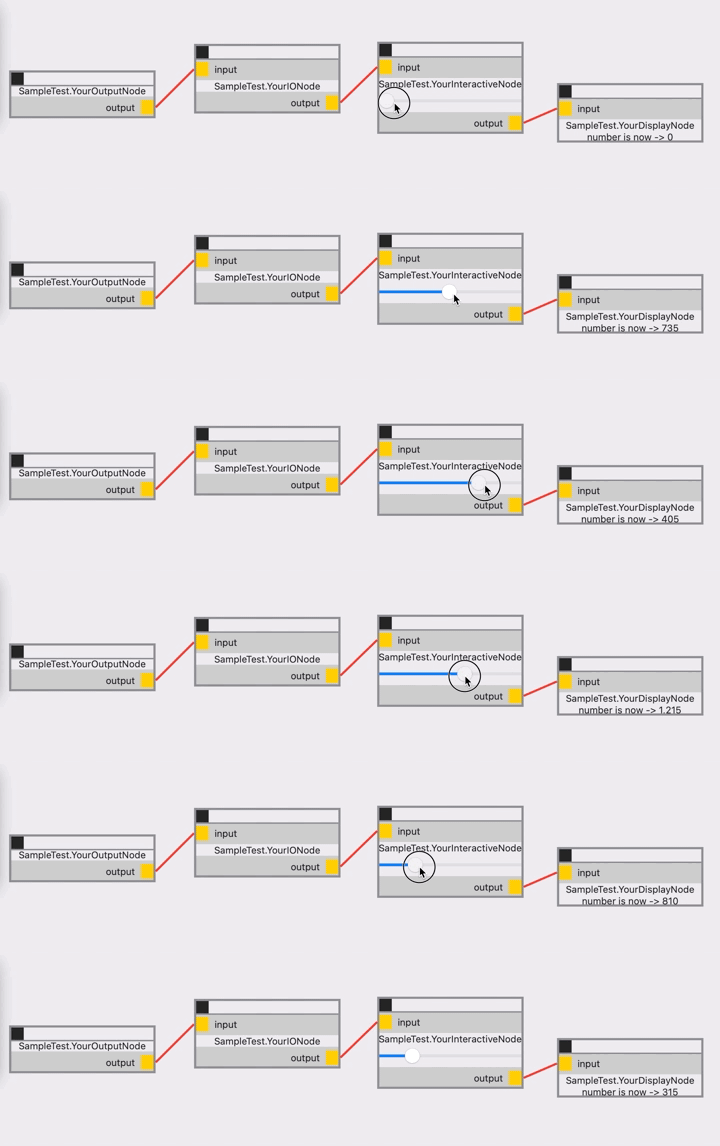
(v0.1.4)
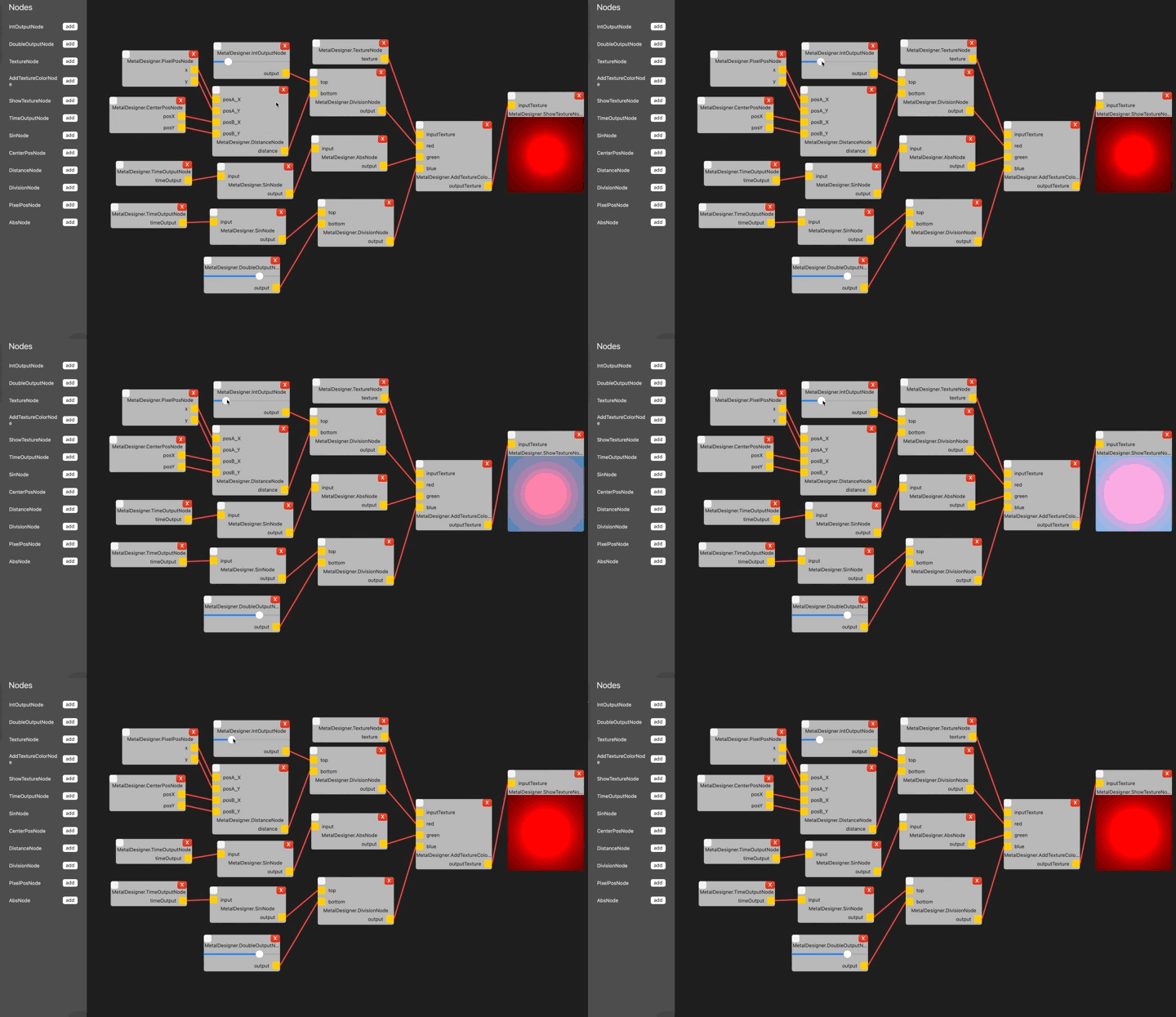
## Usage1 - Standard output node
### Step 1. Create your node
Create a class, and inherit it from NodeModelBase class.
```.swift
class YourOutputNode: NodeModelBase {
}
```
### Step 2. Create Outputs
Create output variables.
Put ```@Output``` for output variables.
Make sure you put ```@objc``` wrapper to all your output variables.
There are no restrictions on the naming of the variables. Name the variables whatever you want, and the library will automatically use that name to display in the node.
```.swift
class YourOutputNode: NodeModelBase {
@objc @Output var output: Int = 3
}
```
### Step 3. Register your node
Register your node when you instanciate EasyNodeEditor View.
```.swift
struct ContentView: View {
var body: some View {
EasyNodeEditor(nodeTypes: [YourOutputNode.self])
}
}
```
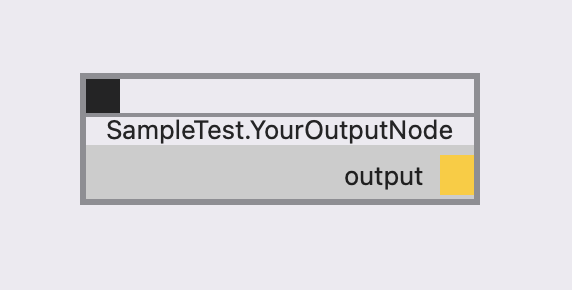
**This is it!**
The EasyNodeEditor Library will create a node like this.
## Usage2 - Standard input and output node
### Step 1. Create your node
Create a class, and inherit it from NodeModelBase class.
```.swift
class YourIONode: NodeModelBase {
}
```
### Step 2. Create Inputs and Outputs
Create inputs and/or outputs.
Put ```@Input``` for input variables, and ```@Output``` for output variables.
Make sure you put ```@objc``` wrapper to all your input and output variables.
There are no restrictions on the naming of the variables. Name the variables whatever you want, and the library will automatically use that name to display in the node.
```.swift
class YourIONode: NodeModelBase {
@objc @Input var input: Int = 0
@objc @Output var output: Int = 0
}
```
### Step 3. Define what happens when input value changes
Override ```processOnChange()``` function, and define your process.
Don't change input value inside ```processOnChange()```. It will start infinite loop.
```.swift
class YourIONode: NodeModelBase {
@objc @Input var input: Int = 0
@objc @Output var output: Int = 0
override func processOnChange() {
output = input * 5
}
}
```
### Step 4. Register your node
Register your node when you instanciate EasyNodeEditor View.
```.swift
struct ContentView: View {
var body: some View {
EasyNodeEditor(nodeTypes: [YourOutputNode.self, YoutIONode.self])
}
}
```
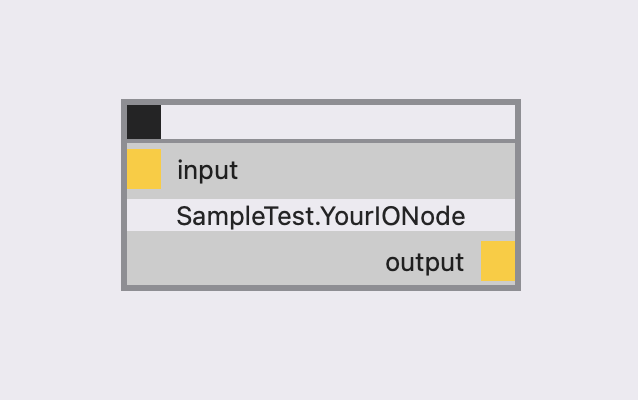
**Very easy!!**
The EasyNodeEditor Library will create a node like this.
## Usage 3 - Standard display node
### Step 1. Create your node
Create a class, and inherit it from NodeModelBase class.
```.swift
class YourDisplayNode: NodeModelBase {
}
```
### Step 2. Create Inputs
Create inputs.
Put ```@Input``` for input variables.
Make sure you put ```@objc``` wrapper to all your input variables.
There are no restrictions on the naming of the variables. Name the variables whatever you want, and the library will automatically use that name to display in the node.
```.swift
class YourDisplayNode: NodeModelBase {
@objc @Input var input: Int = 0
}
```
### Step3. Create View
Override ```middleContent()``` function, and define your View.
```.swift
class YourDisplayNode: NodeModelBase {
@objc @Input var input: Int = 0
override func middleContent() -> any View {
Text("number is now -> \(input)")
}
}
```
### Step 4. Register your node
Register your node when you instanciate EasyNodeEditor View.
```.swift
struct ContentView: View {
var body: some View {
EasyNodeEditor(nodeTypes: [YourOutputNode.self, YoutIONode.self, YourDisplayNode.self])
}
}
```
**Amazing!!**
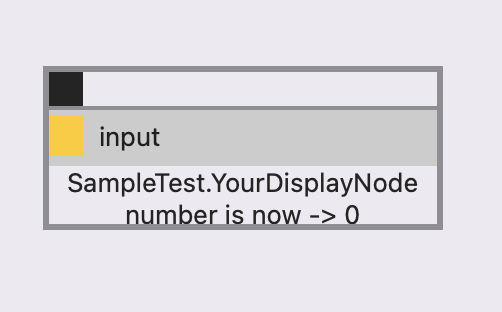
The EasyNodeEditor Library will create a node like this.
## Usage 4 - Standard Interactive Node
I assume you have read Usage 1 ~ 3 here.
For interactive nodes, EasyNodeEditor provides ```@Middle``` property wrapper.
Whenever the value of the variables with ```@Input``` or ```@Middle``` changes, ```processOnChange()``` function will fire.
If you need a binding object for interaction, use ```binding``` method and pass the KeyPath to get binding object.
After finished making, register your node as usual.
```.swift
class YourInteractiveNode: NodeModelBase {
@objc @Input var input: Int = 0
@objc @Middle var count: Int = 0
@objc @Output var output: Int = 0
override func processOnChange() {
output = input * count
}
override func middleContent() -> any View {
Group {
Slider(value: binding(\YourInteractiveNode.count), in: 0...100)
}
.frame(minWidth: 200, maxWidth: 200)
.fixedSize()
}
}
```
**Simple!!**
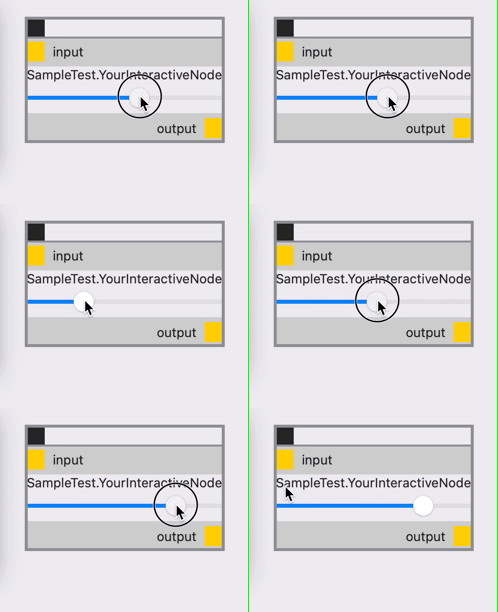
The EasyNodeEditor Library will create a node like this.
## Full Sample Code
```.swift
import SwiftUI
import EasyNodeEditor
struct ContentView: View {
var body: some View {
EasyNodeEditor(nodeTypes: [YourOutputNode.self, YourIONode.self, YourDisplayNode.self, YourInteractiveNode.self])
}
}
class YourOutputNode: NodeModelBase {
@objc @Output var output: Int = 3
}
class YourIONode: NodeModelBase {
@objc @Input var input: Int = 0
@objc @Output var output: Int = 0
override func processOnChange() {
output = input * 5
}
}
class YourDisplayNode: NodeModelBase {
@objc @Input var input: Int = 0
override func middleContent() -> any View {
Text("number is now -> \(input)")
}
}
class YourInteractiveNode: NodeModelBase {
@objc @Input var input: Int = 0
@objc @Middle var count: Int = 0
@objc @Output var output: Int = 0
override func processOnChange() {
output = input * count
}
override func middleContent() -> any View {
Group {
Slider(value: binding(\YourInteractiveNode.count), in: 0...100)
}
.frame(minWidth: 200, maxWidth: 200)
.fixedSize()
}
}
```