https://github.com/zanminkian/web-ide
💻 An out-of-box web IDE containing many tools for an enjoyable coding experience.
https://github.com/zanminkian/web-ide
code-server vscode web-ide
Last synced: 3 months ago
JSON representation
💻 An out-of-box web IDE containing many tools for an enjoyable coding experience.
- Host: GitHub
- URL: https://github.com/zanminkian/web-ide
- Owner: zanminkian
- License: mit
- Created: 2023-01-09T12:04:36.000Z (over 3 years ago)
- Default Branch: main
- Last Pushed: 2026-02-25T09:00:09.000Z (4 months ago)
- Last Synced: 2026-02-25T12:58:59.949Z (4 months ago)
- Topics: code-server, vscode, web-ide
- Language: Shell
- Homepage:
- Size: 625 KB
- Stars: 5
- Watchers: 1
- Forks: 1
- Open Issues: 3
-
Metadata Files:
- Readme: README.md
- Changelog: CHANGELOG.md
- License: LICENSE
Awesome Lists containing this project
README
# Web-IDE
[](https://github.com/zanminkian/web-ide/blob/main/LICENSE)
## What is it?
Web-IDE is a comprehensive web-based integrated development environment (IDE) that includes all the tools you need for an enjoyable coding experience, out-of-the-box.
## Features
- Start the IDE with a single command line, powered by Docker and [code-server](https://github.com/coder/code-server).
- Access IDE through your browser and code from any machine, anywhere.
- A wealth of pre-installed development tools for an out-of-the-box coding experience:
- [x] Node (Frontend/Electron)
- [ ] Go
- [ ] Python
- [ ] Java
## Usage
Download images from [Github Releases](https://github.com/zanminkian/web-ide/releases). Then run commands below:
```sh
docker load -i your-downloaded-image.tgz
docker run -itd -p 8080:8080 -e PASSWORD=your_password --name web-ide zengmingjian/web-ide
```
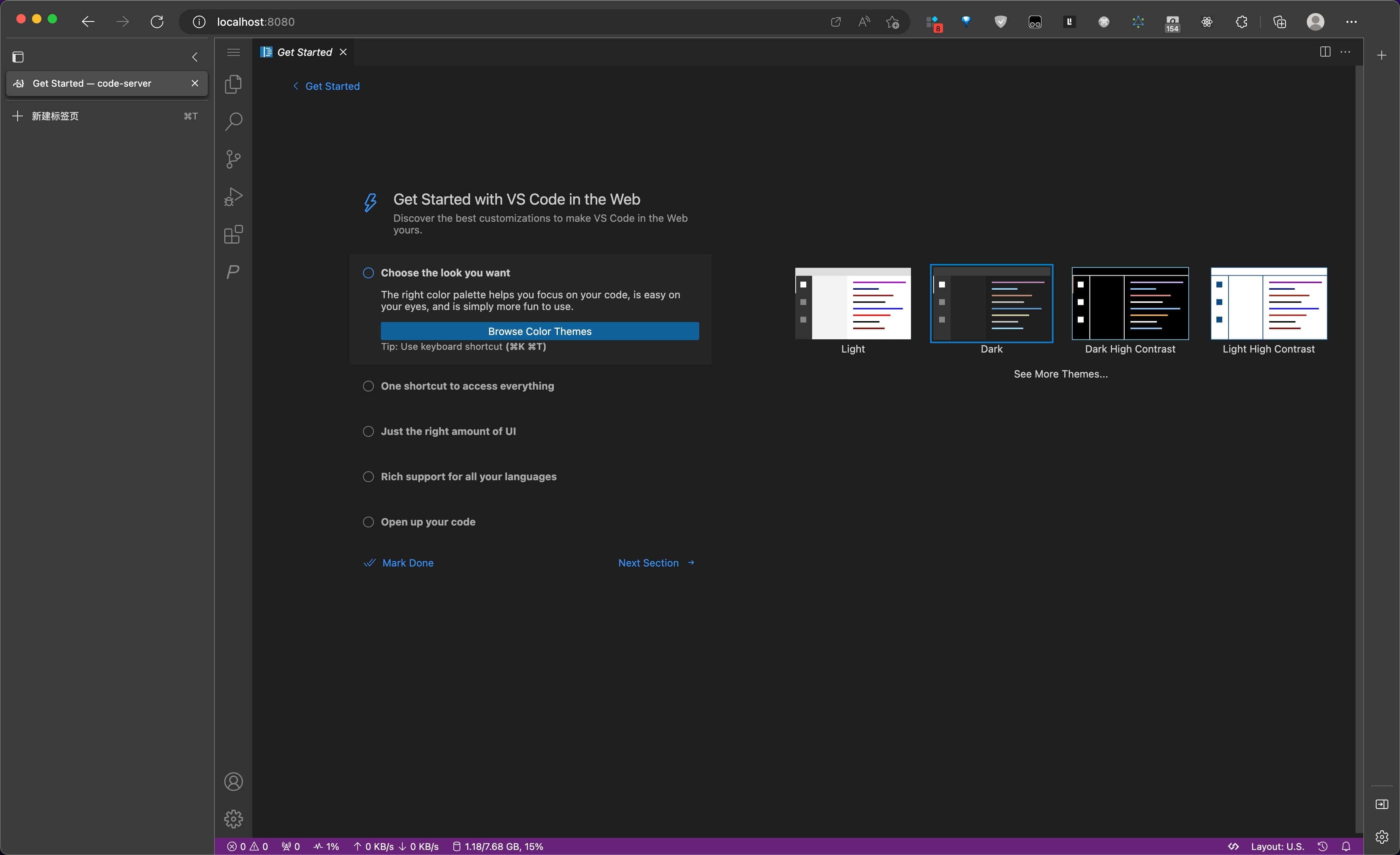
Then visit `http://localhost:8080` in your browser.
## Advanced Usage
- Add more CLI options for `web-ide` at the end of the command.
```sh
docker run -itd --network host -e PASSWORD=your_password --name web-ide zengmingjian/web-ide --bind-addr 0.0.0.0:9090
```
- Run `docker run -it --rm zengmingjian/web-ide --help` for more information.
- To check the environment configuration, run `cat ~/.zshrc` inside the container. Feel free to edit it.
- Run `start-desktop` inside the container and visit `http://localhost:6080/vnc.html` to visit a xfce desktop environment.
## FAQ
Q: Some shortcuts conflict between web-vscode and the browser. How can I avoid this?
A: Convert this web vscode into a Progressive Web App (PWA).
Q: Some extensions, which use iframes to render their UI, don't work properly, like `git graph`. How can I solve this problem?
A: This issue occurs when you access vscode in the browser with a website address that is not `localhost` and a protocol that is not `https`. Here are some solutions:
- Set up a forward proxy with the command `ssh -CqTnNfL 8080:127.0.0.1:8080 my-remote-server`. Then access vscode via `http://localhost:8080`.
- Open `chrome://flags/#unsafely-treat-insecure-origin-as-secure` in your browser to trust insecure origins. Then access vscode via `http://some-ip-or-domain:8080`.
- Use an `https` protocol instead of `http`.
Q: This Docker container is unable to log in to another remote server via SSH. What could be the cause, and how can it be resolved?
A: Probably, the remote server does not support the `rsa` algorithm due to security concerns. Here are two alternatives:
- Generate your SSH key using the `ed25519` algorithm, with `ssh-keygen -t ed25519`.
- Add `HostkeyAlgorithms +ssh-rsa\n PubkeyAcceptedAlgorithms +ssh-rsa\n PubkeyAcceptedKeyTypes +ssh-rsa` to `~/.ssh/config`. For example: `Hostname user@your-ip.com\n HostkeyAlgorithms +ssh-rsa\n PubkeyAcceptedAlgorithms +ssh-rsa\n PubkeyAcceptedKeyTypes +ssh-rsa\n`
Q: Running `apt update` or `apt install` is slow. How to speed up?
A: Run `sudo sed -i 's/deb.debian.org/mirrors.tuna.tsinghua.edu.cn/g' /etc/apt/sources.list.d/debian.sources` to change the apt source. It's useful for Chinese users.
Q: After running `start-desktop`, how to input Chinese characters in xfce4 desktop?
A: Run `sudo apt update && sudo apt install -y fcitx5 fcitx5-pinyin`. Then run `stop-desktop` and `start-desktop` again. Finally, right click the keyboard icon in the top right corner to select `Configure` and add `Pinyin` to `Input Method`.
## Show your support
Give a ⭐️ if this project helped you!
## License
MIT