https://github.com/zonble/flutter_turtle
Turtle graphics for Flutter. It simply uses a custom painter to draw graphics by a series of Logo-like commands.
https://github.com/zonble/flutter_turtle
dart flutter graphics turtle turtle-graphics
Last synced: 3 months ago
JSON representation
Turtle graphics for Flutter. It simply uses a custom painter to draw graphics by a series of Logo-like commands.
- Host: GitHub
- URL: https://github.com/zonble/flutter_turtle
- Owner: zonble
- License: mit
- Created: 2020-01-01T14:04:34.000Z (over 6 years ago)
- Default Branch: master
- Last Pushed: 2025-07-22T15:49:40.000Z (11 months ago)
- Last Synced: 2025-08-13T06:42:43.654Z (11 months ago)
- Topics: dart, flutter, graphics, turtle, turtle-graphics
- Language: Dart
- Homepage: https://zonble.github.io/flutter_turtle/
- Size: 45.7 MB
- Stars: 49
- Watchers: 3
- Forks: 11
- Open Issues: 0
-
Metadata Files:
- Readme: README.md
- Changelog: CHANGELOG.md
- License: LICENSE
Awesome Lists containing this project
README
# flutter_turtle
[](https://pub.dev/packages/flutter_turtle)
`flutter_turtle` is a simple yet powerful implementation of turtle graphics for Flutter. It leverages Flutter's `CustomPainter` to draw graphics using a declarative, Logo-like Domain-Specific Language (DSL) written entirely in Dart.
- [flutterturtle](#flutterturtle)
- [What is Turtle Graphics?](#what-is-turtle-graphics)
- [Why I made this?](#why-i-made-this)
- [Example](#example)
- [Usage](#usage)
- [Technical Details & Architecture](#technical-details--architecture)
- [1. The Command DSL](#1-the-command-dsl)
- [2. Compilation](#2-compilation)
- [3. Rendering Pipeline](#3-rendering-pipeline)
- [4. Animation Mechanism](#4-animation-mechanism)
- [Flutter Turtle DSL](#flutter-turtle-dsl)
- [Flow control](#flow-control)
- [Macros](#macros)
- [Supported Commands](#supported-commands)
- [Turtle motion & Styling](#turtle-motion--styling)
- [Flow control](#flow-control)
- [Macros](#macros)
## What is Turtle Graphics?
Turtle graphics is a popular method for introducing programming to beginners. It involves a "turtle" (an on-screen cursor) that carries a pen. By giving commands like "move forward," "turn right," and "pen down," you can create complex geometric shapes and intricate patterns. It was a key feature of the Logo programming language and remains a foundational concept in computer science education.
For further information about turtle graphics, please refer to Wikipedia:
- [Turtle graphics - Wikipedia](https://en.wikipedia.org/wiki/Turtle_graphics)
## Why I made this?
Building a [Domain-Specific Language (DSL)](https://en.wikipedia.org/wiki/Domain-specific_language) within Dart is an excellent exercise in API design, and turtle graphics are a universally engaging way to introduce programming concepts through visual feedback!
## Example
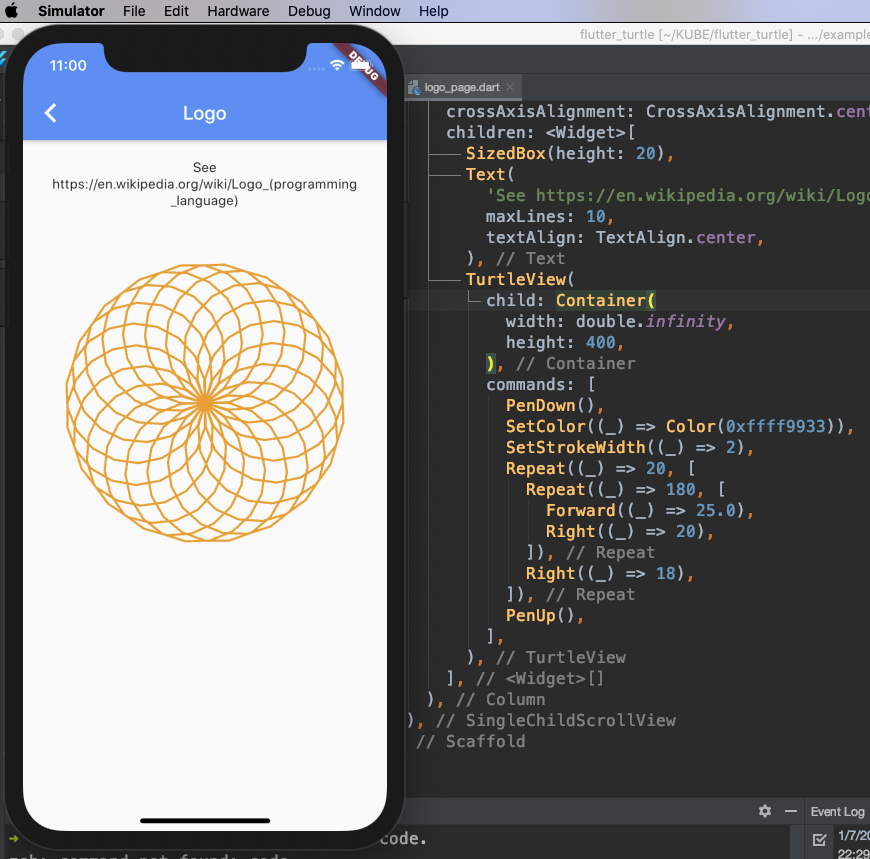
A quick example:
```dart
@override
Widget build(BuildContext context) {
return Scaffold(
appBar: AppBar(title: Text(widget.title)),
body: TurtleView(
child: Container(),
commands: [
PenDown(),
SetColor((_) => Color(0xffff9933)),
SetStrokeWidth((_) => 2),
Repeat((_) => 20, [
Repeat((_) => 180, [
Forward((_) => 25.0),
Right((_) => 20),
]),
Right((_) => 18),
]),
PenUp(),
],
),
);
}
```
A Flutter web app example is available at [https://zonble.github.io/flutter_turtle/](https://zonble.github.io/flutter_turtle/)
## Usage
`flutter_turtle` provides two core visualization widgets:
- `TurtleView`: Serves as your canvas and immediately renders the fully evaluated graphics based on the provided commands.
- `AnimatedTurtleView`: An animated variant that sequentially visualizes the turtle's drawing process over time.
To use them, simply instantiate `TurtleView` or `AnimatedTurtleView`, pass your declarative commands via the `commands` parameter, and embed the widget directly into your Flutter widget tree.
## Technical Details & Architecture
`flutter_turtle` is built to be efficient, extensible, and seamlessly integrated into Flutter's rendering pipeline. The architecture is primarily divided into three stages: the **DSL Command Definition**, the **Compiler**, and the **Painter**.
### 1. The Command DSL
The library provides a set of classes (e.g., `Forward`, `Right`, `Repeat`, `IfElse`) that represent Logo-like instructions. Unlike a traditional interpreter that reads a text script, the DSL is constructed using native Dart objects. This provides full type safety, code completion, and allows you to seamlessly mix Flutter logic (like using Flutter `Color` or `BuildContext` state) directly into your turtle commands.
### 2. Compilation
Before any graphics are drawn, the tree of nested `TurtleCommand` objects is processed by the `TurtleCompiler`. The compiler evaluates flow-control commands (`Repeat`, `If`, `IfElse`) and flattens the execution tree into a linear sequence of atomic `Instruction` objects.
- **Macros:** Macros are managed during compilation. A `SetMacro` command registers a sub-tree of commands, which are injected and compiled in place whenever a `RunMacro` command is encountered.
- **State Management:** While compiling, the framework does not draw anything. It simply prepares a highly optimized sequence of operations.
### 3. Rendering Pipeline
The actual drawing happens inside `TurtlePainter`, which is a `CustomPainter` implementation.
- `TurtlePainter` receives the compiled list of `Instruction` objects.
- It initializes a `PaintContext` (providing access to the `Canvas` and `Paint` objects) and a `TurtleState` (which tracks the turtle's `position`, `degrees`, `isPenDown` status, colors, and line widths).
- As `TurtlePainter` iterates through the instructions, each instruction executes against the `PaintContext`, mutating the state and calling raw `Canvas` drawing methods.
### 4. Animation Mechanism
`AnimatedTurtleView` leverages Flutter's `AnimationController` and `AnimatedBuilder`. When built, it calculates the total number of compiled instructions. As the animation progresses from `0.0` to `1.0`, the widget progressively passes a growing sublist of instructions (e.g., from index `0` to `total_instructions * animation.value`) to the `TurtlePainter`. This simple yet effective approach smoothly simulates real-time drawing without requiring complex frame-by-frame state serialization.
## Flutter Turtle DSL
If you have Logo code like this:
```logo
repeat 5 [ fd 100 rt 144 ]
```
The equivalent code in the Flutter Turtle DSL would be:
```dart
[
Repeat((_) => 5, [
Forward((_) => 200),
Right((_) => 144),
]),
];
```
### Flow control
Flow control commands are evaluated dynamically during compilation. You can use the `IfElse` class just like an `if...else` statement in Dart, and the `Repeat` class for loops.
An example of `IfElse`:
```dart
// If the condition evaluates to true, move forward; otherwise, move backward.
IfElse((_) => true, [Forward((_) => 10.0)], [Back(() => 10.0)]),
```
An example of `Repeat`:
```dart
// Repeat the inner commands 10 times.
Repeat((_) => 10, [Forward((_) => 10.0)]),
```
### Macros
While the DSL does not support traditional named functions natively, you can achieve reusable components using macros. Use the `SetMacro` command to register a parameterized block of commands:
```dart
SetMacro('macro', [Forward((_) => 10.0)]), // Registers a new macro named "macro".
```
You can then execute the macro dynamically using the `RunMacro` command:
```dart
RunMacro('macro', (_) => {'arg1': 'value1', 'arg2': 'value2'}),
```
You can pass arguments when calling a macro. These arguments are provided as a Dart `Map` and are accessible via the callback parameter `_` to every command within the macro. For example:
```dart
SetMacro('macro', [Forward((_) => _['arg1'])]), // Uses the "arg1" value from the arguments map.
RunMacro('macro', (_) => {'arg1': 10.0}),
```
## Supported Commands
The currently supported primitives and logic structures include:
### Turtle motion & Styling
- `PenDown`
- `PenUp`
- `Left`
- `Right`
- `Forward`
- `Back`
- `SetColor`
- `SetStrokeWidth`
- `GoTo`
- `ResetPosition`
- `ResetHeading`
- `Label`
- `SetLabelHeight`
### Flow control
- `If`
- `IfElse`
- `Repeat`
### Macros
- `SetMacro`
- `RunMacro`