https://github.com/zonfacter/hytale-docker
Docker image for Hytale Dedicated Server with Web Dashboard - Easy deployment with setup wizard
https://github.com/zonfacter/hytale-docker
curseforge dashboard dedicated-server docker docker-compose docker-hub docker-image game-server hytale hytale-server modding
Last synced: 5 months ago
JSON representation
Docker image for Hytale Dedicated Server with Web Dashboard - Easy deployment with setup wizard
- Host: GitHub
- URL: https://github.com/zonfacter/hytale-docker
- Owner: zonfacter
- License: mit
- Created: 2026-01-25T11:38:10.000Z (5 months ago)
- Default Branch: master
- Last Pushed: 2026-01-25T22:12:04.000Z (5 months ago)
- Last Synced: 2026-01-26T02:48:20.061Z (5 months ago)
- Topics: curseforge, dashboard, dedicated-server, docker, docker-compose, docker-hub, docker-image, game-server, hytale, hytale-server, modding
- Language: Python
- Size: 205 KB
- Stars: 0
- Watchers: 0
- Forks: 1
- Open Issues: 1
-
Metadata Files:
- Readme: README.md
- License: LICENSE
Awesome Lists containing this project
README
# Hytale Docker
[](https://hub.docker.com/r/zonfacter/hytale-docker)
[](https://hub.docker.com/r/zonfacter/hytale-docker)
[](LICENSE)
[](https://hytale.com/)
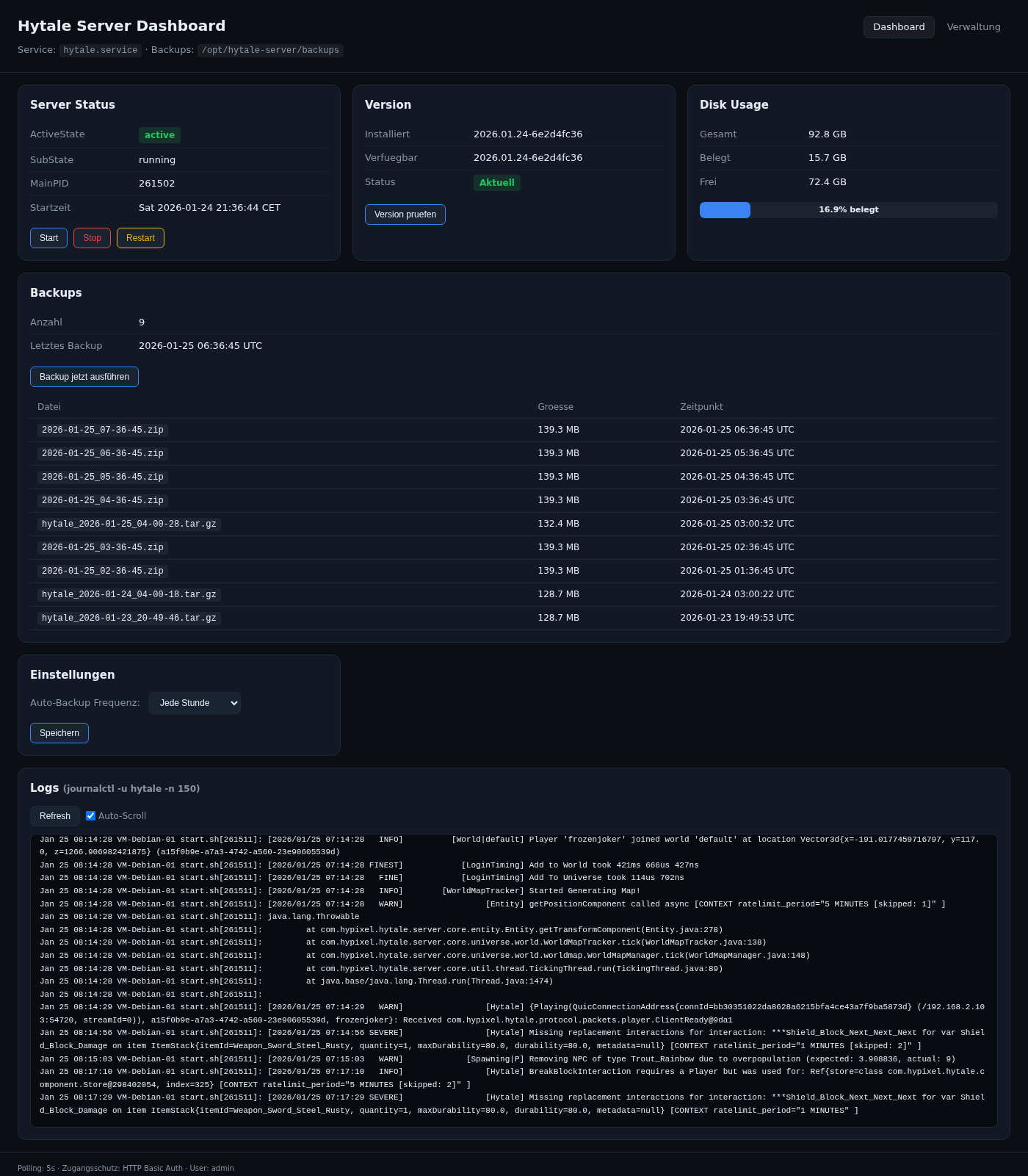
Docker image for **Hytale Dedicated Server** with integrated **Web Dashboard**.
🇩🇪 [Deutsche Anleitung](docs/setup-guide-de.md) | 🇬🇧 [English Guide](docs/setup-guide-en.md)
---
## Features
- 🎮 **Hytale Dedicated Server** - Ready to run with Java 24
- 🖥️ **Web Dashboard** - Manage your server via browser
- 🔧 **Setup Wizard** - Guided installation with OAuth support
- 💬 **Server Console** - Send commands directly from the dashboard
- 🔐 **Server Authentication** - Easy Browser/Device login buttons
- 🔗 **Tailscale VPN** - Secure remote access without port-forwarding
- 🌐 **Port Mapping Display** - See external ports in bridge mode
- 📊 **Version Detection** - Automatic update checking via downloader
- ⬇️ **Automatic Downloader** - Server files downloaded automatically
- 📦 **CurseForge Integration** - Install mods with one click
- 💾 **Automatic Backups** - Built-in backup system
- ⚙️ **Runtime Settings** - Configure API keys without container restart
- 🚀 **AOTCache Support** - Faster server startup with Java 24
- 🔑 **Persistent Auth** - Credentials survive container restarts

---
## Quick Start
### Option 1: Using Docker Hub (Recommended)
```bash
# Pull image
docker pull zonfacter/hytale-docker:latest
# Run container with named volumes (recommended)
# Note: Universe path is Server/universe/ since Hytale Server 2026.01
docker run -d \
--name hytale-server \
-p 8088:8088 \
-p 5520:5520/udp \
-v hytale-universe:/opt/hytale-server/Server/universe \
-v hytale-mods:/opt/hytale-server/mods \
-v hytale-backups:/opt/hytale-server/backups \
-v hytale-downloader:/opt/hytale-server/.downloader \
-e DASH_PASS=changeme \
zonfacter/hytale-docker:latest
# Open dashboard
# http://localhost:8088/setup
```
**Alternative:** If you prefer bind mounts for direct file access:
```bash
# Create data directory
mkdir -p hytale-data/{universe,mods,backups,downloader}
# Run container with bind mounts
# Note: Universe path is Server/universe/ since Hytale Server 2026.01
docker run -d \
--name hytale-server \
-p 8088:8088 \
-p 5520:5520/udp \
-v $(pwd)/hytale-data/universe:/opt/hytale-server/Server/universe \
-v $(pwd)/hytale-data/mods:/opt/hytale-server/mods \
-v $(pwd)/hytale-data/backups:/opt/hytale-server/backups \
-v $(pwd)/hytale-data/downloader:/opt/hytale-server/.downloader \
-e DASH_PASS=changeme \
zonfacter/hytale-docker:latest
```
### Option 2: Using Docker Compose
```bash
# Clone repository
git clone https://github.com/zonfacter/hytale-docker.git
cd hytale-docker
# Start containers
docker-compose up -d
# Open dashboard
# http://localhost:8088/setup
```
**Default Credentials:**
- Username: `admin`
- Password: `changeme`
⚠️ **Change the password in `docker-compose.yml` before production use!**
---
## Initial Setup
### 1. Hytale Downloader (Automatic)
The container automatically downloads the Hytale Downloader on first start from:
```
https://downloader.hytale.com/hytale-downloader.zip
```
**No manual action required!** The ZIP file is automatically extracted and the Linux binary is installed.
> 💡 **Custom URL:** If needed, you can override the URL via environment variable:
> ```yaml
> environment:
> - HYTALE_DOWNLOADER_URL=https://custom-url/downloader.zip
> ```
### 2. Start and Configure
```bash
docker-compose up -d
```
### 3. Complete Setup via Dashboard
Open `http://localhost:8088/setup` and follow the wizard:
1. ✅ Downloader automatically fetched from hytale.com
2. 🔐 Click "Start Download" → OAuth link appears in log
3. 🌐 Open OAuth link in browser → Login with Hytale account
4. ⬇️ Server downloads automatically
5. 🎉 Done! Server starts automatically

---
## Tailscale VPN (Optional)
Enable secure remote access without port-forwarding using Tailscale:
```yaml
services:
hytale:
cap_add:
- NET_ADMIN
- SYS_MODULE
devices:
- /dev/net/tun:/dev/net/tun
environment:
- TAILSCALE_ENABLED=true
- TAILSCALE_AUTHKEY=tskey-auth-xxxxx # Get from tailscale.com/admin
- TAILSCALE_HOSTNAME=hytale-server
volumes:
- hytale-tailscale:/var/lib/tailscale
```
**Benefits:**
- 🔒 No port forwarding needed
- 🌍 Access from anywhere securely
- 🔐 End-to-end encrypted connections
- 👥 Easy multiplayer with friends
**Setup:**
1. Create a [Tailscale account](https://login.tailscale.com/start) (free)
2. Generate an [auth key](https://login.tailscale.com/admin/settings/keys)
3. Add the configuration above to docker-compose.yml
4. Access your server via Tailscale IP: `http://100.x.x.x:8088`
📖 **Full Documentation:** [docs/tailscale-integration.md](docs/tailscale-integration.md)
---
## Configuration
Edit `docker-compose.yml`:
```yaml
environment:
# Server Settings
- HYTALE_MEMORY_MIN=2G
- HYTALE_MEMORY_MAX=4G
# Downloader (automatic, uses official URL by default)
# - HYTALE_DOWNLOADER_URL=https://downloader.hytale.com/hytale-downloader.zip
# Dashboard Settings
- DASH_USER=admin
- DASH_PASS=your-secure-password # CHANGE THIS!
# Optional: CurseForge API Key
- CF_API_KEY=your-api-key
```
Then restart:
```bash
docker-compose up -d
```
---
## Build Arguments & Platform Support
### Supported Platforms
This image supports multiple architectures:
- **linux/amd64** (Intel/AMD 64-bit)
- **linux/arm64** (ARM 64-bit, e.g., Apple Silicon, Raspberry Pi 4/5)
Docker will automatically pull the correct image for your platform.
### Custom Build Arguments
You can customize the base image and Java version when building from source:
```bash
# Clone repository with submodules
git clone --recurse-submodules https://github.com/zonfacter/hytale-docker.git
cd hytale-docker
# Build with default settings (Trixie + Java 24)
docker build -t hytale-custom .
# Or with custom Debian/Java version
docker build \
--build-arg DEBIAN_BASE_IMAGE=debian:bookworm-slim \
--build-arg DEBIAN_CODENAME=bookworm \
--build-arg JAVA_VERSION=21 \
-t hytale-custom .
```
Available build arguments:
- **DEBIAN_BASE_IMAGE**: Base Debian image (default: `debian:trixie-slim`)
- **DEBIAN_CODENAME**: Debian codename for Java repository (default: `trixie`)
- **JAVA_VERSION**: Eclipse Temurin Java version (default: `24`)
> ⚠️ **Note:** Java 24 is required for the Hytale Server's AOTCache feature (faster startup).
Or configure in `docker-compose.yml`:
```yaml
build:
context: .
dockerfile: Dockerfile
args:
DEBIAN_BASE_IMAGE: debian:trixie-slim
DEBIAN_CODENAME: trixie
JAVA_VERSION: 24
```
### Building from Source
When building from source, the dashboard is included as a Git submodule. To clone the repository with all dependencies:
```bash
# Clone with submodules
git clone --recurse-submodules https://github.com/zonfacter/hytale-docker.git
# Or if already cloned, initialize submodules
git submodule update --init --recursive
```
To update the dashboard to the latest version:
```bash
cd dashboard-source
git pull origin master
cd ..
git add dashboard-source
git commit -m "Update dashboard to latest version"
```
---
## Ports
| Port | Protocol | Description |
|------|----------|-------------|
| 5520 | UDP | Hytale Game Server |
| 5523 | TCP | Nitrado WebServer API |
| 8088 | TCP | Web Dashboard |
---
## Volumes
Data is stored in Docker-managed named volumes by default (recommended for production):
| Volume Name | Container Path | Description |
|-------------|----------------|-------------|
| `hytale-universe` | `/opt/hytale-server/Server/universe` | World data (players, builds) |
| `hytale-mods` | `/opt/hytale-server/mods` | Installed mods |
| `hytale-backups` | `/opt/hytale-server/backups` | Backup files |
| `hytale-downloader` | `/opt/hytale-server/.downloader` | Downloader & OAuth credentials |
| `hytale-logs` | `/opt/hytale-server/logs` | Server logs |
> **Note:** Since Hytale Server 2026.01, world data is stored in `Server/universe/` instead of `universe/`. If upgrading from an older version, see [Migration Guide](#migration-from-v17-or-earlier).
### Volume Configuration Options
The default configuration uses **named volumes**, which are recommended because:
- ✅ Independent of working directory
- ✅ Better managed by Docker
- ✅ Consistent across different operating systems
- ✅ Easier to backup and migrate
#### Alternative 1: Bind Mounts with Relative Paths
If you need direct file system access (e.g., for manual backups), you can use bind mounts with relative paths. Edit `docker-compose.yml` and uncomment the relative path section (around line 106).
⚠️ **Important:** You must always run `docker-compose` from the repository root directory, or the data will be stored in unexpected locations.
#### Alternative 2: Bind Mounts with Absolute Paths
For production environments with specific storage requirements, use absolute paths. Edit `docker-compose.yml` and uncomment the absolute path section (around line 116), replacing `/path/to/hytale-data` with your actual data directory.
This is the most reliable option for production as it explicitly defines where data is stored.
### Managing Named Volumes
```bash
# List volumes
docker volume ls
# Inspect a volume to see where data is stored
docker volume inspect hytale-universe
# Backup a volume (example for universe)
docker run --rm -v hytale-universe:/data -v $(pwd):/backup ubuntu tar czf /backup/universe-backup.tar.gz -C /data .
# Restore a volume
docker run --rm -v hytale-universe:/data -v $(pwd):/backup ubuntu tar xzf /backup/universe-backup.tar.gz -C /data
# Remove all volumes (WARNING: deletes all data!)
docker-compose down -v
```
---
## Commands
```bash
# Start
docker-compose up -d
# Stop
docker-compose down
# View logs
docker-compose logs -f
# Restart
docker-compose restart
# Update
docker-compose pull && docker-compose up -d
# Enter container shell
docker-compose exec hytale bash
```
---
## Runtime Settings
You can configure settings **after** container creation without recreating the container:
1. Open the Dashboard → Setup page
2. Scroll down to "Settings (Optional)"
3. Enter your CurseForge API Key or custom Downloader URL
4. Click "Save"
Settings are stored in `/opt/hytale-server/.dashboard_config.json` (persisted in volume).
This is especially useful for NAS systems (like UGREEN) where you can't easily pass environment variables during container creation.
---
## CurseForge Integration
Install mods directly from CurseForge:
**Option 1: Via Environment Variable**
```yaml
environment:
- CF_API_KEY=your-api-key
```
**Option 2: Via Dashboard (Runtime)**
1. Get a free API key: [console.curseforge.com](https://console.curseforge.com/)
2. Open Dashboard → Setup → Settings
3. Enter your API key and click "Save"
4. Browse & install mods via Dashboard → Manage → CurseForge
---
## Release v1.9.0
- Dashboard submodule updated to `hytale-dashboard v1.5.0` (`426d13e`).
- Backup management enhancements are now available in Docker builds (create/restore actions and seed handling from upstream dashboard).
- Docker build remains reproducible via pinned submodule commit.
## Draft Release Download (v1.9.1)
Ein Draft-Release mit Paketdateien wird unter GitHub Releases bereitgestellt.
Enthaelt:
- `hytale-docker-v1.9.1-full.tar.gz`
- `hytale-docker-v1.9.1-full.zip`
Hinweis: Draft-Releases sind nur fuer Repo-Collaborators sichtbar, bis sie veroeffentlicht werden.
## Documentation
- 🇩🇪 [Einrichtungsanleitung (Deutsch)](docs/setup-guide-de.md)
- 🇬🇧 [Setup Guide (English)](docs/setup-guide-en.md)
- ⚙️ [Configuration & Read-Only Containers](docs/configuration.md)
- 🔧 [IPC Mechanisms & FIFO Documentation](docs/ipc-mechanisms.md)
- 📊 [Dashboard Repository](https://github.com/zonfacter/hytale-dashboard)
---
## Migration from v1.7 or Earlier
### Universe Path Change (v1.8.0+)
**Problem:** Since Hytale Server 2026.01, world data is stored in `Server/universe/` instead of `universe/`. If you upgrade from v1.7 or earlier, your world data may appear to be lost.
**Ursache / Cause:**
- 🇩🇪 Die neue Hytale Server Version speichert Weltdaten in `Server/universe/` statt `universe/`
- 🇬🇧 The new Hytale Server version stores world data in `Server/universe/` instead of `universe/`
**Solution:**
```bash
# 1. Stop the container
docker-compose down
# 2. Copy data from old location to new location
docker run --rm \
-v hytale-universe:/old \
-v hytale-universe-new:/new \
ubuntu cp -r /old/. /new/
# 3. Update docker-compose.yml volume path:
# Change: hytale-universe:/opt/hytale-server/universe
# To: hytale-universe-new:/opt/hytale-server/Server/universe
# 4. Start the container
docker-compose up -d
```
**Alternative (Bind Mounts):**
```bash
# If using bind mounts, simply update the path in docker-compose.yml:
# Old: ./data/universe:/opt/hytale-server/universe
# New: ./data/universe:/opt/hytale-server/Server/universe
```
---
## Troubleshooting
### Downloader not found
The downloader is fetched automatically from `https://downloader.hytale.com/hytale-downloader.zip` on first start.
**If automatic download fails:**
- Check container logs: `docker-compose logs hytale`
- Verify network connectivity
- Try manual download:
```bash
# Download and extract manually
wget https://downloader.hytale.com/hytale-downloader.zip
unzip hytale-downloader.zip
# Copy to volume
docker run --rm -v hytale-downloader:/downloader -v $(pwd):/host ubuntu \
cp /host/hytale-downloader-linux-amd64 /downloader/
```
### OAuth link doesn't appear
- Click "Refresh Log" in the setup wizard
- Check if downloader file exists (see "Downloader not found" above)
### Server won't start
- Check logs: `docker-compose logs hytale`
- Ensure enough memory is available
- Verify server files were extracted correctly
### Mods not loading
- **With named volumes**: Mods can be added via the Dashboard's CurseForge integration or copied to volume using: `docker run --rm -v hytale-mods:/mods -v $(pwd):/host ubuntu cp /host/your-mod.jar /mods/`
- **With bind mounts**: JAR files must be directly in `./data/mods/` (not in subfolders)
- Restart server after installing mods
### Console commands not working / FIFO issues
- **Symptom**: Commands sent via dashboard don't reach the server
- **Cause**: Named Pipe (FIFO) compatibility issues with storage drivers or orchestration
- **Quick fix**: Check if pipe exists: `docker exec hytale-server ls -l /opt/hytale-server/.console_pipe`
- **Detailed documentation**: See [IPC Mechanisms Guide](docs/ipc-mechanisms.md) for:
- Storage driver compatibility
- Kubernetes-specific issues
- Alternative IPC methods (Unix sockets, TCP)
- Windows Docker Desktop considerations
---
## Credits
- **Dashboard & Docker Setup:** [Claude Opus 4.5](https://anthropic.com) (AI)
- **Project Concept:** [zonfacter](https://github.com/zonfacter)
- **Hytale:** [Hypixel Studios](https://hytale.com/)
---
## License
MIT License - See [LICENSE](LICENSE) for details.