https://github.com/zvory/unix-101
Unix 101 for the Computer Science Club, University of Waterloo
https://github.com/zvory/unix-101
Last synced: 6 months ago
JSON representation
Unix 101 for the Computer Science Club, University of Waterloo
- Host: GitHub
- URL: https://github.com/zvory/unix-101
- Owner: zvory
- License: gpl-3.0
- Created: 2018-10-19T16:55:25.000Z (over 7 years ago)
- Default Branch: master
- Last Pushed: 2018-10-19T20:04:32.000Z (over 7 years ago)
- Last Synced: 2025-01-30T18:42:19.135Z (over 1 year ago)
- Size: 97.7 KB
- Stars: 0
- Watchers: 2
- Forks: 0
- Open Issues: 0
-
Metadata Files:
- Readme: README.md
- License: LICENSE
Awesome Lists containing this project
README
# Unix 101.
Todo:
- [x] rearrange emoji
- [ ] finish first draft
- [ ] proofread
- [ ] get people to review
We'll be covering these topics:
- Why people use the shell 🤔
- Basics of shell interaction
- `echo`, `touch`, `ls`, `less`, `mkdir`, `mv`, `cp`, `cd`, `rmdir`, and `man`
- Super basic `vim` intro
- Some fun commands :slightly_smiling_face:
- How to install new programs (Mac / Linux) :hammer_and_wrench:
- Writing a simple script :writing_hand:
- `history`
- Further learning! `ssh`, `git`, `tmux`, `scp`, `vim`, `.bash_aliases`, hidden files.
## Why people use the shell
The shell (also called terminal, or command line, I'll be using these interchangeably) is really powerful, a lot more powerful that programs with GUI's (Graphical User Interfaces).
Lots of programs only really work for the command line, and almost every software professional :woman_technologist: knows their way around it.
## Basics of shell interaction
### Opening the terminal
Linux :penguin:: On Ubuntu, Ctrl+Alt+T will open a Terminal. Otherwise, this might depend on your Linux distribution.
MacOS :apple:: Open up the application called Terminal. In the future, if you start to use the terminal more, you may want to install [iTerm2](https://www.iterm2.com/), as it's much more powerful and nicer.
### The terminal prompt
When you open the terminal, you will see something like this (The screenshot was taken on Ubuntu 17.04):
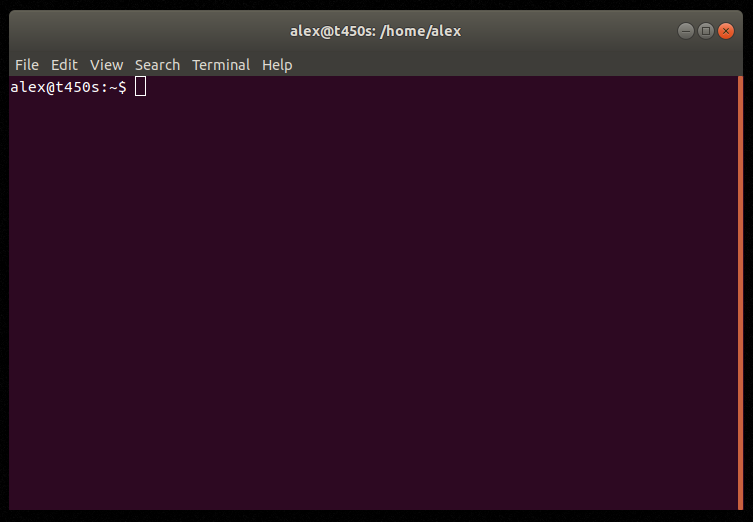
This is the terminal prompt. This is where you enter commands. You can see there's some text there already, the terminal will print this out when it's ready to accept commands from you, the default text it prints out is:
`username@machine-name:your-working-directory`
You might see that the `your-working-directory` part of the prompt is `~`. In the terminal, `~` is shorthand for your **home directory**.
### Hello world (echo) :speaking_head:
Let's try to print "Hello world!". The terminal command to display a line of text is `echo`. So lets put this command into the terminal:
`echo "Hello world!"`
And press enter. You should see the text "Hello world!" printed back at you.
Congrats :party_popper:, you've made a Hello world! program in the terminal.
### Creating a file (touch) :point_down:
Let's make a file. In a GUI program with a nice user interface, we might right click in the program, and click 'New File', but we can't do that in the terminal.
Instead we will use a command called `touch`. This will create an empty file for us. Let's type `touch myFile.txt` into the terminal.
Once you've done that, you might notice you don't get any feedback, there's nothing that says "File created succesfully" or anything, you just see a new prompt to enter a new command. This is normal, in Unix there is a convention that if a program doesn't output anything, it executed succesfuly.
### Finding the file we just created (ls) :mag:
Remember the `your-working-directory` part of the terminal prompt we talked about earlier? That is where your terminal is currently open to. When we used `touch`, the file we created was created in the `your-working-directory`.
Lets list the files in our current directory. To do this, we use the command called `ls`
> :thought_balloon: `ls` Sounds kinda like "list". Often times unix commands will be really short, like `rm` instead of "remove", this is so you have to type less).
At this point, our terminal might look something like this (The specific files and folders you see will probably be different from mine):
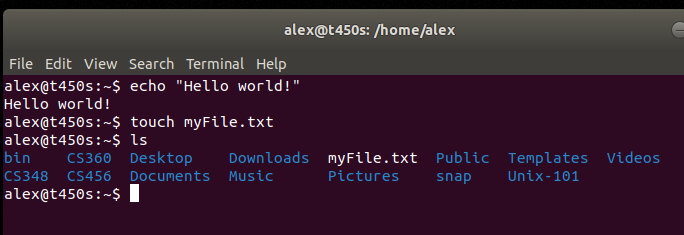
After we use the `ls` command, we will see a bunch of file and folder names in our terminal.
Most importantly, we will see the name of the file we created earlier, `myFile.txt`.
### Printing the file we created (less, cat) :page_facing_up:
To print a file, we can use either `cat` (which stands for concatenate) or `less` (the opposite of `more`, which is an old file viewer program).
As you might expect, to view the file we created type in `less myFile.txt` or `cat myFile.txt`.
> :thought_balloon: Note, you don't have to type in the entire filename, try typing in `less myF` and then pressing the Tab key. Your shell will try to autocomplete the filename, saving you time. Your shell will also try to do this with directories.
### Editing the file (nano, vim, emacs) :writing_hand:
To edit the file, we'll use a simple editor called `nano`. Most people don't use `nano` for anything but quick editing jobs, but editors that run in the terminal are notoriously unintuitive (however, it's still strongly recommended to learn how to use a terminal editor like `vim` or `emacs`).
`nano myFile.txt`
Once here, type in some text, then press Ctrl+x to exit the program, then type in `Y` to save the file when you're prompted. Then, `nano` will ask you what file to write to, just press enter to default to `myFile.txt`.
Print the file again using either `less` or `cat`, and you should see the text you just entered.
### Directories (pwd) :file_folder:
In Unix systems, your files are organized in directories. To see the current directory you are working in, use the `pwd` command. It will print a **path** which looks something like:
`/user/azvorygi`
What this is saying, is your current working directory is:
- The "root" `/` directory. This is the root of your file system.
- Which contains the directory `user/`
- Which contains the directory `azvorygi/`, which is where you currently are. `azvorygi` is my username, so you'll probably see something different.
### Creating a folder (mkdir) :open_file_folder:
Let's create a folder. The command for this is `mkdir`.
`mkdir my-folder`
> :thought_balloon: Files in Unix systems can contains, dots, dashes, or even emoji 😃!. You can even have spaces, but that's [a little more complicated](https://www.hecticgeek.com/2014/02/spaces-file-names-command-line/).
Now, lets check the contents of our current directory. Try to remember the command to do that. If you don't remember, it's `ls`.
You should see somewhere in the output of `ls` your new folder.
### Copying and renaming files (cp, mv) :truck:
Let's copy `myFile.txt` to `my-folder`. To do that we use the `cp` (copy) command.
`cp` takes some arguments, some source files, and a destination. Our source file is `myFile.txt`, our destination is `my-folder`. Altogether:
`cp myFile.txt my-folder`
As before, there should be no output if the command succeeded as expected, and otherwise it will print out some errors.
Now, let's do a more advanced use of `ls`. Try using the command `ls my-folder`. This should list the contents of the `my-folder` directory. Also notice if you just use the `ls` command without specifying `my-folder`, `myFile.txt` is still present in the current directory.
To move a file, use `mv` (move), it works much the same as `cp`, except it deletes the original copy of the file. Note, you can use `mv` to rename a file: `mv oldFileName newFileName`.
### Changing directories (cd) :airplane:
Lets go to this new folder we created. The command for that is `cd` (change directory).
`cd my-folder`.
If you use `pwd`, you should see your working directory has changed to the new directory (something like `/user/azvorygi/my-folder`. If you use `ls`, you should see just the file `myFile.txt`.
Lets go back to your home directory now. But instead of doing `cd /user/azvorygi` lets do `cd ..`. In the terminal, `..` means "go up one directory". So if you wanted to go up two directories, you could write `cd ../..`. Alternatively, you could write `cd ~` to go back to your home directory.
> :thought:balloon: Remember that `~` refers to your home directory in the terminal.
### Deleting directories and files (rm, rmdir) :